
Excel Mail Merge vs Power Query: Combine Files or Split Them

It is Thursday afternoon, 47 personalized pricing sheets are due to customers on Friday, and the top forum answer to your “merge Excel files” search said Power Query. You followed the tutorial faithfully: Get Data, transform, load. Twenty minutes of tutorial later, you have one clean consolidated table and zero of the 47 files.
The same search phrase carries an opposite reader: someone holding 12 monthly CSVs who wants one workbook, not many files. Half the results answer the wrong half of the audience, because “merge Excel files” means two opposite things. One camp wants many files combined into one workbook; the other wants an Excel mail merge, one workbook turned into many personalized files.
This article teaches both tools properly, states both sets of limits flat, then shows the pipeline that uses both. One disclosure up front: MailMergic makes the output-side tool in this comparison, and the comparison stays fair because the two tools never compete for the same job. This is the comparison six earlier articles in this series promised.
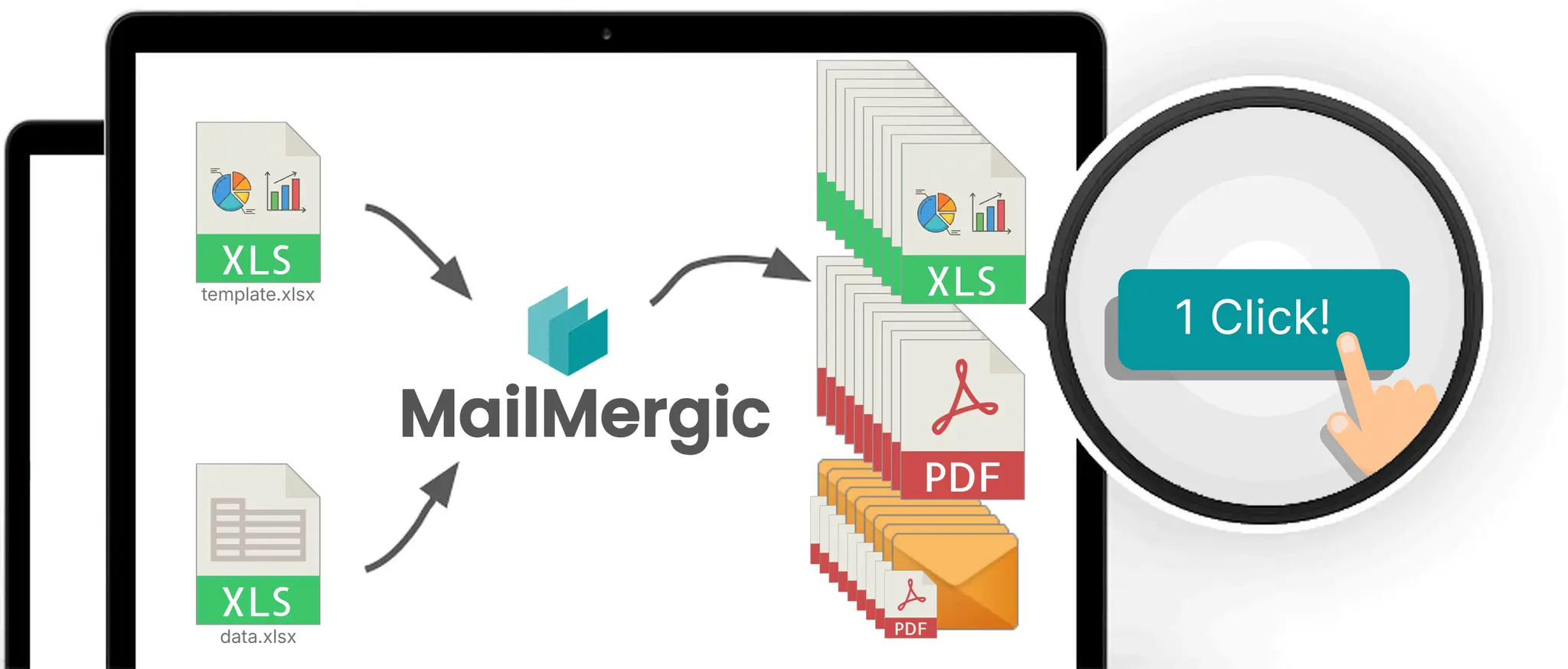
Table of contents
- One search, two opposite jobs
- How to combine multiple Excel files into one with Power Query
- Merge Queries vs Append Queries in Power Query: the difference in plain words
- Where Power Query stops
- How to split one Excel file into multiple files, one per row
- Where Excel mail merge stops
- Excel mail merge vs Power Query at a glance
- The pipeline: Power Query in, mail merge out
- Three questions that settle it
- Frequently asked questions
- Pick the end of the pipeline you are standing on
One search, two opposite jobs
The diagram above is the whole argument. Power Query sits on the input side: many sources go in, one consolidated workbook comes out. Excel to Excel mail merge sits on the output side: one workbook goes in, many personalized files come out. The decision guide framed the same split as pull versus push reporting, and its six-class tool table maps the wider field; this article re-teaches neither.
The search collision has a specific cause, and it is worth naming early: Power Query’s own command for joining two tables is literally called “Merge Queries.” So a search for “merge Excel files” returns join tutorials to people who want file generation, and file generators to people who want joins. The two audiences stand back to back on the same results page. Searches for “Excel data merge” and “merge Excel files” land on the same fork in intent.
The sections below walk each tool on its own terms, limits included.
How to combine multiple Excel files into one with Power Query
Power Query lives inside Excel as Get & Transform on the Data tab: built into Excel 2016 and later, a downloadable add-in for Excel 2010 and 2013. It connects to files, folders, databases, and web sources. Underneath is the M language; on top, a UI that covers the standard steps without code.
The worked example most readers arrive with: a folder holding 12 monthly CSVs that should be one table.
- Put all the files in one folder.
- In Excel, go to Data > Get Data > From File > From Folder and point it at that folder.
- Accept the combine Excel proposes: all 12 files stack into one table.
- Load the result to a worksheet.
When next January’s file lands in the folder, you repeat nothing: the query reads the folder, not a fixed file list, so the next refresh picks the new file up.
The star transform for this kind of data is the Unpivot Columns command. Exported reports love wide layouts, one column per month; analysis wants tall ones, one row per value. Unpivoting turns twelve month columns into a tidy month column and a value column in one step, and trimming spaces, fixing types, and dropping junk rows are built-in steps in the same query.
Every step is recorded once and replayed on every refresh: the cleanup you used to redo monthly becomes a recorded routine you never see, maintained by clicking, not coding.
The honest verdict, no hedging: for combining and cleaning data sources, Power Query beats copy-paste and most scripts, and it is already installed. If your problem is 12 files that need to become one, close this article and open the Data tab.
Merge Queries vs Append Queries in Power Query: the difference in plain words
Two commands inside Power Query carry most of the confusion, so here they are in plain words.
Append Queries stacks rows. It puts one table under another, so it works cleanly when the tables share the same columns: 12 monthly sales files with identical columns become one long table. Appending is what the From Folder combine does for you automatically.
Merge Queries joins tables. It matches two tables side by side on key columns: your sales table gains a region column by matching customer IDs against a customer table. If you have ever written a VLOOKUP to pull one table’s data into another, Merge Queries is that operation, done once for the whole table.
Here is the Thursday payoff. “Merge Queries” is Power Query’s own UI name for a join. That is exactly where the “merge Excel files” search confusion comes from: the forum answer was not wrong, it was answering the other reader, the one who wanted tables combined rather than files generated. Once you know the two meanings, the results page sorts itself.
Where Power Query stops
These are facts about scope, not flaws. Power Query has a terminal output, and it is one consolidated table.
- It cannot produce one file per row. A query loads a table to a worksheet or the Data Model; there is no operation that writes a folder of files.
- It cannot lay out a document. Rows and columns come out; headers, statements, and print-ready pages do not.
- It cannot email anything to anyone. There is no recipient concept anywhere in the tool.
- Desktop refresh happens with the workbook open, via Refresh All or refresh on open. Fully unattended scheduled refresh is Power BI service or Power Automate territory.
None of that is criticism; it is a boundary. The job on your desk continues on the far side of that table.
How to split one Excel file into multiple files, one per row
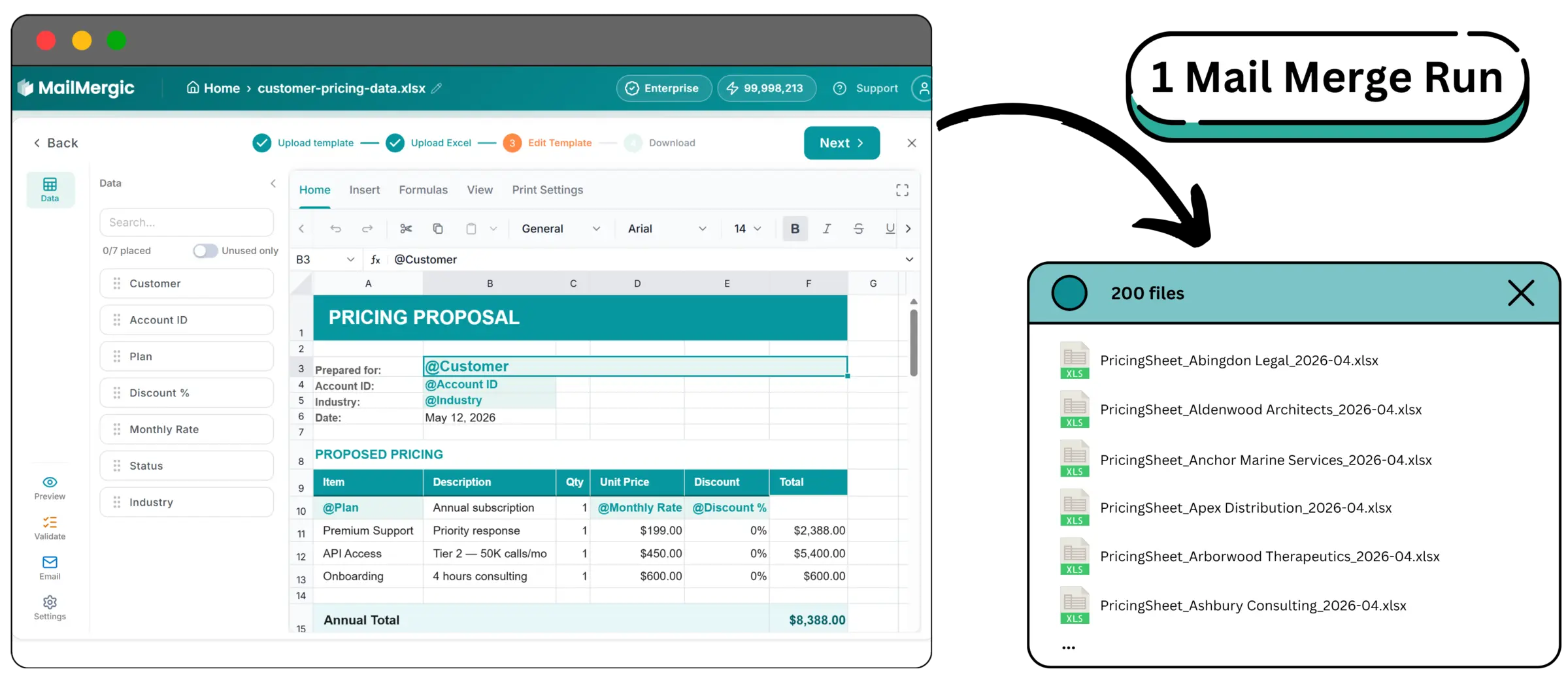
The output side starts from one workbook: a template sheet holding the layout, and a data sheet holding one row per file you owe. The mechanism is Excel to Excel mail merge, and it runs in the browser with no Office install.
Marking the variable cells takes minutes. Type @ in any template cell and a picker of your column names opens: @customer_name in the title cell, @discount_pct in the terms block. Generate, and each data row produces its own file, named from your columns (PriceSheet_@customer_name.xlsx) and downloaded together as a ZIP.
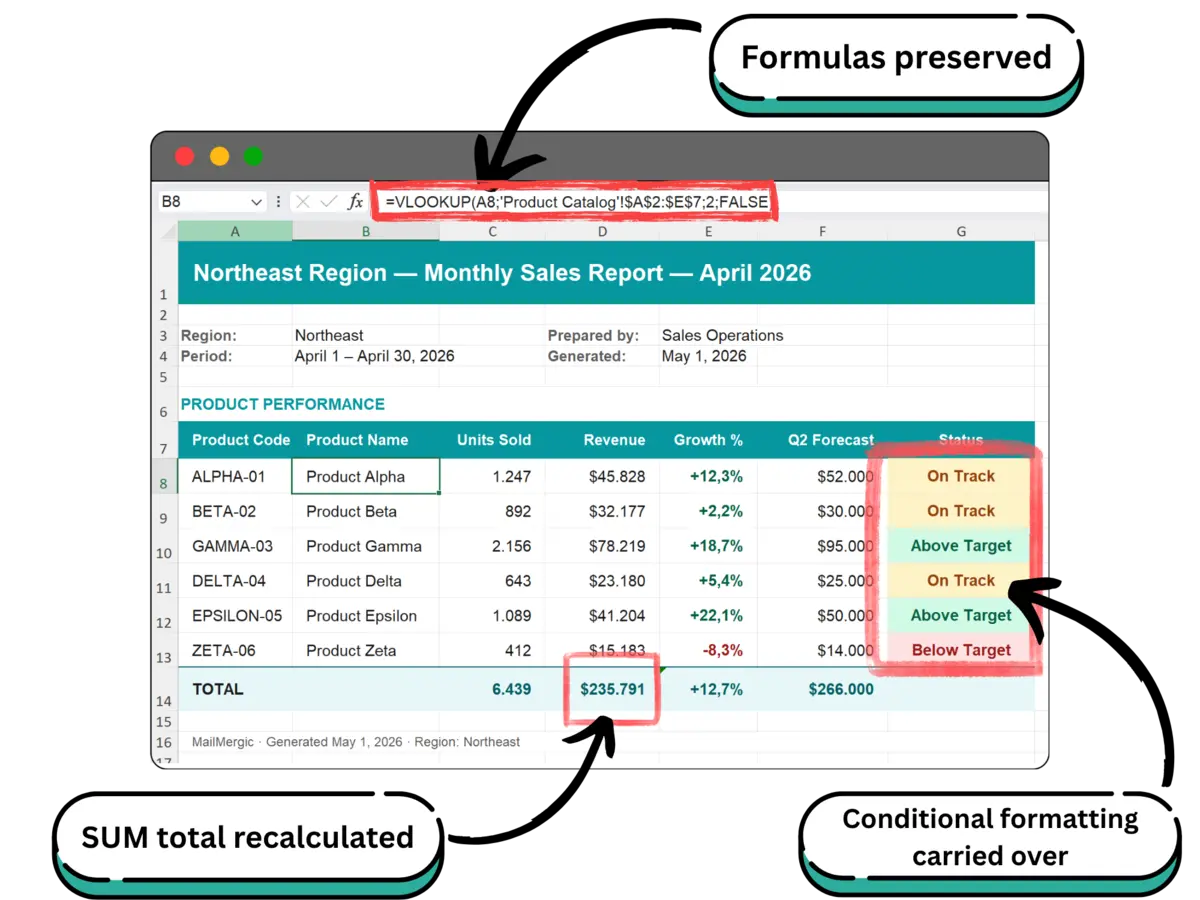
The part scripts and export tools get wrong is what survives. SUM, VLOOKUP, IF, INDEX/MATCH, SUMIFS, and COUNTIFS are preserved and recalculate after each row’s data substitutes, and conditional formatting carries through and keeps firing; the full preservation list is in the foundation guide. A generated file is a live spreadsheet, not a picture of one. This article does not re-teach the wizard; the complete guide walks every screen.
That resolves Thursday. The 47 pricing sheets were never a consolidation job: one master workbook with 47 customer rows, one template sheet, one run, 47 files, each customer seeing only their own prices because their file was built from nothing else. The pricing sheet build walks that factory end to end.
Delivery is an optional step in the same run: pick the recipient column, write a subject and body with merge fields, and each row’s file goes to that row’s address as an attachment, with delivery, opens, and bounces landing in a dashboard. Data handling in one sentence: files are processed in EU data centers, encrypted in transit and at rest, never used for AI training, with retention configurable from 1 to 180 days (privacy).
Where Excel mail merge stops
Same register as before: facts about scope, not flaws. This time they are our own.
- It does not combine or clean sources. One workbook goes in; assembling that workbook is input-side work, and this tool does none of it.
- There are no event triggers and no timer. Configuration persists between runs and a re-run is about a minute, but a person clicks it.
- Macros are stripped on upload. An .xlsm keeps its extension; the code comes out empty.
- Volume has edges: 25 MB per upload, 100,000 rows per run, one credit per generated row, with a free plan that includes monthly credits (pricing).
The two stop lists do not overlap. Each tool ends exactly where the other begins, which is the shape of a pipeline, not a rivalry.
Excel mail merge vs Power Query at a glance
Power Query combines many sources into one consolidated workbook; Excel mail merge turns one workbook into many personalized files, one per data row. If a row surprises you, the section that explains it is a scroll away.
| Feature | Power Query | Excel mail merge |
|---|---|---|
| Job | Combine and clean many sources into one dataset | Generate one personalized file per data row |
| Direction | Input side (pull) | Output side (push) |
| Input | Files, folders, databases, web sources | One workbook: template sheet plus data sheet |
| Output | One consolidated table in a workbook | Many .xlsx or PDF files, one per row, optionally emailed |
| Lives where | Inside Excel: Get & Transform on the Data tab | In the browser, no Office install |
| Skill needed | Intermediate Excel | Basic Excel |
| Time to first result | An afternoon | About 5 minutes |
| Scheduling / refresh | Manual or on workbook open; unattended refresh needs Power BI service or Power Automate | No timer; configuration persists, a re-run is about a minute |
| Cost | Included with Excel | Free plan with monthly credits; one credit per generated row |
| Where it breaks | Cannot split one workbook into many files; it is the input side of the pipeline | Cannot combine or clean sources; batch only, macros stripped, 25 MB and 100,000 rows |
The two “where it breaks” cells in the last row point at each other: not flaws, two different jobs.
The pipeline: Power Query in, mail merge out
The tutorial you followed on Thursday was not a detour. It was step one.
Here is the whole pipeline on the worked example. The 12 monthly CSVs go through Data > Get Data > From File > From Folder; the query cleans, unpivots, and stacks them into one tidy table. Now the handoff, and its one technical requirement: Close & Load the query result to a table on a worksheet, not to the Data Model only, because the mail merge upload reads worksheet cells, and a connection-only or Data Model load leaves the sheet empty. Save the .xlsx.
That saved workbook is the row source. Upload it, and the data imports as a snapshot of the file at that moment; when the query refreshes next month, save and re-upload, or reselect the file, so the run reads the new numbers. Add the template sheet with its @ placeholders, and the pipeline ends where Thursday needed it to: 47 per-customer pricing sheets from a master that Power Query assembled and nobody retyped.
Three earlier builds in this series each admit that assembling the export is input-side work, and this section is where that work gets its tool: the ERP extract behind the month-end pack, the HR export behind the performance review build, and the Units and Expenses sheets behind the rent roll build are all master workbooks Power Query can assemble and refresh while the mail merge run turns them into documents.
The pipeline also has a reverse edge at the very front: when source data is trapped in PDFs, newer Excel builds add a From PDF command that extracts the tables into Excel (availability varies by version), and our PDF-to-Excel guide teaches it as Method 5. Extraction, consolidation, generation: three stages, and the middle one is a plain .xlsx that either tool can shake hands over.
Three questions that settle it
- Do you owe one dataset or many files? One dataset: Power Query, close this tab, you are done, and no product of ours is involved. Many files: you are on the output side, keep reading.
- Does anything leave the building addressed to a person? Per-customer, per-employee, and per-property files are output-side by definition. When that output is prose, a letter or a contract rather than a spreadsheet, Word mail merge is the right output-side mechanism instead.
- Who maintains it when you are gone? Both answers are good news. Power Query’s steps are recorded in the query and replay for whoever inherits the workbook; a mail merge run’s configuration persists, so the successor updates the data and clicks run. Neither hides its logic in code only one person can read.
Many readers genuinely need both. Not as alternatives, but at opposite ends of the same pipeline.
Frequently asked questions
Q: Is Power Query the same as mail merge?
A: No, they point in opposite directions. Power Query combines many sources into one consolidated workbook, the input side. Excel mail merge generates many personalized files from one workbook, the output side. They do different jobs and pair in one pipeline.
Q: Can Power Query create multiple files from one workbook?
A: No. A query’s terminal output is one consolidated table, loaded to a worksheet or the Data Model; nothing in it writes one file per row. Splitting one workbook into many files is an output-side job and needs a mail merge tool.
Q: How do I combine multiple Excel files into one?
A: Put the files in one folder and use Data > Get Data > From File > From Folder in Excel. Power Query proposes the combine, loads every file into one table, and picks up files added later on the next refresh. Nothing beyond Excel is needed.
Q: How do I split one Excel file into multiple files?
A: Use an Excel mail merge: a template sheet plus a data sheet in one workbook, with @ placeholders marking the variable cells. Each data row generates one personalized file, named from your columns and downloaded together as a ZIP.
Q: What is the difference between Merge Queries and Append Queries?
A: Append Queries stacks rows from same-shaped tables, like pasting one table under another. Merge Queries joins two tables side by side on key columns, the VLOOKUP-shaped operation. Stack when the tables are the same kind of thing; join when one looks things up in the other.
Q: Can Power Query send emails?
A: No. Power Query connects, transforms, and loads a table; it has no recipient or sending concept. Emailing belongs to other tools: a mail client, a workflow platform, or the email step of a mail merge run.
Q: Can I use a Power Query output as a mail merge data source?
A: Yes, and it is the natural pipeline. Close & Load the query result to a table on a worksheet, save the .xlsx, and upload it as the row source. The upload is a snapshot, so after each refresh, re-upload or reselect the file before the next run.
Q: Do I need Power Query installed to mail merge?
A: No. Excel to Excel mail merge runs in the browser with no Office install and reads .xlsx, .csv, and other common formats directly. Power Query only enters the picture when your data first needs combining or cleaning.
Q: Can Power Query replace VBA?
A: For input-side work, often yes: recorded query steps replace the import-and-clean macros that break with every layout change. Output-side macros, the file-per-row loops, are a different job, and the no-VBA guide maps which tool retires which macro.
Q: Does mail merge change my source workbook?
A: No. A run reads the uploaded workbook and writes new files; the original is untouched. Because template and data live in one workbook, generated files carry no external references, so the update-links prompt and its #REF! errors have nothing to fire on.
Pick the end of the pipeline you are standing on
If your pain is assembling inputs, twelve files that should be one table, open the Data tab today; Power Query is already installed, and this article cost you nothing. If your pain is the 47 files due tomorrow, the first run takes about five minutes on the free plan. And if you run reports for a living, most months you will touch both ends of the pipeline, in that order.
Try Excel to Excel mail merge →
New to the mechanism? Start with the complete guide. Replacing the macro? The no-VBA guide walks the migration. Weighing tool classes? Read the decision guide. The worked factories are the pricing sheet build, the month-end pack, the performance review build, and the rent roll build. The formula preservation deep dive completes the series.
