
Excel Mail Merge Without Word: Excel Files, PDFs and Emails

Excel mail merge (Excel to Excel) turns one workbook into many personalized files. You mark cells in a template sheet with @columnName placeholders, keep your rows of data on another sheet, and get one filled-in Excel file or PDF per row. Formulas, conditional formatting, named ranges, cell styles and print areas carry through, and you can email each file to its recipient as an attachment.
It is for teams who rebuild the same spreadsheet for different people every month: per-customer pricing sheets, per-region sales reports, per-employee reviews, per-property rent rolls. Excel has no built-in mail merge for this, and Word’s mail merge only produces Word documents, so the usual workarounds are VBA macros or an afternoon of Save As, copy, paste, rename.
MailMergic’s Excel mail merge feature does it in the browser, with no Word, no VBA and no copy-paste, and downloads the whole batch as a ZIP. This guide explains how it works, what it can do, when to use it, and the four most common workflows it replaces.
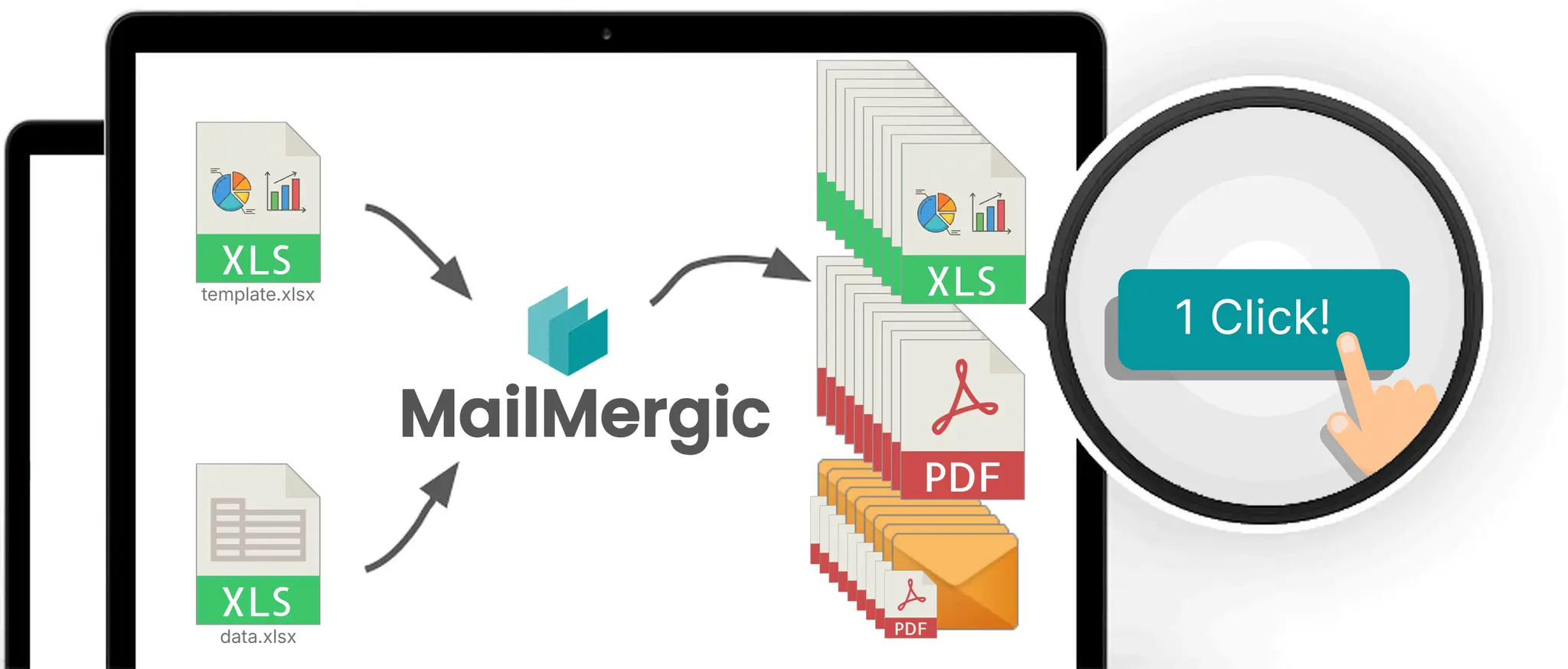
Table of contents
- What is Excel to Excel Mail Merge?
- How it works in five minutes
- The workflow in detail
- What survives the mail merge
- The four most common use cases
- Excel mail merge vs Word mail merge: when to use each
- Excel mail merge vs Power Query: a common confusion
- Limits and edge cases
- Pricing and plan availability
- Frequently asked questions
What is Excel to Excel Mail Merge?
Excel to Excel mail merge is a workflow where one Excel workbook serves as both template and data source, and a mail merge engine generates one personalized file per row of data. The output is either Excel (.xlsx) by default, or PDF if the recipient just needs to view, print, or archive the file. The placeholder syntax inside the template is @columnName, with the leading @ marking a cell as a placeholder.
Crucially, this is not the same as “merging Excel files into one big file.” That is a Power Query workflow that takes many sources and produces a single consolidated dataset. We cover that confusion in detail in section seven. Excel mail merge does the opposite: it takes one workbook and produces many personalized files.
It is also not the same as a mail merge in Word that uses Excel as the data source (see mail merge from Excel). That workflow produces Word documents. Excel mail merge produces spreadsheets, with formulas intact, conditional formatting carried through, and the recipient free to keep editing the file if they want to.
Microsoft Excel does not have a native mail merge feature for this kind of output. The closest built-in options are VBA macros (which require code and break easily) and Microsoft Word’s mail merge (which produces Word files, not Excel files). MailMergic is the specialized tool that fills the gap, designed specifically for the one-template-many-rows-many-files workflow.
The pattern shows up across almost every department. Sales operations generates per-customer pricing sheets. Finance generates per-region monthly statements. HR generates per-employee performance summaries. Property management generates per-property rent rolls. Each is the same shape: one master workbook in, many personalized files out, repeated on a monthly or weekly cadence.
How it works in five minutes
The MailMergic wizard has five steps, the last of which is optional. The whole flow takes about five minutes the first time and less than a minute on every subsequent run.
Step 1: Upload your template. Drag a template into the upload area. For an Excel mail merge specifically, the template is the workbook that holds the placeholders and the layout. The same workbook can also hold your data, on a separate sheet.
Step 2: Upload your data file. For an Excel-only workflow, this is the same workbook you just uploaded as your template. The mail merge engine reads one sheet as the layout and another sheet as the row source. You can also point at a separate Excel file, a CSV, or a Google Sheet imported via OAuth.
Step 3: Edit the template. This is where you mark cells with @columnName placeholders that point to your data columns. The editor is a full spreadsheet with the formula bar, ribbon, sheet tabs, and editable cells. It works like Excel, plus a few mail-merge-specific affordances we describe in the next section.
Step 4: Download the merged output. Choose your format (Excel by default, PDF optional), pick a filename pattern, and run the mail merge. Each output file is named according to a pattern you define, and the full batch downloads as a ZIP.
Step 5 (optional): Send emails. Pick a column from your data that contains recipient addresses, compose a subject and body with placeholders, and each recipient receives their personalized file as an attachment. Delivery, opens, and bounces are tracked from a single dashboard.
That is the whole product. No installation, no Excel desktop license, no Word, no VBA. The next section walks through each step in detail so a first-time user can finish their first mail merge without backtracking.
The workflow in detail
This is the section to read if you’re about to run your first Excel mail merge and want to know what to expect at each step.
Step 1: Upload your template
MailMergic accepts the common spreadsheet formats: .xlsx, .xlsm, .xls, .xlsb, .csv, .txt, and .ods. The upload limit is 25 MB per file and 100,000 rows of data per mail merge run.
A few constraints to know upfront. Password-protected workbooks are not supported because the editor cannot open encrypted files. Remove the password in Excel before uploading. Empty files are rejected with a clear error. Files that exceed the size or row limits are also flagged before processing.
If you want to look around before committing your own data, the upload screen has a “try with sample data” option that loads a pre-built workbook. Useful for understanding the editor without exposing anything sensitive.
Step 2: Upload your data file
You have two sources to choose from. The first is a local file via drag and drop, with the same format support as step 1. The second is a Google Sheet, picked from your Google Drive via OAuth. The Google Sheets import takes a snapshot at the moment you connect, so changes made later in the sheet do not sync automatically. To refresh, reselect the sheet.
Header row auto-detection runs on every data upload. The system scans the first 15 rows and picks the most likely header row. If your headers are not in row 1 (a common pattern when reports include a title block above the table), a banner appears: “We detected row N as your header row,” with a “Change” link if the detection got it wrong.
Step 3: Edit the template
The editor is where the actual mail merge configuration happens. It’s a full Syncfusion Spreadsheet with the formula bar, ribbon, sheet tabs, and editable cells. It behaves like Excel with four mail-merge-specific additions:
-
The
@placeholder picker. Type@in any cell to open a picker that lists your data columns. Type to filter. Press Enter to insert. The cell’s visible value becomes@columnName, and every merged output will substitute that cell with the matching column value for the current row. -
A custom Print Settings ribbon tab. Four buttons: Set Print Area, Clear Print Area, Preview, Print Settings. Each one applies per sheet, so a multi-sheet template can have different print configurations per page.
-
Per-sheet inclusion toggles. Right-click any sheet tab to toggle whether the sheet is included in the merged output. Useful when you keep lookup tables or scratch sheets in the same workbook but don’t want them in the output.
-
A floating “Row N of M” pill. At the bottom of the editor, this lets you step through your data rows and see a live preview of one merged record at a time. The best way to catch broken formulas or misnamed columns before running a full batch.
Two things to know about placeholder syntax. Whole-cell placeholders work with any column name, including names with spaces. So @First Name in a cell by itself works fine. Inline placeholders, where the placeholder appears alongside other text in the cell, only work for column names without spaces. So Hello @first_name, works, but Hello @First Name, does not. The fix is either to rename the column or to put the placeholder in its own cell.
Step 4: Download
The download step has four configurable options:
- Format. Excel (.xlsx) by default, PDF as an alternative. Choose Excel when the recipient needs to keep editing or working with formulas. Choose PDF when the recipient just needs to view, print, or archive the file.
- Filename pattern. Use column variables to build a unique filename per row. Example:
Invoice_@invoice_number_@customer_name.xlsxbecomesInvoice_INV-001_Acme Corp.xlsxfor the first row,Invoice_INV-002_Globex.xlsxfor the second, and so on. - Sheet selection. Pick which sheets render in each output file. Excluded sheets stay in your workbook but are not rendered.
- PDF password (optional). If you choose PDF output, you can apply a password to every generated file.
By default, Excel mail merge produces one file per row and delivers the batch as a ZIP. If you select PDF as the output format, you can also choose to combine all merged records into a single PDF file. Excel (.xlsx) output is always one file per row.
Step 5: Send emails (optional)
When email delivery is enabled, a fifth step appears. You pick a column from your data that contains recipient email addresses, compose a subject and body using placeholders, and each recipient receives their personalized file as an attachment. Sending is one click. Delivery results show up in a dashboard with per-recipient status.

What survives the mail merge
This is the section most technical buyers want to see before they trust a mail merge tool with a real workbook. Be skeptical of any product that doesn’t spell this out.
Formulas. Standard Excel functions are preserved and recalculated after data substitution. SUM, VLOOKUP, IF, INDEX/MATCH, SUMIFS, COUNTIFS, the date and text functions, and the financial functions all work as expected. A formula like =SUM(B2:B10) totals the merged values for each output row correctly, because the recalculation happens after the row data is substituted into the placeholder cells.
Conditional formatting. Color-coded status cells, data bars, icon sets, and rule-based color scales all carry through to the merged output. A status column that shows green for “Paid,” yellow for “Pending,” and red for “Overdue” looks the same in every generated file.
Named ranges. Preserved. If your template references a named range like TaxRate instead of a cell address, the reference still resolves correctly after the mail merge.
Cell styles. Fonts, borders, fill colors, alignment, and number formats all carry through. Currency formats, date formats, and percentage formats render the way you set them.
Print areas. Print areas set in Excel before upload are detected and re-applied. You can also set or change them inside the MailMergic editor using the Print Settings ribbon tab.
Multi-sheet structure. All included sheets render together in each output file, in workbook order, with per-sheet print settings respected. A three-sheet template produces a three-sheet output per row.
Per-sheet page setup. Orientation (portrait or landscape) and paper size (A4, Letter, Legal, and the other standard sizes) can be set globally or per sheet.
What is stripped:
Macros (VBA blob). Macros are removed on upload, for security reasons. The output retains the .xlsm extension if the input had one, but the macro code is empty. If your template depends on VBA logic for calculation, that logic does not run in the merged output. For most teams this is a feature, not a bug, because the whole reason for adopting a mail merge tool is usually to retire fragile VBA workflows.
What may break:
Unusual or proprietary Excel functions. The mail merge engine supports the vast majority of standard Excel functions through Syncfusion’s .NET Excel Library on the backend. Anything it doesn’t recognize will render as #NAME? or #VALUE! in the merged file. Run a preview mail merge with one representative row before doing a 500-row batch.
Circular references. Treated the way Excel treats them: affected cells fall back to 0 unless iterative calculation is enabled at workbook level.
Array formulas, external file references, and very large pivot tables. These are edge cases. Most templates don’t use them, but if yours does, a one-row test mail merge will tell you immediately whether the behavior matches what you expect.
The four most common use cases
These are the patterns we hear most often from teams who switch from manual processes or VBA scripts to Excel mail merge.

Use case 1: Per-customer pricing sheets
A sales operations team maintains a master pricing workbook with product names, base prices, and customer-specific discount columns. Each row represents one customer. The template sheet contains a polished pricing layout with @customer_name, @product_a_price, and @total placeholders, plus formulas like =B5*0.85 to calculate the discounted price per row.
Output: 47 personalized pricing PDFs in one mail merge run. Each customer sees only their pricing, formatted on the company letterhead. Distribution happens via email attachment or through the company’s customer portal.
What changes when this team switches: 47 manual “Save As” operations become one mail merge run. The copy-paste errors that used to slip through (wrong customer name on the wrong document, wrong discount column applied) disappear because the data is the single source of truth. The complete build of this workflow, from tier table to send step, is in the customer pricing sheets guide.
Use case 2: Per-region monthly sales reports
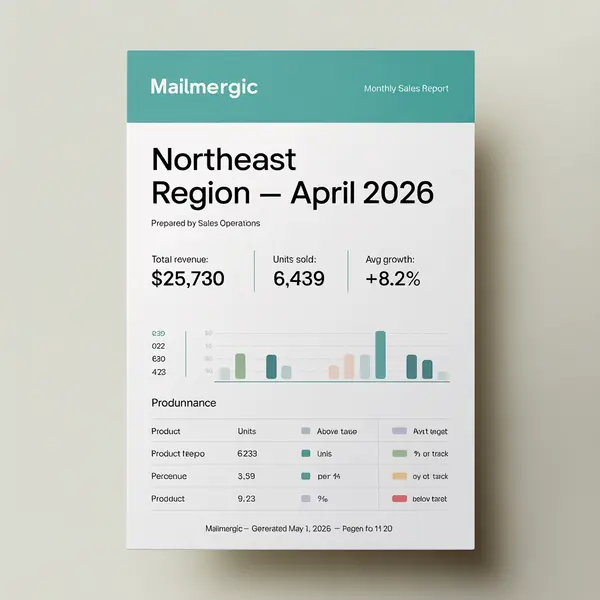
A finance team has a master workbook with sales data tagged by region. The template sheet shows a clean monthly report layout: revenue summary, top products by category, growth metrics versus the prior period. Placeholders pull region-specific data: @region_name, @total_revenue, @yoy_growth.
Output: six regional sales reports as PDFs, sent automatically to each regional VP at month-end. Conditional formatting highlights underperforming products in red and top performers in green. The same conditional formatting survives in the merged output, so the VP opens a report that looks identical to the template, populated with their region’s numbers.
What changes: a monthly task that used to take half a day becomes a 10-minute setup the first month and a one-minute re-run every month after. For the reporting problem in full, including when a dashboard is the better tool, see the Excel reporting decision guide. The full month-end build of this pack, formulas and distribution included, is in the regional reporting pack guide.
Use case 3: Per-employee performance summaries
An HR team maintains a performance review workbook with employee names, ratings, reviewer comments, and category-level scores. The template sheet has a clean review document layout with @employee_name, @review_period, and @overall_rating placeholders. A nested formula calculates the weighted overall score from the individual category ratings.
Output: 200 individual performance review documents, one per employee, each containing only that employee’s data. Sent to managers as PDF attachments, with the recipient’s email pulled from a column in the data.
What changes: sensitive data stays scoped to a single employee per document. There is no risk of accidentally attaching the wrong file or sharing the whole roster. The HR team manages one master workbook instead of 200 separate files, and updates to the template apply to the entire next cycle in one place. The full cycle build, from HRIS export to delivered documents, is in the performance review documents guide.
Use case 4: Per-property rent rolls and statements
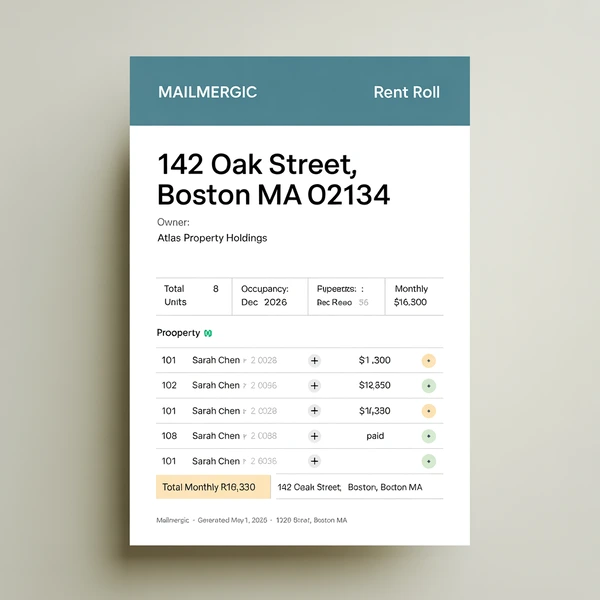
A property management team maintains a portfolio workbook with property addresses, units, tenants, rents, and lease terms. The template generates a monthly rent roll per property: occupancy summary, a tenant table with status, total revenue, and a notes field for the property manager.
Output: one rent roll PDF per property per month, distributed to the property owner. The status column uses conditional formatting (green for “Paid,” yellow for “Pending,” red for “Overdue”) which carries through to each output file. Owners receive consistent, branded reports without the property manager touching individual files.
What changes: a recurring monthly task across a portfolio of 30 or 300 properties becomes one mail merge run. The template lives in one place; updates propagate immediately. The full portfolio cycle, rolls, owner statements, and tenant letters included, is in the rent roll guide.
Excel mail merge vs Word mail merge: when to use each
Both Word mail merge and Excel mail merge solve the same general problem (one template plus many rows produces many personalized files), but they fit different kinds of output. The simplest way to choose is to think about what the recipient does with the file and what the layout is fundamentally made of.
| Question | Use Excel mail merge | Use Word mail merge |
|---|---|---|
| What does the recipient do with the file? | Read it (PDF) or edit it further (Excel) | Read it as a finished document |
| Does the file need formulas? | Yes | No |
| Does the file need conditional formatting? | Yes | No |
| Is the layout numerical or tabular? | Yes | No |
| Is the layout text-heavy (letters, contracts, agreements)? | No | Yes |
| Output format | .xlsx or PDF | .docx or PDF |
The decision rule in prose: when your template is fundamentally a spreadsheet (pricing sheet, sales report, performance summary, rent roll, financial statement), Excel mail merge is the right tool because formulas, conditional formatting, and cell styles are the parts that matter. When your template is a document (letter, contract, NDA, certificate), Word mail merge is the right tool because layout, paragraph formatting, and prose flow are the parts that matter.
Some workflows genuinely could go either way. A monthly customer invoice could live in Excel (calculate the line total automatically with formulas) or in Word (cleaner letter-style layout). The tiebreaker we recommend: if the recipient might keep editing the file after they receive it, use Excel. If the file is final and will be archived or printed, use Word.
If your template is a mix (some structured tables, some prose paragraphs), you can use either format. The Excel option preserves the table formulas; the Word option preserves the prose layout. Pick the format where the harder-to-replicate element matters most.
Excel mail merge vs Power Query: a common confusion
This section deserves its own space because Google searches for “excel data merge” often return Power Query content, and readers arrive at this guide confused about whether the two tools do the same thing. They don’t.
Power Query combines data INTO Excel. It takes multiple data sources (CSV files, database tables, other Excel workbooks) and combines them into a single consolidated dataset in one Excel sheet. The output is one workbook. It is an input-side workflow.
Excel mail merge generates files FROM Excel data. It takes one Excel data source and produces multiple personalized output files, one per row. The output is many files. It is an output-side workflow.
You use Power Query when you need to combine 12 monthly CSV files into one annual sales workbook. You use Excel mail merge when you need to take that annual workbook and generate 47 customer-specific pricing sheets from it.
The two workflows are complementary, not competitive. A typical real-world flow looks like this:
- Power Query combines monthly source data into a master workbook.
- Excel mail merge generates per-customer or per-region reports from the master workbook.
Power Query is built into Excel and ships with every modern version. Excel mail merge requires a specialized tool like MailMergic, because Excel does not have native mail merge for spreadsheet output.
Many readers who arrive at this section looking for “Excel data merge” actually need both tools. There is no need to pick one. They live at opposite ends of the same pipeline.
Limits and edge cases
Be explicit about limitations upfront. Technical buyers test products by trying to break them, and they trust documentation that admits where the edges are.
- File size. 25 MB maximum upload per file. Workbooks larger than this need to be slimmed down (remove unused sheets, drop image-heavy decoration) before upload.
- Row count. 100,000 maximum rows per mail merge run. Larger batches need to be split into multiple runs.
- Combined output. Supported when PDF is the output format: all merged records can render into a single combined PDF. Excel (.xlsx) output is always one file per row.
- Macros. Stripped on upload. If your template depends on VBA for calculation, that logic does not run in the merged output. Most teams adopt MailMergic specifically to retire VBA workflows, so this is usually intentional.
- Inline placeholders with spaces. Column names with spaces only work in whole-cell placeholders. Use
@First Namein a cell by itself, or rename the column tofirst_nameso it works inline as well. - Password-protected files. Not supported. Remove the password in Excel before uploading.
- Empty rows in data. Processed normally, which produces an output file with all-empty substitutions. Filter empty rows out of your data before upload if you don’t want them in the batch.
- Circular references. Treated the way Excel treats them. Affected cells fall back to 0 unless iterative calculation is enabled at workbook level.
- Array formulas, external file references, large pivot tables. Edge cases. Most templates don’t use them. If yours does, run a one-row test mail merge first to confirm the behavior matches what you expect.
Pricing and plan availability
Excel mail merge is available on every paid plan, plus a free plan with a monthly credit allowance. Start free, then upgrade to Pro or Enterprise for higher volumes, email delivery from your own domain, and additional integrations.
Credits are consumed per row generated. A 50-row mail merge uses 50 credits. The free plan includes enough credits for typical small workflows so you can verify the tool fits your template and data before paying.
Pricing details and plan comparisons are on the pricing page. If you have an unusual volume or compliance requirement, the team is responsive to email and happy to discuss options.
Frequently asked questions
Q: Can I do mail merge in Excel without Word?
A: Yes. MailMergic generates personalized files (Excel or PDF) directly from your Excel data without needing Word installed or a Word template anywhere in the workflow. The entire process runs in your browser.
Q: What’s the difference between Excel mail merge and Power Query?
A: Power Query combines multiple data sources into one Excel workbook (input-side). Excel mail merge takes one Excel workbook and generates many personalized files (output-side). They solve different problems and complement each other in a typical reporting pipeline.
Q: Do my Excel formulas survive the mail merge?
A: Yes. SUM, VLOOKUP, IF, INDEX/MATCH, and the standard Excel functions are preserved and recalculated after data substitution. Conditional formatting, named ranges, and cell styles also carry through.
Q: What happens to my VBA macros?
A: Macros are stripped on upload for security reasons. If your template depends on macro logic, that logic will not run in the merged output. Most teams using MailMergic are specifically replacing VBA-based workflows, so this is usually a benefit rather than a constraint.
Q: Can I send each merged file to a different email recipient?
A: Yes. Enable the optional Send Emails step, pick a column from your data that contains recipient addresses, compose a subject and body with placeholders, and each recipient receives their personalized file as an attachment. Delivery and bounce results show up in a dashboard.
Q: Can I output the mail merge as one combined file?
A: Yes, when you choose PDF as the output format. All merged records can be combined into a single PDF file. Excel (.xlsx) output is always one file per row, so for combined output pick PDF.
Q: Can I generate files in both PDF and Excel formats?
A: For a single mail merge run you choose one output format (Excel or PDF). To produce both, run the mail merge twice with different format selections. The configuration is preserved between runs, so the second pass is one click.
Q: How many rows can I mail merge in one run?
A: Up to 100,000 rows per mail merge run, with a 25 MB maximum file size per upload.
Q: Do I need Microsoft Excel installed to use Excel mail merge?
A: No. MailMergic runs entirely in the browser. You do not need Excel, Word, or any Microsoft Office product installed.
Q: How does MailMergic protect my data?
A: Files are encrypted in transit and at rest, hosted in the EU, and processed only for your mail merge runs. Macros are stripped on upload. MailMergic is GDPR and CCPA compliant. The privacy page covers the data handling details.
Try it on your own workbook
Excel to Excel mail merge replaces a recurring workflow that most teams treat as inevitable: open the master workbook, copy, paste, rename, repeat. It does not have to be inevitable. One template, your data, a single mail merge run.
You can upload your own workbook and try a mail merge in under five minutes. No installation, no Word, no scripting. If your template has formulas and conditional formatting, they survive the mail merge unchanged.
Try Excel to Excel mail merge →
Looking for more on the same topic? The full comparison of Excel mail merge versus Power Query is live, along with a step-by-step on per-customer pricing sheets and the formula preservation deep dive. The series is complete.
