
How to Copy a Table from PDF to Excel (Without Breaking the Formatting)

Need to copy a table from PDF to Excel so you can filter, analyze, or report on the data but every time you paste, the layout breaks, cells merge, or numbers go missing? Here is how to solve it.
Short answer:
You can get tables from a PDF into Excel by:
- Opening the PDF in a tool that supports table extraction (e.g., Adobe Acrobat, online converters, or Excel itself).
- Selecting the table or using the tool’s export function.
- Copying or exporting the data directly to Excel.
- Cleaning up formatting if needed (adjust columns, remove merged cells, fix headers).
This lets you quickly turn PDF tables into editable Excel sheets.

Quick decision guide: Which method should you use?
Since you’re likely familiar with PDF documents and just need to know how to copy a table into an Excel sheet, let’s jump straight into the solutions. If you want to get it done fast, start here:
- Simple, well-structured table in a digital PDF
→ Try direct copy-paste + Paste Special in Excel (fastest, no extra tools). - Complex table, or copy/paste breaks the layout
→ Open the PDF in Microsoft Word, let Word convert to an editable document, then copy the table into Excel. - You have Adobe Acrobat (not just Reader)
→ Use “Export to Microsoft Excel” directly to get a reasonably clean worksheet. - You prefer a one-click web solution
→ Use an online PDF-to-Excel converter, then open the resulting Excel file and clean it up. - You have many PDFs with many tables
→ Use Power Query / Get Data from PDF in Excel (for supported versions) to extract tables from multiple PDFs in one workflow.
Below, we’ll walk through these approaches step by step, then cover troubleshooting.

Why copying tables from PDF to Excel is tricky
PDF is designed to preserve how a document looks (layout, fonts, page breaks). Excel is designed to structure data in cells for calculation and analysis.
Because PDFs don’t store data as a neat grid of rows and columns, Excel often:
- misreads column boundaries,
- merges several columns into one, or
- splits single values across multiple cells.
That’s why the method and tool you pick matter so much for getting a clean result.
Method 1: Copy table from PDF to Excel with copy-paste (fastest)
Best for: simple, clearly structured tables in digital PDFs.
Not ideal for: scanned PDFs or very complex layouts.
Step-by-step
- Open the PDF with a viewer that supports text selection
- For example, a desktop viewer or browser.
- Select the table
- Drag to highlight the rows and columns you want to copy.
- If possible, avoid including page numbers, headings, or footers.
- Copy the selection
- Right-click →
Copy, or - Press
Ctrl + C(Cmd + Con Mac).
- Right-click →
- Paste into Excel using Paste Special
- Open Excel and select the top-left cell where you want the table.
- Right-click →
Paste Special→ try:Text(to split columns on spaces/tabs), orMatch Destination Formattingand adjust as needed.
- Fix column breaks and alignment
- Use Text to Columns if Excel dumped everything into one column.
- Adjust column widths, remove empty rows, and reformat numbers/dates.
Pros
- Very fast, no extra software
- Works well for basic tables
Cons
- Often breaks formatting on more complex layouts
- Doesn’t work well on scanned PDFs (images, not text)
Method 2: Use Microsoft Word as a bridge (PDF → Word → Excel)
Best for: complex tables or PDFs where direct paste is messy.
Works on many versions of Office and both Windows and macOS.
Step-by-step
- Open the PDF in Microsoft Word
- In File Explorer / Finder, right-click the PDF →
Open with→Word(or drag the PDF onto an open Word window). - Word will show a message that it’s converting the PDF to an editable document. Confirm to continue.
- In File Explorer / Finder, right-click the PDF →

- Let Word convert the PDF
- After conversion, scroll to the table you need.
- Word usually recognizes tables and converts them into real Word table objects (rows/columns) rather than raw text.
- Select and copy the table
- Click the table move handle (small square at the top-left of the table) or drag to select the full table.
- Right-click →
Copy, or pressCtrl + C.
- Paste into Excel
- Open an Excel workbook and select the target cell.
- Press
Ctrl + Vto paste. - The table should appear with rows and columns mostly intact.
- Clean up formatting
- Adjust column widths, remove extra header rows, and fix date/number formats.
- If columns are still misaligned, try pasting into a blank sheet first, then use Text to Columns and sorting/filtering to reshape.
Pros
- Handles complex tables better than raw copy-paste
- Uses tools many users already have (Word + Excel)
Cons
- Conversion can still misinterpret some layouts
- Not ideal for heavily formatted PDFs or scanned documents
Method 3: Export from PDF to Excel (Adobe Acrobat)
Best for: users with Adobe Acrobat (Standard/Pro) who want a more automated export.
Step-by-step
- Open the PDF in Adobe Acrobat (not just Reader).
- Go to
File → Export To → Spreadsheet → Microsoft Excel Workbook. - Choose a location and save the Excel file.
- Open the generated Excel workbook.
- Review and clean up:
- Check that column headers and rows align properly.
- Fix any merged cells or misaligned data.
Pros
- Direct export, no intermediate steps
- Often handles multiple tables reasonably well
Cons
- Requires a paid Acrobat license
- Complex layouts may still need manual cleanup
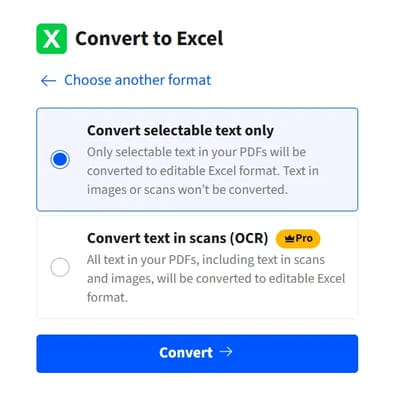
Method 4: Use an online PDF-to-Excel converter (for quick web-based conversion)
Best for: one-off tasks or users who prefer not to install extra software.
Not ideal for: sensitive/confidential data (be cautious with uploads).
Typical workflow
- Open a reputable PDF-to-Excel website
- Choose a service that supports PDF → Excel conversion and uses HTTPS.
- Upload your PDF
- Drag and drop the file onto the page or click
Uploadand select the file.
- Drag and drop the file onto the page or click
- Convert to Excel
- Choose
Excelas the output format. - Click
Convertand wait for processing.
- Choose
- Download and open in Excel
- Save the
.xlsxfile locally and open it in Excel. - Clean up formatting, column widths, and data types as needed.
- Save the
Pros
- No installation required
- Often quite fast for straightforward tables
Cons
- Data leaves your environment — avoid for confidential data
- Quality and limits vary by provider (file size, number of conversions)
Method 5 (advanced): Extract tables from multiple PDFs with Power Query
Best for: recurring workflows or many PDFs with similarly structured tables.
Modern Excel versions include Get Data from File → From PDF (availability varies). With this you can:
- Place multiple PDFs in a folder.
- In Excel, go to
Data → Get Data → From File → From PDF. - Select a PDF and let Power Query list detected tables and pages.
- Choose the table(s) to load into Excel; transform if needed.
- For multiple files, use
From Folderand combine PDF contents via Power Query.
Pros
- Automates extraction from many PDFs
- Strong data-cleaning options via Power Query
Cons
- Requires newer Excel versions and some Power Query knowledge
- Setup is more complex than one-off copy-paste
Troubleshooting: Fix common PDF-to-Excel table problems
Problem 1: Everything lands in one column
Symptoms: All data appears in a single column (e.g., column A) after pasting.
Fix:
- Select the column with the imported data.
- Go to
Data → Text to Columns. - Choose:
Delimitedif the data has commas, tabs, or spaces between fields, orFixed widthif columns are aligned but not clearly delimited
- Set delimiters or column breaks, preview, and click
Finish.
Problem 2: Columns are misaligned or merged
Symptoms:
Headers don’t match data, or several logical columns are merged into one.
Fix:
- Try the Word conversion method instead of direct paste; Word often detects real tables better.
- Use Text to Columns on problematic columns, or split combined columns using formulas (e.g.,
LEFT,RIGHT,TEXTSPLITin newer Excel versions). - If the PDF has complex multi-line headers, simplify header rows manually.
Problem 3: Numbers are treated as text
Symptoms:
You can’t sum or filter correctly; numbers are left-aligned or show a green triangle.
Fix:
- Select the affected range.
- On the warning icon, choose “
Convert to Number” (if available). - Or use
Data → Text to Columnswith no delimiter and General column type. - As a fallback, use formulas like
=VALUE(A1)to convert text to numbers.
Problem 4: The table is in a scanned PDF (image)
Symptoms:
You can’t select text at all, or selection behaves as if everything is a picture.
Fix:
- You’ll need OCR (Optical Character Recognition) to turn the image into text:
- Use Acrobat’s Recognize Text feature, or
- Use an OCR-capable tool/online service that outputs Excel or an editable PDF.
- After OCR, repeat one of the methods above (copy-paste, Word, or export).
Note: OCR results may still need heavy manual cleanup, especially with poor scan quality.
Problem 5: Only part of the table is copied
Symptoms:
Footer rows, totals, or the final column don’t appear in Excel.
Fix:
- Zoom in on the PDF and re-select the table more carefully.
- In some viewers, use a table/column selection tool rather than basic text selection, if available.
- Copy headers and body separately if the viewer struggles with large selections.
Turn one-off conversions into a scalable workflow (MailMergic angle)
Copying a table from PDF to Excel once is simple enough. But for many professionals, this is just the first step. Usually, that data is extracted to be reused in recurring business processes—like monthly reporting, budgeting, or mass communications.
Once your data is cleaned and ready in your spreadsheet, you can use MailMergic to complete the cycle. Our Excel to PDF automation allows you to:
- Use Excel as a master data source: Stop re typing data into document templates manually.
- Generate personalized documents: Instantly turn your Excel rows into thousands of custom invoices, letters, or certificates.
- Automate bulk distribution: Send your generated PDFs via email as part of one seamless workflow.
Instead of a tedious manual task, PDF to Excel copying becomes the starting point of a high speed, paperless office.
FAQs: Copying tables from PDF to Excel
What is the easiest way to copy a table from PDF to Excel?
For simple, digital PDFs, the easiest way is to:
- Select the table in the PDF viewer,
- Copy it (Ctrl + C), and
- Use Paste Special in Excel (e.g., paste as text) and then clean up columns.
If the layout breaks, using Word as an intermediate step usually gives better results.
How can I copy a table from PDF to Excel without losing formatting?
Use a method that preserves the table structure, not just the text:
- Open the PDF in Word, let it convert to an editable document, then copy the table into Excel.
- Or use Adobe Acrobat’s Export to Excel if you have it.
You’ll still need some cleanup, but the rows and columns are usually much closer to the original.
Is there a way to copy a table from PDF to Excel online?
Yes. Many online PDF-to-Excel converters let you upload a PDF and download an Excel workbook.
- Upload the PDF
- Choose Excel as the output format
- Download and open the .xlsx file in Excel, then fix formatting as needed
Use these only if you’re comfortable uploading the document; avoid them for sensitive data.
How do I copy a table from a scanned PDF into Excel?
Scanned PDFs are images, not text. You must:
- Run the file through OCR (Optical Character Recognition) to extract text.
- Export the result as a PDF or Excel file.
- Then use the regular methods (copy-paste, Word, or direct Excel import).
Expect more manual cleanup, especially if the scan is low quality.
How can I extract data from multiple PDFs into Excel?
If you have a recent version of Excel, you can use Power Query:
- Data → Get Data → From File → From Folder,
- point to a folder with your PDFs,
- use Transform Data to combine tables from multiple PDFs into a single table.
This is ideal for recurring reports or standardized forms.
