


Excel Automation Without VBA: A Practical Guide for Teams Replacing Macros

Every team that automates Excel with VBA eventually runs into the same wall. The macro was built by someone who left two years ago. Office updates broke the file paths. The security warning scares half the team into running it manually instead. The “automation” now requires three workarounds and a written runbook to use.
Excel automation without VBA is no longer a wishful aspiration. For one specific category of workflow, generating personalized files from spreadsheet data, you can replace VBA entirely with a no-code workflow that runs in any browser and survives every Office update Microsoft ships.
This guide is for teams that have decided VBA is the wrong long-term investment. It covers when to replace macros, when not to, what the no-code alternative actually looks like, the four workflows where the transition is easiest, and the limits you should know about before committing. For a fuller walkthrough of the underlying tool, see Excel to Excel Mail Merge: The Complete Guide, the foundation article in this series.
If you’re searching for “excel automation tool” because the existing macros are eating your team’s time, this article is for you.
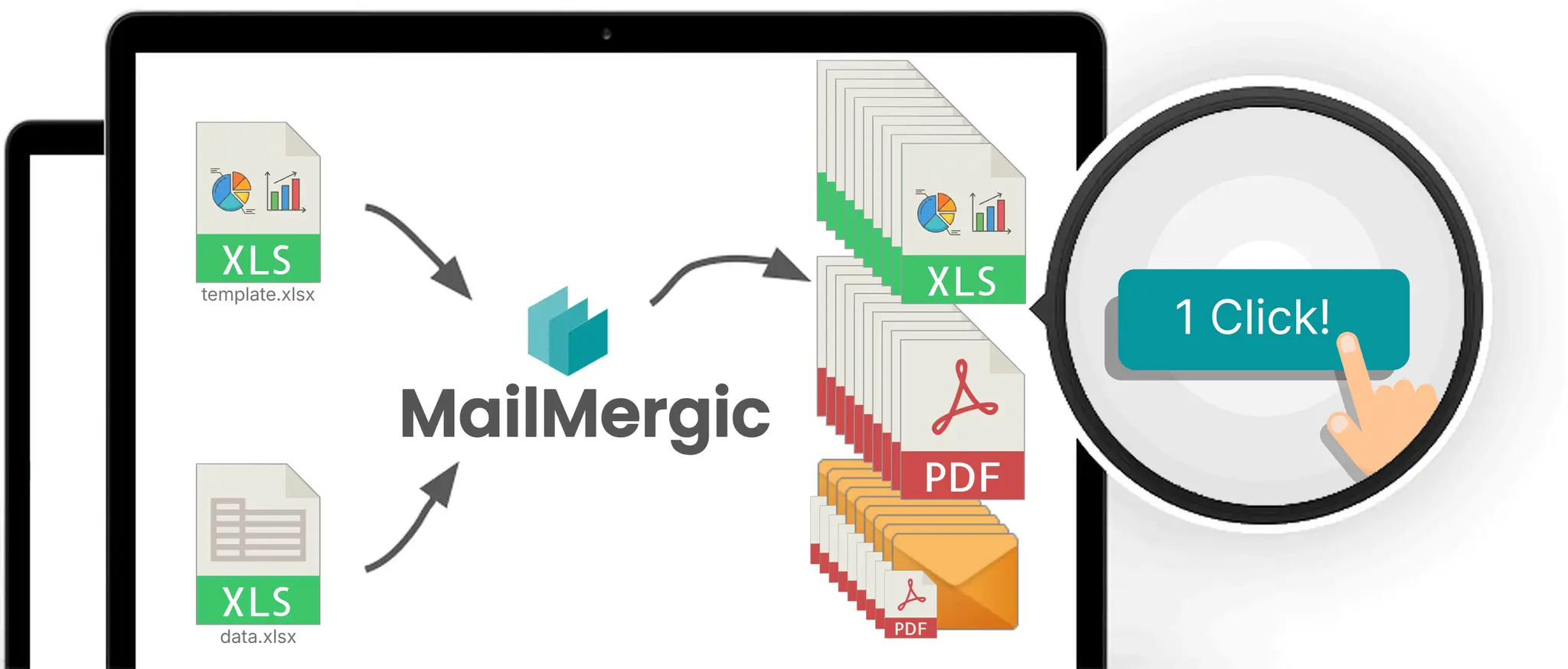
Table of contents
- The VBA trap
- When to replace macros (and when not to)
- What no-code Excel automation actually looks like
- The four workflows easiest to migrate from VBA
- The migration path: from macro to no-code
- What you lose and what you gain
- Common misconceptions about VBA alternatives
- Limits and edge cases
- Pricing and plan availability
- Frequently asked questions
The VBA trap
VBA solved a real problem when desktop Office was the universal computing environment. The macros that ran the reporting at thousands of companies through the 2000s and 2010s were genuinely impressive given the tools available. The trap is what happens to those macros as the environment around them changes.
The knowledge concentration problem. One person understands the macro. They built it, they maintain it, they’re the only one who can debug it when it breaks. Then they leave the company, change roles, or take a long vacation. The macro becomes a black box that nobody dares to modify. New requirements pile up, but the workflow stays frozen because nobody can safely change the code.
The Office update problem. Microsoft ships a quarterly update. Something the macro depends on changes: a deprecated API, a security default, a tightened sandbox, a removed reference. The macro stops working. The fix requires understanding both the original code and what Microsoft changed. The team that can do that is small and getting smaller.
The security warning problem. IT tightens macro policies in response to a phishing campaign or compliance audit. Users now see scary warnings every time they open the file. Some teams disable the warnings entirely, which is a security risk in the other direction. Others ignore them and click through, which slowly trains users to dismiss security warnings as a category. Neither outcome is good.
The workaround proliferation problem. Something breaks. Nobody fixes it because nobody can. A manual workaround appears. The workaround becomes permanent. Six months later, the macro does about half of what it was meant to do, and the rest is handled by a chain of inherited rituals that nobody documented.
The platform fragmentation problem. Macros built for Windows Excel don’t work on Mac Excel. Macros built for desktop don’t work in Excel Online or the iOS app. As teams adopt different platforms (more contractors on Macs, more analysts working from iPads, more workflows expected to run from the browser), the macro becomes a Windows-only artifact in an increasingly cloud-first workplace.
The underlying issue is that VBA was the right answer for one era and is the wrong answer for the next. For one specific category of automation, generating personalized files from spreadsheet data, much better alternatives now exist. That category is what this article is about.
When to replace macros (and when not to)
A practical decision framework. Some macros should stay. Most teams know which ones in their gut and just need permission to act on it.
Replace your macros when:
- The macro generates personalized files from a master workbook. One PDF or Excel per customer, employee, property, or account.
- The macro performs batch operations on spreadsheet data and produces multiple output files.
- The workflow is recurring (monthly, weekly) and the structure is stable. The columns don’t change every run.
- The macro is critical to a business workflow but only one person knows how it works.
- The macro depends on Office features that Microsoft is deprecating or has restricted (older ActiveX controls, certain COM references, legacy add-in models).
- The team includes people who can’t or shouldn’t run macros: external consultants, contractors, mobile users, anyone on a Mac.
Keep your macros when:
- The macro performs in-cell calculations that don’t produce output files. Use Excel formulas or LAMBDA functions instead of replacing the macro with another tool.
- The macro is a one-off script run by a developer for a one-time data transformation task. Migrating a single-use script doesn’t pay back.
- The macro performs operations that no no-code tool currently handles: highly specialized industry workflows, real-time COM automation, deep integration with another desktop application like SAP GUI or Outlook through a shared session.
- The macro is part of a regulated, audited workflow where introducing a third-party tool requires compliance review you don’t want to undertake right now. There may be a window in six months when that review is easier. Plan around it.
The one-line rule: if your macro’s primary job is to produce one file per row of a spreadsheet, you’re a candidate for no-code automation. If your macro’s primary job is to compute or transform data inside Excel, stay with macros or migrate to LAMBDA functions instead.
What no-code Excel automation actually looks like
This section describes the no-code workflow in contrast with the VBA experience. The goal is to make the alternative concrete, not to repeat the foundation article that walks through the wizard step by step.
You don’t write code, you mark cells. Where the VBA macro had a For Each row In Range... loop iterating over rows and populating template cells via Range("B5").Value = customerName, the no-code equivalent is typing @customer_name directly into cell B5 of your template. The cell is the substitution rule. There is no separate file of code that has to stay in sync with the template.
You don’t open Excel, you use a browser. The whole workflow runs in a web browser. No Office installation required. No platform differences between Windows, Mac, and ChromeOS. Team members on iPads can run merges. Consultants without Excel licenses can run merges. The macro’s hidden dependency on the Windows COM stack disappears. The IT ticket for “we hired someone with a MacBook and they can’t run the monthly report” disappears with it.
You don’t trigger macros, you click “Start Mail Merge.” The recurring workflow that required someone to open the workbook, navigate to the Developer tab, click Run, and dismiss three dialogs becomes a single button in MailMergic’s Excel mail merge flow. The reduction in friction matters more than it sounds. Workflows that ran weekly because they were painful now run daily because they’re easy. Workflows that ran when someone remembered now run on schedule because nothing about them requires remembering.
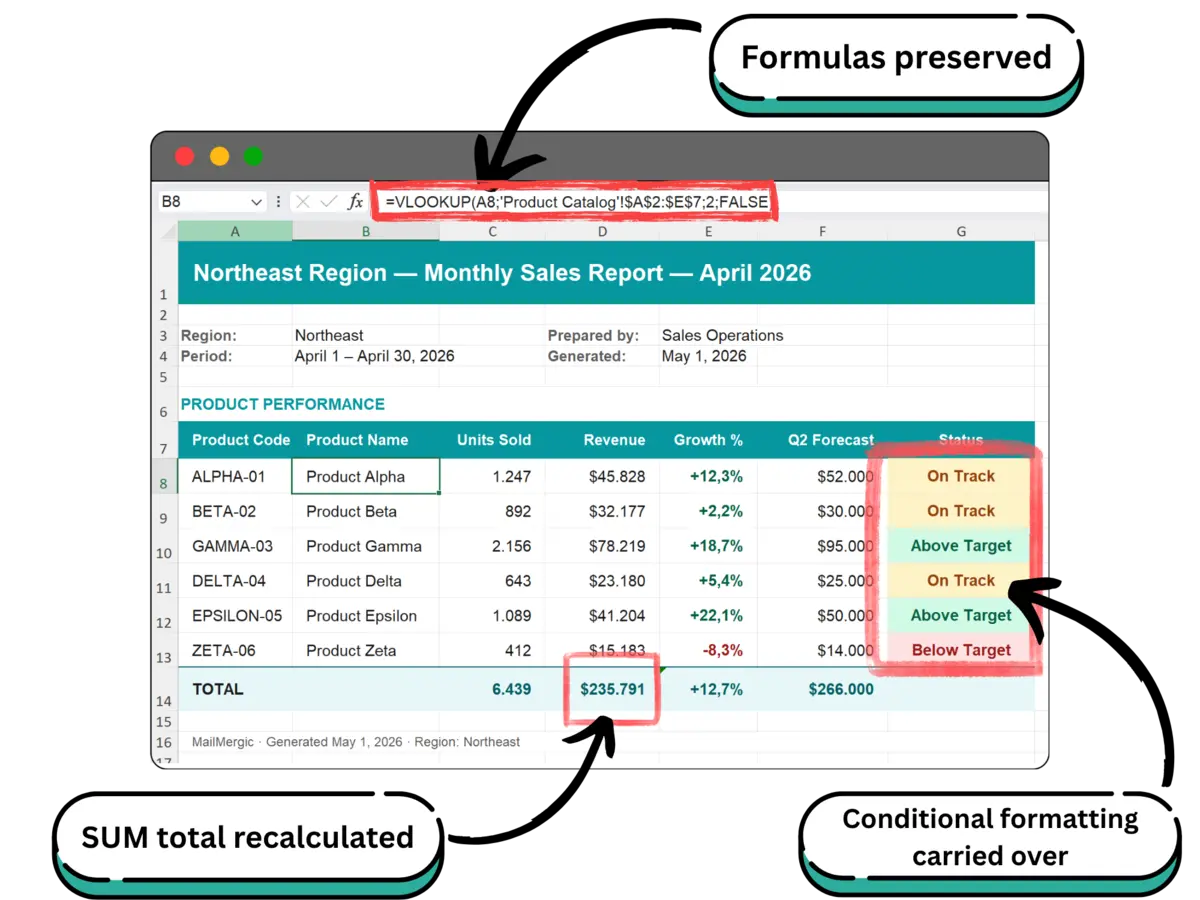
Your formulas survive. A common worry when teams consider replacing VBA: “but our template uses VLOOKUP and conditional formatting. Will those work?” Yes. Standard Excel functions, conditional formatting, named ranges, cell styles, and print areas all survive the merge unchanged. The merge engine recalculates formulas after the row data is substituted, so a =SUM(B5:B20) in your template totals the merged values for each output row correctly.
You can update the template without redeploying. When the VBA macro needs a small change (a new column, a different layout, an extra row in the calculation), the developer has to open the file, edit the VBA, test it, and redistribute the updated workbook to whoever runs the report. With the no-code workflow, you edit the template cells like any other spreadsheet. The next merge run picks up the change.
Your data stays in one place. The VBA macro often required data to live in a specific cell range with a specific structure. Move a column, the macro breaks. Add a column, the macro silently skips it. With the no-code workflow, you specify column names (not cell references) in your placeholders. Reorder columns, add new ones, the placeholders still resolve as long as the column names stay consistent.
The output is documented automatically. Every merge run produces a ZIP of named output files. The naming pattern uses your data columns: Invoice_INV-001_AcmeCorp.xlsx is self-documenting. The VBA equivalent often produced output_1.pdf through output_47.pdf and required a separate index file to know which output went to which recipient. Renaming the outputs after the fact was its own small workflow.
The four workflows easiest to migrate from VBA
These are the patterns we see most often when teams replace macros. Each one is a clean fit for the no-code workflow because the macro’s job is fundamentally “fill cells in a template and export.”
Workflow 1: Monthly customer pricing sheets
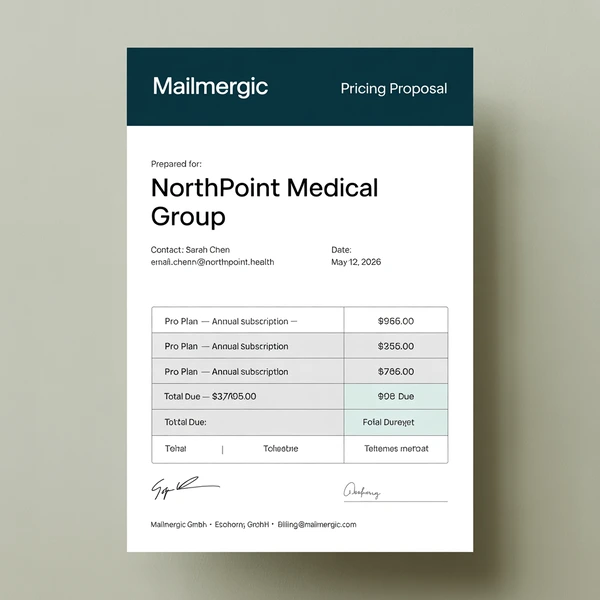
The VBA version. A macro iterates through a customer list. For each row, it copies the master pricing sheet to a new tab, substitutes the customer name and discount percentage, exports as PDF, names the file, moves to the next row. 50 customers takes 8 minutes if nothing goes wrong. When a new product is added, someone updates the master pricing sheet AND the macro logic to include the new product’s variables. The macro’s variable list and the sheet’s column list drift apart every six months.
The no-code version. The customer list and the pricing template live in one workbook. Cells in the pricing template that should vary per customer are marked with @customer_name, @discount_percentage. Adding a new product means adding a new row or column to the master sheet, and (if the new product appears in the template) marking the right cells with @new_product_price. The merge produces 50 personalized files in one click.
Migration time: about an hour, including testing with a small subset of customers. The full pricing sheet build, formulas included, is in the customer pricing sheets guide.
Workflow 2: Monthly regional sales reports
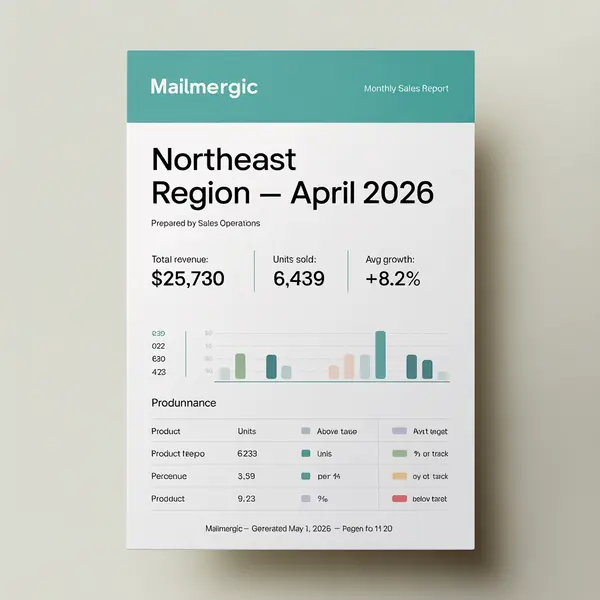
The VBA version. A macro filters the sales data by region, exports the filtered data into a regional report template, formats the conditional highlighting based on growth thresholds, exports each region’s report as PDF, names files like Sales_Report_NE_April.pdf. The macro is 240 lines of VBA, with custom logic for handling regions that have no sales data that month and special-case formatting for the two regions whose VPs prefer a slightly different layout.
The no-code version. The regional sales data sits in one sheet. The report template uses conditional formatting (preserved automatically in the output) and standard formulas that calculate the regional totals from the data sheet. Each row in the regional table becomes one output file. The filename pattern includes the region name. The two layout variants become two sheets in the same template, with per-region inclusion handled by toggling sheets in the data setup.
Migration time: 1 to 2 hours, depending on the complexity of the conditional formatting and the recalculation logic. This is also the use case where an Excel reporting tool most obviously pays for itself. The no-macro version of this exact workflow is built end to end in the regional reporting pack guide.
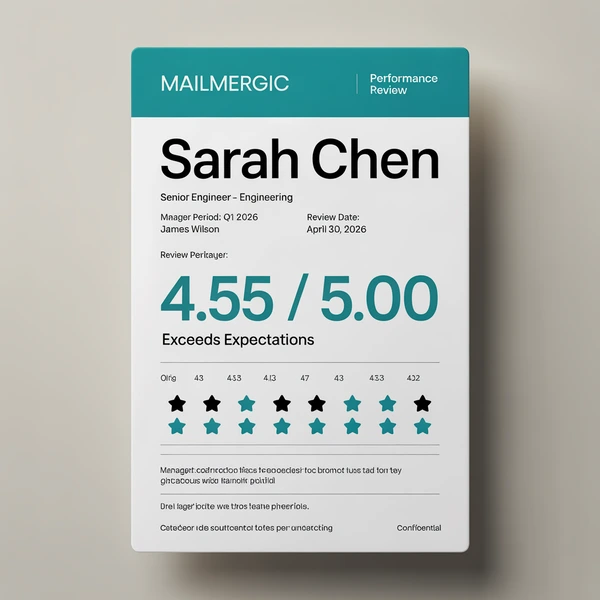
Workflow 3: Per-employee performance summaries
The VBA version. An HR analyst has a master review workbook. A macro generates per-employee summary files by copying the review template, looking up the employee’s data in the master, calculating their overall score from weighted category ratings, and exporting as PDF. The macro doesn’t work on Mac, which is a problem because the HR director uses a MacBook. The director runs the report on a colleague’s Windows machine once a quarter, which everyone has learned to plan around.
The no-code version. The employee data and the review template live in one workbook. The overall score formula stays as a formula in the template (preserved during merge). The merge runs in the browser, so the HR director on a Mac can run it. Each row in the employee data produces one personalized review file, scoped to that employee’s data, with no cross-contamination risk between rows.
Migration time: 1 to 2 hours, plus the time to verify that the weighted score formula calculates correctly after the merge. The browser version of this workflow is built end to end in the performance review documents guide.
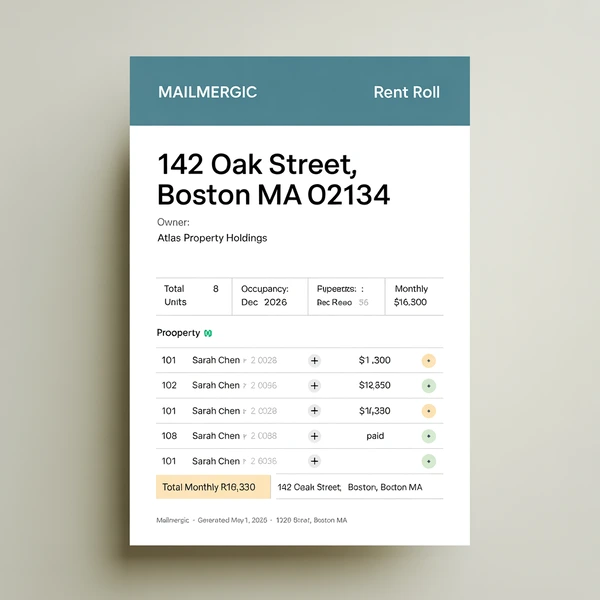
Workflow 4: Per-property rent rolls
The VBA version. A property management company has a portfolio workbook. A macro generates monthly rent rolls per property: filters tenants by property, calculates total monthly rent, applies status-based highlighting (paid, pending, overdue), exports as PDF, emails each owner manually after the macro runs. The macro hasn’t been updated since 2021. The original developer left in 2022. Every monthly run includes a 30-minute window where someone holds their breath and hopes nothing changed.
The no-code version. The portfolio data and the rent roll template are in one workbook. Each property is a row. The conditional formatting on the status column survives the merge. The merge produces one file per property. Email delivery (an optional step) sends each rent roll directly to the property owner whose email is in the data, using the owner’s name in the personalized subject and body.
Migration time: 1 to 2 hours, plus optional email setup if the team wants automatic distribution. The macro-free version of this cycle is built end to end in the rent roll guide.
The migration path: from macro to no-code
A practical step-by-step for actually migrating a workflow. The whole sequence takes 2 to 4 hours for a typical workflow.
Step 1: Identify the candidate workflow. Run through your team’s automated workflows and pick one that fits the criteria from section 2. The best first candidate is usually monthly and produces 20 to 100 output files per run. Smaller volumes don’t justify the migration cost. Larger volumes are riskier as a first migration because the blast radius if something goes wrong is bigger.
Step 2: Audit the VBA macro. Open the macro and read it. List the outputs it produces. For each output, identify what data goes into it and from where. Most macros do less than they appear to do. The impressive 240-line file often boils down to “take rows from sheet A, substitute into a template on sheet B, export each row as PDF.” Write down the actual logic in plain English. That document is what you’re going to rebuild.
Step 3: Prepare your data structure. Make sure your data has clear column headers in row 1 of your data sheet. Column names with underscores (first_name, account_id) work best because they can be used as inline placeholders. Spaces in headers are fine but require whole-cell placeholders.
Step 4: Build the template. Take the template the macro currently uses. Identify the cells with substitution logic. In MailMergic’s editor, you’ll replace the substitution VBA with @columnName placeholders typed directly into those cells. The picker that opens when you type @ lists your column names, so the mapping is visible as you go.
Step 5: Upload to MailMergic. Upload the workbook to MailMergic’s Excel mail merge. Use the editor to mark placeholders. The floating “Row N of M” pill at the bottom of the editor lets you step through your data and see a live preview of one merged record at a time, which catches most issues before you commit to a full merge.
Step 6: Run a small test merge. Filter your data to two or three representative rows. Run the merge. Verify the output files contain the correct substituted data, that formulas calculated correctly, that conditional formatting carried through, and that filenames matched your pattern.
Step 7: Run the full merge. If the small test passed, run the merge with your complete data. Download the ZIP. Spot-check a sample of outputs by opening them. Pay particular attention to rows you know have unusual values: the customer with the longest name, the region with zero sales, the employee with the highest score.
Step 8: Sunset the macro. Once the no-code workflow is producing correct outputs reliably, archive the VBA-based file. Document the change in your team’s runbook. Anyone running the workflow now needs to know the new process and where to find it. Keep the old file available for at least one more cycle in case the team needs to compare outputs.
The total migration time for a typical workflow is 2 to 4 hours, including testing. If the workflow previously took someone 4 to 8 hours per month, the migration pays back within the first run.
What you lose and what you gain
Honest accounting of both sides. This is the section that should distinguish the article from marketing copy, so it has to be specific about the trade-offs.
What you lose:
- Custom logic that’s not data substitution. If your macro does anything more complex than “for each row, fill in template cells and export,” you’ll need to either move that logic into Excel formulas (which survive the merge) or accept that the no-code workflow only handles the substitution part.
- Integration with desktop-only systems. Macros that use COM to control other Windows applications (Outlook, SAP GUI, internal desktop tools) have no direct equivalent. If your macro automates more than Excel, you’re keeping at least part of the macro.
- Real-time interactivity inside Excel. A macro can respond to user actions: cell changes, button clicks, sheet events. The no-code workflow is batch-oriented: input data plus template produces output files. If you need interactive behavior inside Excel, that’s a different category of automation entirely.
- The familiarity of working entirely in Excel. Some users will resist learning a new tool, even when the new tool is simpler. The migration requires a small adjustment in how the team thinks about the workflow, even though the result is less code, less fragility, and fewer steps.
What you gain:
- Cross-platform compatibility. The workflow runs in any browser on any operating system. Mac, Windows, ChromeOS, Linux, iPad. “You need to use the Windows machine to run that report” stops being a sentence anyone says.
- No more macro security warnings. Output files contain no macros (macros are stripped on upload for security). Recipients open the files without warnings, which means they actually open them on the first try.
- A workflow anyone on the team can update. Changing the template doesn’t require knowing VBA. Anyone who can edit a spreadsheet can update the merge. The knowledge concentration problem reverses.
- Reliability across Office updates. Microsoft can update Excel without breaking the workflow. The merge engine is separate from your desktop Excel install.
- Better output quality. Output filenames are self-documenting. Email delivery is built in. Output files preserve formulas and conditional formatting in a clean, recipient-editable way.
- Time back. A workflow that took an analyst 4 to 8 hours per month becomes a 30-minute monthly task. Once the template is set, subsequent runs are a 5-minute task.
Common misconceptions about VBA alternatives
Four objections come up repeatedly when teams consider moving off VBA. Each one has a real answer.
“No-code tools can’t handle complex spreadsheets.”
True for general-purpose no-code platforms that try to do everything. False for specialized tools focused on one workflow. MailMergic handles workbooks with hundreds of formulas, multiple conditional formatting rules, named ranges, and multi-sheet layouts. The relevant question isn’t “is the spreadsheet complex,” it’s “what is the tool focused on.” A specialized tool for one job is rarely beaten by a general tool that does that job as one of fifty features.
“We can’t trust a third-party tool with our financial data.”
A valid concern that has a real answer. MailMergic processes files in EU data centers, encrypts files in transit and at rest, is GDPR-compliant, doesn’t sell or share customer data, and doesn’t use customer files for AI training. Data retention is configurable from 1 to 180 days, with 30 days as the default. For workflows requiring data to never leave your machine, the MailMergic Offline desktop app is also available for the PDF mail merge use case. The third-party tool is often more secure than the local macro it replaces, where the macro’s spreadsheets sit unencrypted on someone’s laptop.
“VBA is free; this isn’t.”
VBA is free in the sense that the macro doesn’t have a license fee. The cost is the developer time to build it, the analyst time to run it, the IT time to support it, and the business cost when it breaks. The total cost of ownership of a VBA workflow is usually five to ten times what teams estimate when they say “VBA is free.” A subscription cost that’s visible and predictable is easier to plan around than an unplanned outage in the middle of a monthly close.
“We can’t migrate yet, the timing is wrong.”
The right time to migrate a VBA workflow is when it next breaks or when the person who maintains it leaves the company. Both events happen on a schedule you don’t control. Migrating proactively, on a slow week of your choice, is cheaper and less stressful than migrating reactively at the worst possible moment. The team that says “later” for two years often ends up migrating in the middle of a crisis.
Limits and edge cases
The no-code workflow has clear limits. Worth knowing them upfront before you commit a workflow to it.
- File size. 25 MB maximum upload per file. Workbooks larger than this need to be slimmed down before upload.
- Row count. 100,000 maximum rows per merge run. Larger batches need to be split into multiple runs.
- Combined output. Supported when PDF is the output format: all merged records can render into a single combined PDF. Excel (.xlsx) output is always one file per row. (One file per row is usually what VBA migrations want anyway: macros typically produced individual files, just clumsily.)
- Macros stripped at upload. If your template depends on VBA for calculations, those calculations won’t run in the output. Migrate the calculation logic to Excel formulas first, then upload.
- Cross-application automation. If your macro talks to Outlook, SAP, or another desktop application via COM, the no-code workflow doesn’t replace that part. Keep that piece of the macro and use the no-code tool only for the file generation step.
- Real-time triggers. The no-code workflow is batch, not event-driven. If your macro responds to spreadsheet events (cell changes, button clicks, workbook open), the no-code workflow has no direct equivalent.
- Inline placeholders with spaces. Column names with spaces only work in whole-cell placeholders. Either rename columns to use underscores or accept that those placeholders live in their own cells.
If your macro fits within these constraints, the migration is straightforward. If it doesn’t, you can usually split the macro into two parts: the part the no-code tool handles (data substitution and file generation) and the part it doesn’t (the cross-application or real-time logic). The macro becomes smaller, simpler, and easier to maintain.
Pricing and plan availability
Excel mail merge is available on every paid plan, plus a free plan with a monthly credit allowance, sufficient for testing and small-scale workflows. The Pro and Enterprise plans offer higher volumes, email delivery from your own domain, and team collaboration features. Privacy and compliance details are on the privacy page.
Credits are consumed per row generated. A merge of 100 rows uses 100 credits. The free plan includes enough credits for typical small workflows so you can verify that the tool fits your template and data before paying. Teams replacing VBA workflows typically start on the Pro plan after a free-tier test merge has confirmed the migration path works for their template.
Plan comparisons are on the pricing page.
Frequently asked questions
Q: Will my Excel formulas still work after the merge?
A: Yes. SUM, VLOOKUP, IF, INDEX, MATCH, and the rest of the standard Excel library are preserved and recalculated after data substitution. Conditional formatting, named ranges, and cell styles also carry through. The formula preservation deep dive covers what survives, what breaks, and how to test, in detail.
Q: What happens to the VBA code in my template file?
A: VBA is stripped on upload for security reasons. If your template depends on macro logic for calculations, migrate that logic to standard Excel formulas first. The migration is usually straightforward because the calculation logic is simple; the macro was doing the orchestration around it.
Q: Do I need to learn a new tool to replace VBA?
A: Yes, but the learning curve is small. Most users complete their first merge within 30 minutes of signing up. The core skill is typing @ in template cells. Easier to teach than VBA, and easier for the next hire to inherit.
Q: Can I run the no-code workflow on Mac or Linux?
A: Yes. The workflow runs in any modern web browser on any platform. No Office installation required.
Q: Will my recipients see security warnings when opening output files?
A: No. Output files contain no macros, so there are no macro security warnings. Recipients open them like any other spreadsheet or PDF.
Q: How do I handle macros that do more than generate files?
A: Split the macro. Keep the part that does non-file work (COM automation, Outlook integration, real-time event handling). Migrate the file-generation part to the no-code workflow. The macro becomes smaller and easier to maintain.
Q: Can the no-code workflow send emails like my VBA does?
A: Yes. Email delivery is an optional step. Each generated file is sent as a personalized email attachment, with subject and body using merge fields from your data. Delivery, opens, and bounces show up in a single dashboard.
Q: How much does it cost to migrate a typical workflow?
A: The migration takes 2 to 4 hours including testing. If your existing workflow takes 4 to 8 hours per month, it pays back within the first cycle. Subscription cost is on the pricing page.
Q: Is the no-code workflow secure enough for sensitive data?
A: MailMergic processes files in EU data centers with encryption in transit and at rest. The platform is GDPR-compliant. Customer files are not used for AI training, and retention is configurable from 1 to 180 days (default 30 days). For workflows that require data to stay on the local machine entirely, the MailMergic Offline app is also available for the PDF mail merge use case.
Q: How does Excel mail merge compare to Power Query?
A: Different tools for different problems. Power Query combines data from multiple sources into one workbook (input side). Excel mail merge generates many personalized files from one workbook (output side). They are complementary, not competitive. The distinction is covered in detail in the dedicated comparison.
Leave the macro behind, one workflow at a time
VBA solved a real problem when desktop Excel was the universal computing environment. In 2026, for the specific case of generating personalized files from spreadsheet data, the better tool exists. The migration takes 2 to 4 hours per workflow. The payback is faster than most teams expect.
Most teams that have replaced macros don’t talk about it much, because the migration was unremarkable. The macro worked. The replacement works. The replacement is easier to maintain, runs on any platform, and doesn’t break when Office updates ship. The interesting story is what the team did with the time they got back.
With MailMergic’s Excel mail merge feature, you can upload a template, mark placeholders with @columnName, and run a test merge in under 10 minutes. If your team has been waiting for the right moment to leave VBA behind for one of your monthly workflows, this is a reasonable place to start.
Try Excel to Excel mail merge →
Want the full walkthrough of the underlying tool? Read Excel to Excel Mail Merge: The Complete Guide, the foundation article in this series.