


Customer Pricing Sheets from One Master Price List: The Complete Build

The new list prices are approved, effective the first of next quarter. Now 47 customer pricing sheets are due: one per customer across four discount tiers, each on updated letterhead. The job is on your calendar four times a year.
Search for help and you find two dead ends. Template galleries hand you one static price list, the same file for every customer, and no answer for per-customer discounts. CPQ and ERP documentation assumes a platform you do not run. Nothing in between covers the actual situation: one master workbook that has to manufacture 47 customer-specific sheets before Thursday.
This article gives that middle its name: the pricing sheet factory. One workbook holds your price book, your tier table, your customer list, and your branded layout. One run generates one pricing sheet per customer. The factory has a single operating rule: edit the master, never the output.
This is the complete build. A copyable customer-sheet schema, the exact VLOOKUP, ROUND, and SUMIFS formulas, the PDF versus .xlsx call, a send step with delivery tracking, and an honest routing that includes the cases where you should not use a generator at all. First build: 1 to 2 hours. Every quarterly re-run after that: about a minute. Quote turnaround drops from a day to a minute.

Free workbook
customer-pricing-sheet-template.xlsx
The complete build from this article: all four sheets, the 47-customer roster, and every formula already wired. No signup.
Table of contents
- The pricing sheet factory: one workbook, four sheets
- The template: formulas that recalculate for every customer
- The one-row test and the 47-file run
- PDF or .xlsx: what you ship decides what customers see
- Generated beats filtered: every discount stays where it belongs
- Sending the sheets: email step or portal drop
- The quarterly price increase as a one-minute ritual
- Template download, generator, or CPQ: an honest routing
- Frequently asked questions
- One workbook in, 47 pricing sheets out
The pricing sheet factory: one workbook, four sheets
The factory is one workbook with four sheets.
Products is the master price book: 62 SKUs with columns sku, product_name, category, unit, list_price, and moq. Prices live here and nowhere else.
Tiers is a four-row table: Standard 0%, Silver 8%, Gold 12%, Platinum 18%.
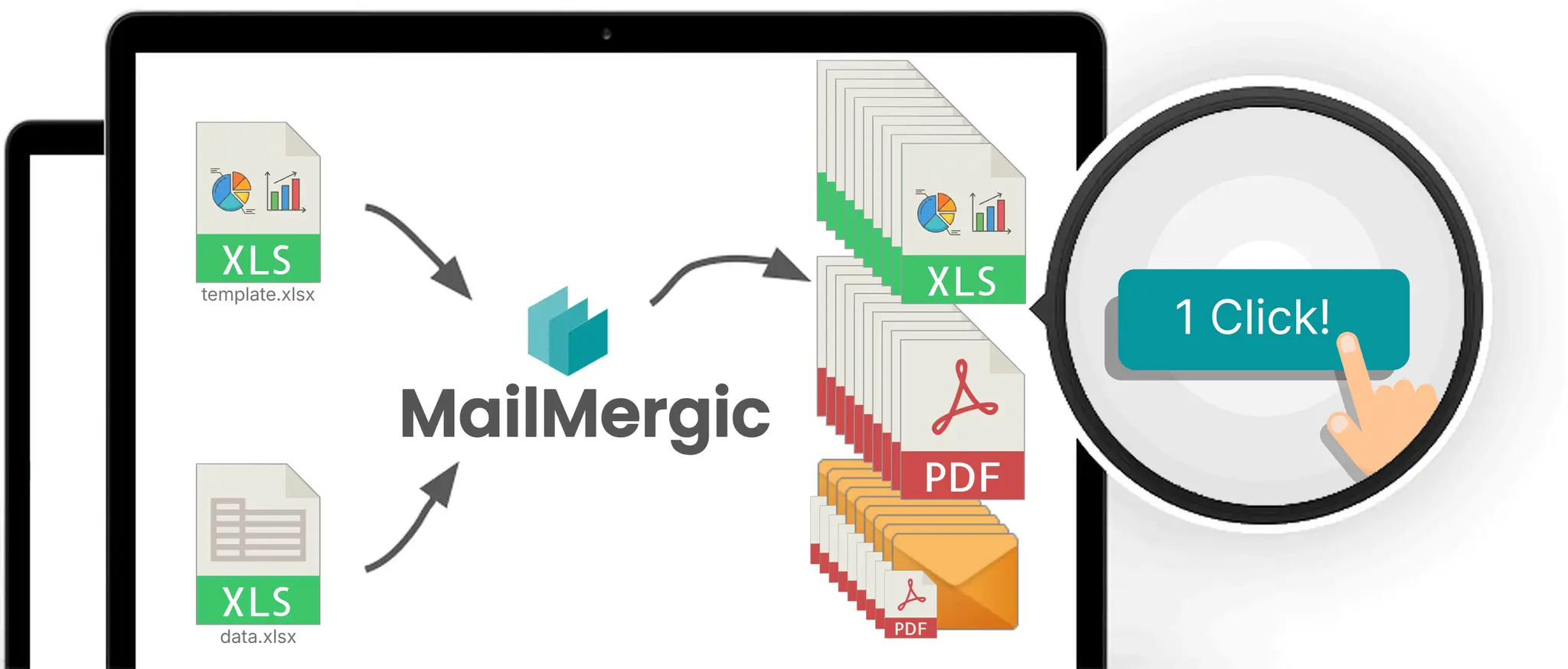
Customers is the entire trick: one row per customer, 47 rows. The merge engine reads it as the row source and generates one file per row. The mechanism is Excel to Excel mail merge; the complete guide walks every wizard screen, so this article stays on the pricing-specific parts.
Pricing Sheet is the branded layout your customers see: letterhead, a line-item table, a summary block, and placeholder cells that receive each customer’s values.
The Customers sheet deserves a schema, because its columns are the whole system:
| Column | Example | Where it lands |
|---|---|---|
customer_id |
C-1041 | Filename |
customer_name |
Brandt Logistics GmbH | Title cell and filename |
contact_first_name |
Maren | Email greeting |
contact_email |
m.brandt@example.com | Email recipient |
tier |
Gold | Discount lookup key |
override_pct |
blank, or 0.15 | Resolves into discount_pct |
discount_pct |
0.12 (computed) | The template’s discount cell (F6) |
top_sku |
HW-2201 | Highlight rule |
valid_until |
2026-09-30 | Validity line on the sheet |
account_manager |
J. Weber | Signature block |
Two of those columns carry the governance. override_pct holds negotiated exceptions: it is blank for 46 customers and holds 0.15 (15 percent) for Cavallaro Foods (C-1077), whose Silver tier would only give 8 percent. The discount_pct column resolves the final number once, on the data sheet, with =IF(F2<>"", F2, VLOOKUP(E2, Tiers!$A$2:$B$5, 2, FALSE)) filled down. Add an approved_by column next to it and the data sheet becomes your discount register: every exception a visible, auditable cell in one file instead of folklore spread across 47 documents. Columns are data; only placeholders print.
One note on naming: use underscores. Whole-cell placeholders accept spaces in column names, but placeholders inline with other text (like an email greeting) need names without them; the complete guide has the details. Inline placeholders substitute in generated files, while the editor’s live preview resolves whole-cell placeholders, so give any field you want to watch its own cell.
The data does not have to live in the same workbook. A separate file works (.xlsx, .xlsm, .xls, .xlsb, .csv, .txt, .ods), as does a Google Sheet via OAuth (imported as a snapshot at connect time; reselect the sheet to refresh it), and header detection scans the first 15 rows with a “Change” banner if it guessed wrong.
Download this build. customer-pricing-sheet-template.xlsx is the workbook this article describes: all four sheets, the 47-customer roster with Brandt and Cavallaro in place, and every formula from the sections below already wired. Free, no signup. A run reads a single sheet as its data source, so the file ships with Customers first: upload it unchanged and that is already the sheet it merges from. Swap in your own price book and roster when you are ready; the machinery does not change.
Contrast this with the classic quoting tutorial: a dropdown workbook that prices one customer at a time. Fine for a single ad hoc quote. Useless when 47 sheets are due the same morning. The factory’s answer is a template whose formulas recalculate for every row. Build that next.
The template: formulas that recalculate for every customer
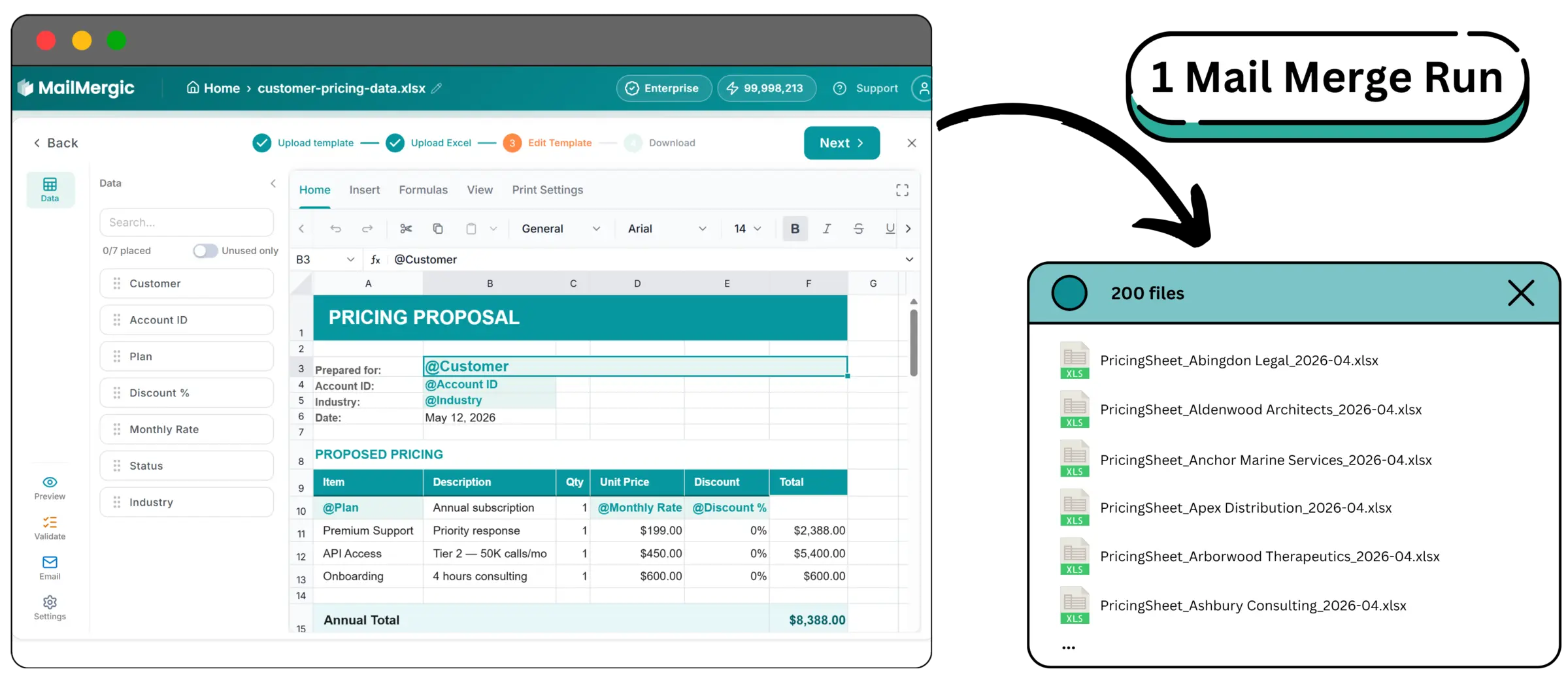
The Pricing Sheet layout holds the letterhead, a line-item table listing all 62 SKUs in rows 12 to 73, a summary block, and a header block where merged values land. Type @ in any cell and a filtered picker of your Customers columns opens: @customer_name goes in the title, @valid_until in the validity line, @account_manager in the signature block.
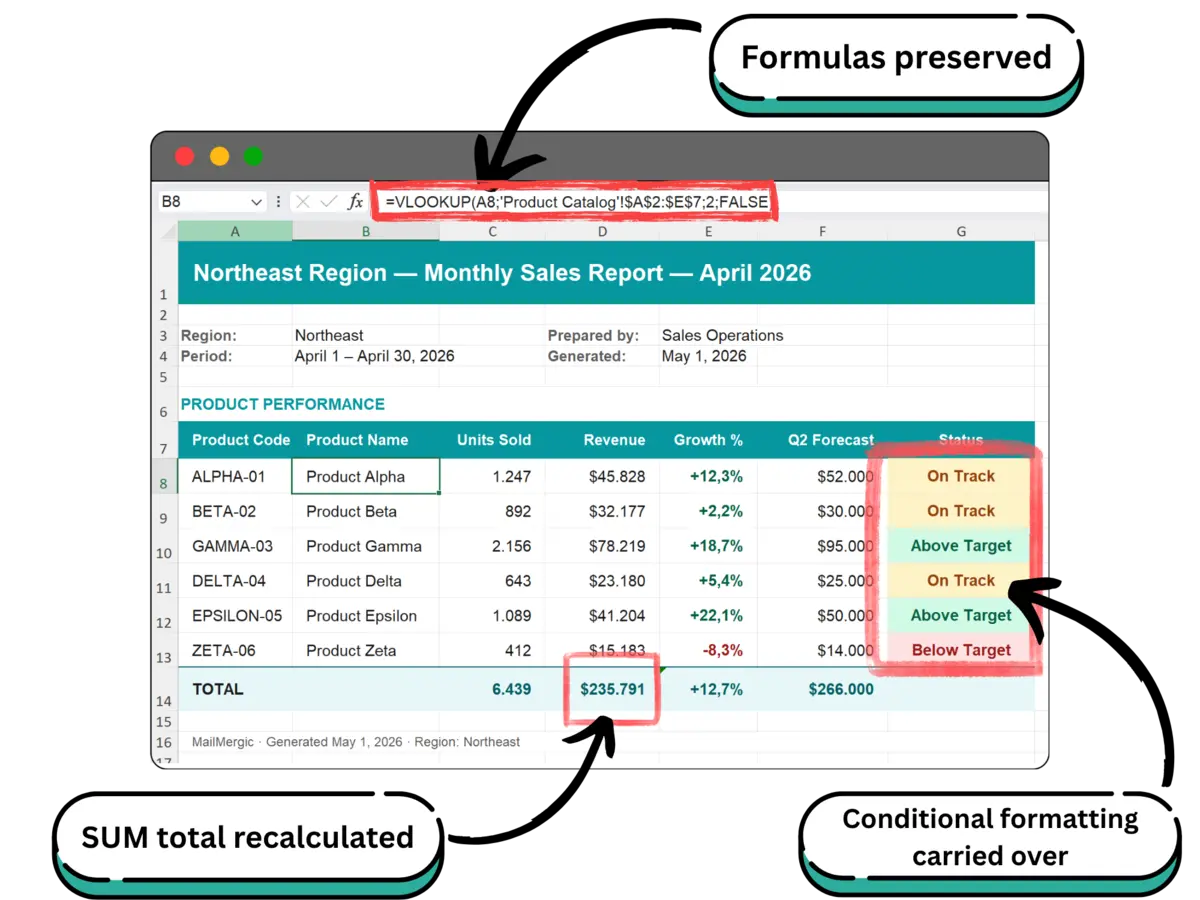
Everything below recalculates in every generated file. The standard functions (SUM, VLOOKUP, IF, INDEX/MATCH, SUMIFS, COUNTIFS), named ranges, number formats, and conditional formatting in its standard forms all carry through; the full preservation list with examples is in the foundation guide, and the formula preservation deep dive covers the full story.
The tier discount: one VLOOKUP against the tier table
Start with the simple version. Cell F5 holds the whole-cell placeholder @tier. Cell F6 holds:
=VLOOKUP(F5, Tiers!$A$2:$B$5, 2, FALSE)
Before the run, F6 shows a lookup error, because the literal text @tier is not a tier name. That is expected: step into the “Row N of M” preview and the cell resolves to 0.12 for a Gold customer, exactly as it will in the generated file. Format F6 as a percentage and label it, so the preview reads 12% instead of a bare decimal.
The point worth slowing down for: this lookup runs 47 times, once per file, each time against that customer’s tier. Nobody edits a dropdown 47 times.
Then upgrade to the override-proof version: once the discount_pct column resolves overrides on the data sheet, put @discount_pct in F6 instead and let the data sheet own the logic. Cavallaro Foods arrives at the template already resolved to 15 percent, exceptions stay in exactly one column, and the template never needs to know they exist.
The line-item table uses a second lookup: list price by SKU, =VLOOKUP($B12, Products!$A$2:$E$63, 5, FALSE), filled down all 62 rows. Prices live in exactly one place, the Products sheet.
Net prices: ROUND so the sheet matches the invoice
The net price cell is:
=ROUND(D12*(1-$F$6), 2)
Why ROUND instead of just formatting to two decimals: 24.95 at a Silver 8 percent discount is 22.954. A number format displays 22.95 but stores 22.954, so the column total can drift a cent or more from the sum of the printed prices. That cent is a classic invoice dispute. ROUND makes the stored value equal the displayed value, and the total equal the sum of the lines.
Note the reference discipline: $F$6 absolute, so the fill-down keeps pointing at the discount; D12 relative, so each row prices its own SKU.
If your pricing is quantity-driven rather than tier-driven, the same shape works with an approximate-match lookup over break thresholds. Put an order quantity in its own column (seed it from each SKU’s moq with =VLOOKUP($B12, Products!$A$2:$F$63, 6, FALSE)), then =VLOOKUP(F12, BreakTable, 2, TRUE) against a named range of quantity breaks. That is the classic tiered-quantity pattern, and it carries through a mail merge run the same way.
Category subtotals with SUMIFS
The summary block lists the categories (Hardware, Consumables, Service) and sums the net-price column where the category matches:
=SUMIFS($E$12:$E$73, $C$12:$C$73, H12)
Because SUMIFS reads the net prices, the subtotals are tier-aware automatically: a Platinum customer’s Hardware subtotal comes out 18 percent lighter than a Standard customer’s, with no extra logic anywhere. A COUNTIFS line beneath it counts SKUs per category, same shape.
Highlighted SKUs with formatting that follows the data
The guaranteed cases first: color scales, data bars, and icon sets carry through to every generated file. A color scale on a changed_this_quarter flag column, for example, shows each customer exactly which line items moved this cycle.
The ambitious case: cell F7 holds @top_sku, and a Top pick column beside the table computes =IF($B12=$F$7, "TOP", "") filled down, with a cell-value color rule turning TOP into an orange highlight. In each customer’s file the marker lands on their most-ordered SKU row, and nobody else’s, because the helper recalculates against merged values. The formula is the same in all 47 files; the marker lands on a different row for each customer. A formula-based paint rule across the whole table is the tempting shortcut, and it is not on the documented preservation list; the marker column is, alongside color scales, data bars, and icon sets.
The one-row test and the 47-file run
Preview before you generate, and do not stop at row 1. The floating “Row N of M” pill at the bottom of the editor steps through customers and shows each finished sheet live. Step to the rows where templates actually fail: the Platinum customer (deepest discount, smallest numbers), the longest customer name (layout breaker), Cavallaro Foods (confirming the 15 beats the Silver 8), and the customer whose top_sku was discontinued last quarter (the TOP marker that should now mark nothing).
Then run a one-row test before the batch. It answers, in about a minute, whether anything renders as #NAME? or #VALUE! (an unrecognized function) and whether a circular reference is silently falling back to 0. It also confirms what macro-dependent templates need to know upfront: macros are stripped on upload, so calculation logic has to live in formulas.
Before generating, right-click the sheet tabs and exclude Products, Tiers, and Customers from the output. Only the branded sheet renders. Your tier table structurally cannot appear in a customer file, because the sheet that holds it is not part of the output.
Set the filename pattern from your columns, with the quarter baked in as static text:
Pricing_2026Q3_@customer_id_@customer_name.pdf becomes Pricing_2026Q3_C-1041_Brandt Logistics GmbH.pdf
Filenames built from data are what make the batch sortable, the portal upload mechanical, and a stale copy on someone’s desktop visibly old.
Then run it: 47 rows in, 47 customer pricing sheets out, downloaded as a ZIP. One credit per generated row, so the full quarter costs 47 credits, and the free plan’s monthly allowance covers a real test; plans are on the pricing page.
Timing: the first build is 1 to 2 hours of template work. The first mail merge run takes about five minutes. Every re-run after is about a minute. The 25 MB file limit and 100,000-row limit are nowhere in sight for a 47-row pricing workbook.
PDF or .xlsx: what you ship decides what customers see
The format choice is not a taste decision. It is a confidentiality decision.
An .xlsx output keeps formulas live. That is the feature, and it is also the exposure: a shipped cell reading =D12*(1-0.35) tells the customer they get 35 percent off and invites the question of who gets 40. If the template computes net prices from a discount, the discount math travels with the file.
Ship PDF when the customer should see prices but not the pricing logic. The layout, fonts, and number formats render as designed, a password can be applied to every generated file, and per-sheet page setup plus a print area (set from the Print Settings ribbon tab) make each sheet render as one clean page.
Ship .xlsx when live numbers are the point: the customer imports your prices into their purchasing system, or models order volumes on top of your numbers. Then live formulas are the service. Ship them with open eyes: they travel with the file.
| Question | Ship PDF | Ship .xlsx |
|---|---|---|
| Does the customer see the discount math? | No, values only | Yes, formulas are live |
| Will they keep working in the file? | No, it is final | Yes, that is the point |
| Password on every file? | Yes, optional | No |
| One combined file possible? | Yes, but see below | No, always one file per row |
| What arrives | Final prices on letterhead | A live workbook |
One caution on combined output: a single combined PDF is an option, genuinely useful as an account manager’s internal master book. It is wrong for distribution, because one document holding all 47 customers rebuilds the master price file problem in output form. For customers, one file per row.
Generated beats filtered: every discount stays where it belongs
Here is the pricing-specific horror story. The quarterly update goes out, and someone attaches Master_Price_Book_2026-Q3.xlsx to the wrong email. Every customer name, every tier, every override you ever approved, in one file, in one inbox. Your best customers learn what your better-negotiating customers pay, and procurement teams in the same industry do compare notes.
The usual defenses do not defend. A hidden Tiers sheet unhides in two clicks. A filtered Customers sheet still carries every row. Excel ships a Document Inspector precisely because hand-redacted workbooks leak. The status quo has a name: filter and pray.
The copy-based workflow has its own version: the clone is the leak. A new customer’s sheet made by duplicating the nearest existing customer’s file carries the previous customer’s name in a header cell, or their discount in a cell nobody scrolled down to check.
Generation replaces all of that with scoping by construction. A file generated from row 12 was built from row 12 and nothing else. It cannot contain another customer’s discount, because that data was never in it. The general argument is in five properties only a file has. The pricing sheet factory adds two mechanical safeguards on top: the lookup sheets are excluded from the output entirely, and the recipient address comes from contact_email in the same row, never from a mail client’s autocomplete. The pre-send checklist is worth running regardless of tooling; generation makes most of its items true by construction.
Data handling, in one sentence: files are processed in EU data centers and encrypted in transit and at rest, MailMergic is GDPR and CCPA compliant, customer files are not used for AI training, and retention is configurable from 1 to 180 days; specifics on the privacy page.
Sending the sheets: email step or portal drop
The optional email step closes the loop that the horror story opened. Pick contact_email as the recipient column, then write the subject and body with merge fields:
Subject: Your updated pricing, valid through @valid_until
Greeting: Hello @contact_first_name, (which is why that column name has underscores)
The engine picks the attachment from the same row that built the file. No human ever picks one file out of a folder of 47, so the wrong-attachment failure mode is structurally impossible, not just unlikely.
For a price increase, the standard conventions are cheap to follow with merge fields: give B2B customers 30 to 90 days of notice, state the change plainly without apologizing, name the effective date, and personalize by account. @valid_until and @account_manager do the personalizing for free.
Delivery, opens, and bounces land in a dashboard, which quietly turns the send into a data source. You know whether the buyer opened the new pricing before the renewal call. The bounce list is your stale-contact list, discovered on day one instead of at renewal. Sending from your own domain is a paid-plan feature.
Prefer a portal? Skip the email step and use the ZIP: predictably named files (Pricing_2026Q3_C-1041_Brandt Logistics GmbH.pdf) sort straight into per-account portal folders. The filename pattern is what turns 47 drag-and-drop decisions into one mechanical upload.
The quarterly price increase as a one-minute ritual
When the next increase is approved, the ritual is short: paste the new list_price column into Products, adjust any tier percentages in Tiers, update valid_until in Customers, step through the three hard preview rows, run. Call it 15 minutes per customer, and the manual loop costs you more than a full working day per quarter; the factory’s re-run is about a minute, plus review.
One caveat for Google Sheets users: a connected sheet is a snapshot from connect time. If the customer list lives there, reselecting the sheet is part of the quarterly ritual.
The deeper economics: stale copies exist because regeneration was expensive. When producing a current sheet cost an afternoon, hoarding old files was rational. When a re-run costs a minute, the current sheet is always cheaper than the stale one, and the folder of outdated copies loses its reason to exist.
CPQ vendors attack Excel pricing for exactly this version drift, and they are right about the folder of 47 copies. They are wrong that the only exit is a quoting platform. The exit is making the master the only permanent file: valid_until printed on every sheet plus the quarter in every filename means an out-of-date sheet identifies itself. “Prices valid until” is the cheapest version control there is.
Mid-quarter exceptions fit the same ritual. Leadership approves a one-off 22 percent for one strategic account: change that row’s override_pct, record approved_by, set the row’s valid_until to the expiry, regenerate. The master and the field never disagree, and at renewal nobody has to reconstruct whether the 22 was approved or improvised.
| Business event | The folder of 47 copies | The factory |
|---|---|---|
| Quarterly price increase | 47 hand edits, drift guaranteed | One column update, one run |
| New customer | Clone the nearest file; the clone is the leak | Add one row, preview, run |
| Discount exception | Edited into one copy; master disagrees forever | One cell plus approved_by; the data sheet stays the register |
| New product | Rows inserted 47 times; SUM ranges silently miss the line | One template edit; every next sheet includes it |
If a VBA macro runs this workflow today (the copy-sheet, substitute, export-PDF loop), migration takes about an hour for a pricing workbook. Macros are stripped on upload, so move any macro math into template formulas first; the macro replacement guide walks the whole path.
Template download, generator, or CPQ: an honest routing
Every comparison on this topic is written by a CPQ vendor, so the Excel side is always the strawman and the middle case goes unargued. Here is the four-way call, failure modes included, ours too.
A template download is enough when one price list serves everyone: same prices, a handful of customers, updates once or twice a year. A gallery .xlsx with your logo genuinely covers it. There is nothing to generate.
The factory (this build) is right when products are standard, discounts are tiers or per-customer data, the customer list is known, the refresh has a cadence, and customers must not see each other’s numbers. About five minutes to a first run. It breaks when quotes need configuration logic, approval chains before a number exists, or ad hoc creation by many reps at once.
CPQ is right when products are configurable with dependency rules, discounts need multi-step approvals, and quotes end in e-signature. A tier table in a worksheet cannot fake a rules engine. The cost shape: an implementation project measured in weeks to months plus per-seat licensing, and worth it at that complexity.
The ERP is right when it already masters your prices. If customer price lists live in Dynamics, Oracle, or your ERP’s price-list assignment, use that; do not build a second source of truth in Excel.
| Situation | Right tool | Why |
|---|---|---|
| Same prices for everyone, rare updates | Template download | Nothing varies per customer |
| Standard products, per-customer discounts, recurring refresh | Pricing sheet factory | Data varies; the layout does not |
| Configurable products, approval chains, e-signature | CPQ | You need a rules engine, not a spreadsheet |
| ERP already masters customer prices | The ERP | Never build a second source of truth |
The DIY middle path deserves its verdict too: the dropdown quoting workbook prices one customer at a time while still holding everyone’s numbers in one file. Fine for ad hoc single quotes; wrong for the quarterly pack. For the wider map of tool classes across all recurring reporting, see the decision guide.
Price sheet, line sheet, rate card: say the right word
| Term | What it is | Who expects it |
|---|---|---|
| Price sheet / price list | Text, prices, terms; the customer-specific price list this article builds | Existing B2B customers |
| Line sheet | Visual wholesale lookbook, images first | New wholesale buyers |
| Rate card | Services and media pricing | Agencies, publishers |
| Price book / price level | Per-customer price assignment inside a platform | ERP and QuickBooks users |
A wholesale buyer who asks for a line sheet wants pictures. A buyer who asks for your price sheet wants the per-customer document with their terms on it. And if your platform already has a price book, that is the ERP route from the table above.
Frequently asked questions
Q: How do I set different prices for different customers in Excel?
A: Keep one master price list and one customer row per customer, with a tier or discount column. A template-based generator then produces one file per row, and each sheet computes only that customer’s prices from their row’s values. In this build, 47 customer rows produce 47 sheets in one run.
Q: How do I apply a different discount percentage to each customer in Excel?
A: Resolve the discount on the data sheet: a tier column looked up against a tier table, plus an override_pct column that beats the tier when present, combined with the pattern =IF(override_pct<>"", override_pct, VLOOKUP(tier, ...)) (see the build for the exact cell references). Net price is =ROUND(list_price*(1-discount), 2).
Q: Can I create a separate price list for each customer from one spreadsheet?
A: Yes, that is the one-file-per-row workflow: one master workbook in, one personalized price list per customer row out, named from your columns like Pricing_2026Q3_C-1041_Brandt Logistics GmbH.pdf and downloaded as a ZIP. Sending the master with a filter applied is the anti-pattern this replaces.
Q: How do I keep customers from seeing each other’s prices?
A: Generate each sheet from a single customer row, so no other customer’s data was ever in the file, and exclude the lookup sheets from the output. Hiding rows or tabs in a shared workbook is not redaction; unhiding a sheet takes seconds and no skill.
Q: Should I send my price list as a PDF or as an Excel file?
A: PDF when the customer should see prices but not the discount math behind them; it also supports a per-file password. .xlsx when the customer needs to import or model with your numbers, accepting that live formulas travel with the file.
Q: How do I send each customer their own price list by email?
A: Use the optional email step: pick the email column, write a subject and body with merge fields, and each customer receives the file built from their own row. Delivery, opens, and bounces are tracked per recipient, so a bounced address surfaces on day one, not at renewal.
Q: How often should I update my customer price lists?
A: Quarterly is the common B2B rhythm, with 30 to 90 days of notice for increases. Print valid_until on every sheet so stale copies identify themselves; when regeneration costs about a minute, keeping sheets current stops being a project.
Q: Is VLOOKUP or XLOOKUP better for price lookups?
A: This build uses VLOOKUP and INDEX/MATCH deliberately: both are on the supported recalculation list for generated files. XLOOKUP is not on that list, so whatever lookup you prefer, a one-row test tells you in about a minute whether it renders correctly.
Q: What is the difference between a price sheet, a line sheet, and a rate card?
A: A price sheet lists products, prices, and terms for existing customers. A line sheet is a visual wholesale lookbook for new buyers. A rate card prices services or media. This article builds the first one, per customer.
Q: When do I need CPQ software instead of pricing sheets from a spreadsheet?
A: When products are configurable with dependency rules, discounts need approval workflows, or quotes end in e-signature. Below that complexity, a per-customer generator covers the job at a fraction of the implementation cost. A four-tier table with a 47-row customer list, like this build, sits comfortably below that line.
One workbook in, 47 pricing sheets out
The whole system is one workbook you already know how to edit: a price book, a tier table, a customer list, and a branded layout. The factory’s one rule holds it together: edit the master, never the output.
The first run takes about five minutes on the free plan with your own price book, less than one pass of the save-as loop for a single customer. Every price update after that is about a minute.
Generate your customer pricing sheets →
New to the mechanism? Start with the complete guide. Weighing tool classes for recurring reports? Read the decision guide. Replacing a pricing macro? The no-VBA guide walks the migration. The finance walkthrough on per-region statements is live, and the formula preservation deep dive rounds out the series.