
Formula Preservation in Excel Mail Merge: What Survives, What Breaks

The report looked perfect until someone touched it. A recipient opens their copy, changes one number to test a scenario, and nothing recalculates. The totals sit still, because somewhere between the master workbook and their inbox, every formula became a pasted value.
So, do Excel formulas survive a mail merge? Yes, when the tool substitutes each row’s values into the workbook and recalculates, instead of exporting a snapshot of results. SUM, VLOOKUP, IF, INDEX/MATCH, SUMIFS, and COUNTIFS are preserved and recalculate in every generated file. Most tools’ documentation goes quiet exactly here, which is why the question keeps getting asked.
This article is the trust contract in full: every guarantee below comes with its boundary attached, and the hedges are the point. It is the complete guide’s preservation section grown up: the same claims, each with its mechanism, its worked example, and its edge.
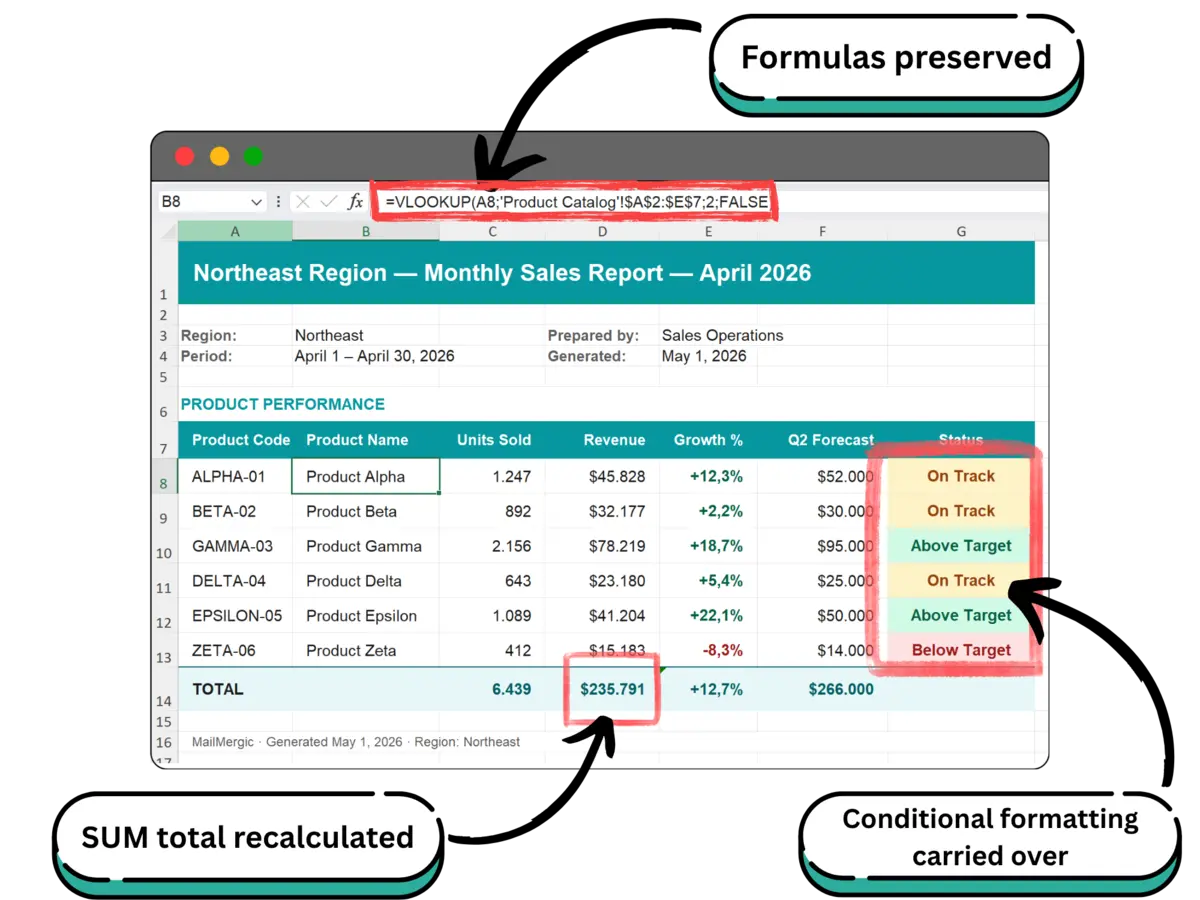
Table of contents
- Why your formulas turned into plain values
- How to keep formulas when you mail merge Excel files
- Do Excel formulas survive a mail merge? The contract at a glance
- What survives a mail merge, class by class
- What happens to VBA macros in a mail merge
- Why the merged file shows #NAME? or #VALUE! (and what else may break)
- Design rules that make preservation certain
- The one-row test: verify your formulas in about a minute
- Frequently asked questions
- Trust is the deliverable
Why your formulas turned into plain values
Formulas turn into plain values in five usual ways on the road from master workbook to recipient:
- Paste as values. The manual copy loop ends with Paste Special > Values, which replaces every formula with its current result by design.
- Scripts and export paths. Most scripting tutorials and export buttons write flat value dumps: the numbers arrive, the logic does not, and the decision guide makes this argument in full, update-links pathology included.
- The CSV round trip. CSV is a plain-text format that stores displayed values only, so any CSV step anywhere in the pipeline silently discards every formula, in Excel or anywhere else.
- External references in copied workbooks. A copied workbook that points at files on your drive greets its recipient with the update-links prompt and, when the linked file is missing or moved, stale numbers and a rash of #REF! errors.
- Macro-dependent calculation. Logic that lives in VBA stops calculating the moment the file meets a machine or a policy that blocks macros, which is now the normal case.
Five different mechanisms, one common shape: every one kills formulas either by converting them into their results or by divorcing them from the workbook they depend on. That points directly at the model that never does either.
How to keep formulas when you mail merge Excel files
The model for generating files that keep their formulas has two beats. First, substitution: the placeholder cells in your template receive the current row’s values, in place. Second, recalculation: the whole workbook recalculates, with the substituted values feeding every formula that reads them. At no point is a formula converted to its result. That is the entire trick, and the engine performing it is Syncfusion’s .NET Excel Library.
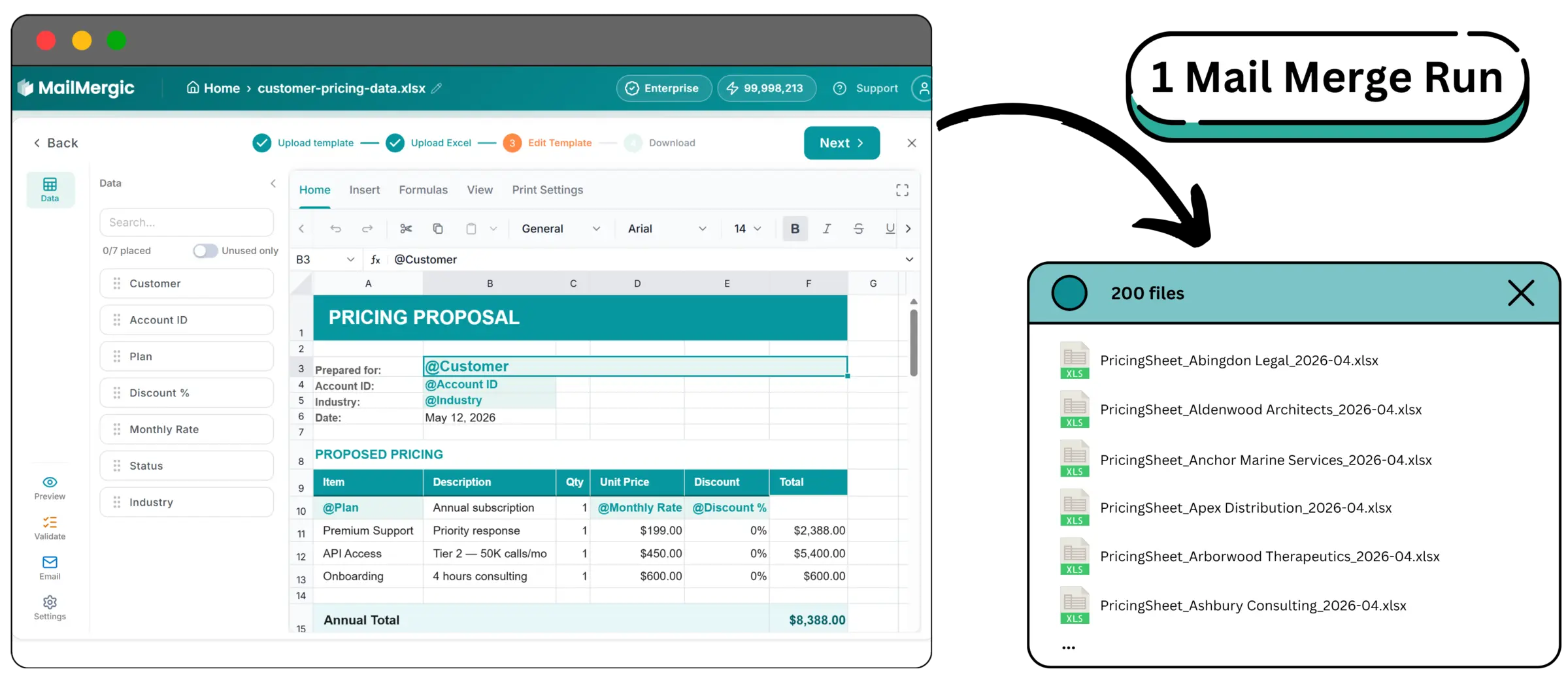
MailMergic’s Excel to Excel mail merge is this model shipped as a product: one workbook holds a template sheet and a data sheet, and each data row produces one recalculated file.
The key-cell pattern is the model used deliberately. One cell holds @region_name, every SUMIFS on the page reads that cell, and substituting one value rebuilds the entire page for that region. The month-end pack’s region key section is the canonical worked example.
The corollary kills the external-references pathology by construction: because template and data live in one workbook, a generated file carries no references to files on your drive. There is nothing to update, no prompt to answer, nothing to break when the file travels.
The row source can itself be assembled upstream; a Power Query output saved to a worksheet works fine as the data sheet. That input side belongs to the Power Query comparison, not here.
Do Excel formulas survive a mail merge? The contract at a glance
Yes. Formulas survive because each generated file is produced by substituting one row’s values into the workbook and recalculating it, never by exporting results. Standard functions recalculate, formatting and structure carry through as set, VBA is stripped, and a short list of edge cases earns a one-row test.
| Tier | What | The boundary | Notes |
|---|---|---|---|
| Preserved and recalculated | SUM, VLOOKUP, IF, INDEX/MATCH, SUMIFS, COUNTIFS, plus standard date, text, and financial functions | Recalculation runs after substitution; functions outside this set belong to the last tier | Class by class |
| Preserved as set | Conditional formatting: cell-value rules, data bars, icon sets, color scales | Cell-value rules; formula-based rules are one-row test territory | Design rule 5 |
| Preserved as set | Named ranges, cell styles, number formats | Render exactly as set, nothing reinterpreted | Class by class |
| Preserved as set | Print areas, multi-sheet structure, per-sheet page setup | Detected on upload; editable in the Print Settings ribbon tab | Class by class |
| Stripped | VBA macros | Removed on upload; an .xlsm keeps its extension, the code comes out empty | VBA macros |
| May break | Unrecognized or proprietary functions | Render #NAME? or #VALUE! in the merged file | What may break |
| May break | Circular references | Fall back to 0 unless iterative calculation is enabled at workbook level | What may break |
| May break | Array formulas, external file references, very large pivot tables | Edge cases; one-row test territory | What may break |
| May break | Password-protected files | Rejected on upload, before any of the above applies | What may break |
Every row carries its boundary phrase, because a guarantee without a boundary is marketing. The next three sections walk the tiers in order.
What survives a mail merge, class by class
Functions
SUM, VLOOKUP, IF, INDEX/MATCH, SUMIFS, and COUNTIFS are preserved and recalculated, along with the standard date, text, and financial functions. The micro-example: =SUM(B2:B10) totals the substituted values correctly in every file, because recalculation happens after substitution, not before.
Does conditional formatting survive the mail merge?
Yes: cell-value color rules, data bars, icon sets, and color scales carry through and keep firing. A status column showing green for Paid, yellow for Pending, and red for Overdue looks the same in every generated file. Formula-based rules are a different case; their full hedge lives under design rule 5 below.
Named ranges
Preserved. A template that reads TaxRate instead of a cell address still resolves it: =B10*TaxRate computes in the output exactly as it did in the master.
Cell styles and number formats
Fonts, borders, fills, alignment, and number formats carry through. Currency shows as currency, a date renders in the format you set, and a percentage stays a percentage, in every file.
Print areas
Detected on upload and re-applied, and editable in the editor’s Print Settings ribbon tab. The page you framed is the page that prints.
Multi-sheet structure
A three-sheet template produces a three-sheet output, in workbook order. Sheets you exclude with the per-sheet toggles stay in your workbook and out of the output.
Per-sheet page setup
Orientation and paper size hold, set globally or per sheet: a landscape summary sheet and a portrait detail sheet stay that way in every generated file.
What happens to VBA macros in a mail merge
The flat statement: VBA code is removed on upload, for security. An .xlsm keeps its extension, the code comes out empty, and macro-dependent calculation does not run in any output file. There is no setting that changes this.
The honest framing: most teams adopt generation specifically to retire VBA, and the migration path is moving calculation logic out of code and into formulas, where it becomes visible, testable, and covered by the contract above. The no-VBA guide maps that migration, workflow by workflow. Make the move before the first run, not after the first confused recipient.
Why the merged file shows #NAME? or #VALUE! (and what else may break)
A #NAME? or #VALUE! error in the merged file means the template uses a function outside the documented set: the cell renders a visible error rather than a silently wrong number. Rebuild that cell from documented survivors and re-run the one-row test.
This section is the reason to trust the previous one; a preservation list with no failure modes is a list nobody tested. Here are ours, stated flat.
Circular references behave the way Excel treats them: affected cells fall back to 0 unless iterative calculation is enabled at workbook level. If your template depends on iteration, that is a workbook setting, not a setting in the run.
Array formulas, external file references, and very large pivot tables are edge cases. Most templates use none of them; if yours does, the one-row test below answers the question in about a minute, with your actual workbook rather than anyone’s promises.
Password-protected files are rejected before any of this happens, because an encrypted workbook cannot be opened without its password. Remove the password in Excel first.
Empty data rows are processed normally and produce files with all-empty substitutions. Not breakage, but it surprises people; filter empty rows out before upload.
Each paragraph above names the symptom, the mechanism, and the test. The guarantees two sections up are made of exactly the same material.
Design rules that make preservation certain
The four worked builds in this series converged on the same discipline from four directions. Here it is in one place, as numbered rules with credits, instead of re-teaching each build.
Rule 1: use the key cell on purpose. One substituted cell driving every aggregate is the preservation model itself, taught above; design around it.
Rule 2: build only from documented survivors. Every function on the page comes from the contract table’s first tier, nothing else. The rent roll build states this discipline hardest: the tempting one-function answers that are not on the list stay off the page. The performance review build takes it furthest, computing its whole scoring page from plain arithmetic and IF alone.
Rule 3: give lookup ranges headroom. Give every range more rows than today’s data needs: the rent roll runs its Units ranges to row 100 on purpose, and the month-end pack keeps its SUMIFS ranges generous at rows 2 to 400, so a growing extract never falls off the end. A range sized exactly to today’s data breaks next month, and for the SUMIFS totals it breaks silently, with no error to catch your eye.
Rule 4: keep display tables display-only. The rent roll keeps its guarded INDEX/MATCH table display only and pulls every printed total from SUMIFS against the data sheet, never a SUM over guarded display cells, so blank guard cells can never poison a sum.
Rule 5: hedge anything compound. Cell-value color rules are documented survivors; a formula-based rule painting a whole row is exactly what the one-row test exists to confirm, and the compound guarded INDEX/MATCH earns the same hedge: a one-row test before the batch. That is the rent roll build’s canonical hedge at full strength: not a warning that something is broken, but a named boundary with a named test.
Rule 6: one merge field grain per cell. Whole-cell placeholders accept column names with spaces; inline placeholders need names without them. Give each placeholder its own cell where you can, and let formulas do the joining.
Rule 7: choose the output format for the recipient’s next action. Ship .xlsx when the recipient keeps working with formulas; ship PDF when the file is final, because PDF flattens by design, and for a final document that is a feature. The pricing sheet build’s format section walks the decision.
Follow the seven rules and preservation stops being a hope and becomes a property of the template.
The one-row test: verify your formulas in about a minute
The one-row test verifies your formulas survived: generate one file from your most breakable data row and run six checks, about a minute in total.
- Step the preview to the breaker rows. The floating “Row N of M” pill steps through your data live. Do not stop at row 1, the row the template was designed around; step to the zero row, the longest name, the negative number, the vacant or edge row.
- Generate one row. One file, from the row most likely to break.
- Open it and click the key totals. Read the formula in the formula bar; do not just look at the number. A pasted value and a live formula can display identically; only the formula bar tells them apart.
- Change one input value and watch the total move. Live proof of recalculation, the exact thing the recipient in the opening scene never got.
- Confirm the conditional rule fires on a row where it should. A rule that never fires looks identical to a rule that broke.
- Check the printed page. Print area applied, orientation right, nothing spilling to page two.
Cost and cadence: one generated row is one credit, and the free plan includes monthly credits (pricing). Run it after any template edit and before any full batch; it converts every hedge in this article into a yes or a no for your specific workbook.
Frequently asked questions
Q: Do Excel formulas survive a mail merge?
A: Yes, when the tool substitutes each row’s values into the workbook and recalculates instead of exporting results. SUM, VLOOKUP, IF, INDEX/MATCH, SUMIFS, COUNTIFS, and the standard date, text, and financial functions recalculate in every file.
Q: Why did my formulas turn into plain values?
A: Something in the pipeline converted them: Paste Special > Values, a script or export path that writes value dumps, or a CSV step, which discards every formula because CSV stores displayed values only.
Q: Does conditional formatting survive an Excel mail merge?
A: Yes for cell-value color rules, data bars, icon sets, and color scales: they carry through and keep firing in every generated file. The exception is formula-based rules, which is exactly what the one-row test exists to confirm.
Q: Why was my conditional formatting lost after the mail merge?
A: Usually a CSV step somewhere in the pipeline, which stores displayed values only and discards all formatting, or a formula-based rule that did not carry. In a mail merge that substitutes and recalculates, cell-value color rules, data bars, icon sets, and color scales survive; confirm any formula-based rule with the one-row test.
Q: What happens to VBA macros in the merged file?
A: VBA code is removed on upload for security. An .xlsm keeps its extension, the code comes out empty, and macro-dependent calculation does not run in the output. Move that logic into formulas first.
Q: Why does the merged file show #NAME? or #VALUE!?
A: The template uses a function outside the documented set, so the cell renders a visible error instead of a wrong number. Rebuild that cell from documented survivors, then re-run the one-row test.
Q: Do formulas survive PDF output?
A: No. PDF is a rendered snapshot by design; the formulas compute during generation and the results are flattened onto the page. Choose .xlsx when the recipient needs live formulas.
Q: How do I keep formulas when generating one file per row?
A: Keep template and data in one workbook, mark the variable cells with placeholders, and generate with a tool that substitutes and recalculates rather than exporting. Build from documented survivors, then run the one-row test.
Q: Do named ranges and number formats carry through?
A: Yes. A reference like TaxRate still resolves in every generated file, and currency, date, and percentage formats render exactly as you set them.
Q: What is a one-row test and why one row?
A: You generate one file from your most breakable data row and inspect it: formulas in the formula bar, recalculation on edit, rules firing, print layout. One row costs one credit and reveals everything a batch would.
Q: Does the recipient need anything special to open the file?
A: No. Each generated file is an ordinary Excel workbook, an .xlsx by default, while an .xlsm template keeps its extension with the macro code stripped: no add-ins, no macros, no external links, nothing to install. It opens with live formulas.
Trust is the deliverable
The series ends where it started: one workbook, many files, and the formulas alive in every one of them. The recipient from the opening scene changes a number and the totals move, because nothing between the master and their inbox ever converted a formula to its result. Every guarantee here arrived with its boundary attached, and that is deliberate: the hedges are the proof the guarantees mean something, and the one-row test is how you collect on both.
Try Excel to Excel mail merge →
This article completes the series. The foundation is the complete guide, the migration path is the no-VBA guide, the tool landscape is the decision guide, and the input side is the Power Query comparison. The four worked factories that proved the rules above are the pricing sheet build, the month-end pack, the performance review build, and the rent roll build. The chain ends here: nine articles, one workbook, many files.
