Create documents automatically with
Zapier
When a form is submitted, an order is paid or a deal is won, Zapier passes the details to MailMergic. MailMergic fills your PDF or Word template and can email the finished document to the right person.
- Works with 9,000+ apps
- PDF and Word templates
- Emails each document as an attachment
- No code

Set it up once
Connect MailMergic to Zapier in 3 steps
Prepare your template
Upload your PDF or Word file to MailMergic and place your fields, such as Name and Course. Each field becomes a box you fill in Zapier.
Copy your Zapier key
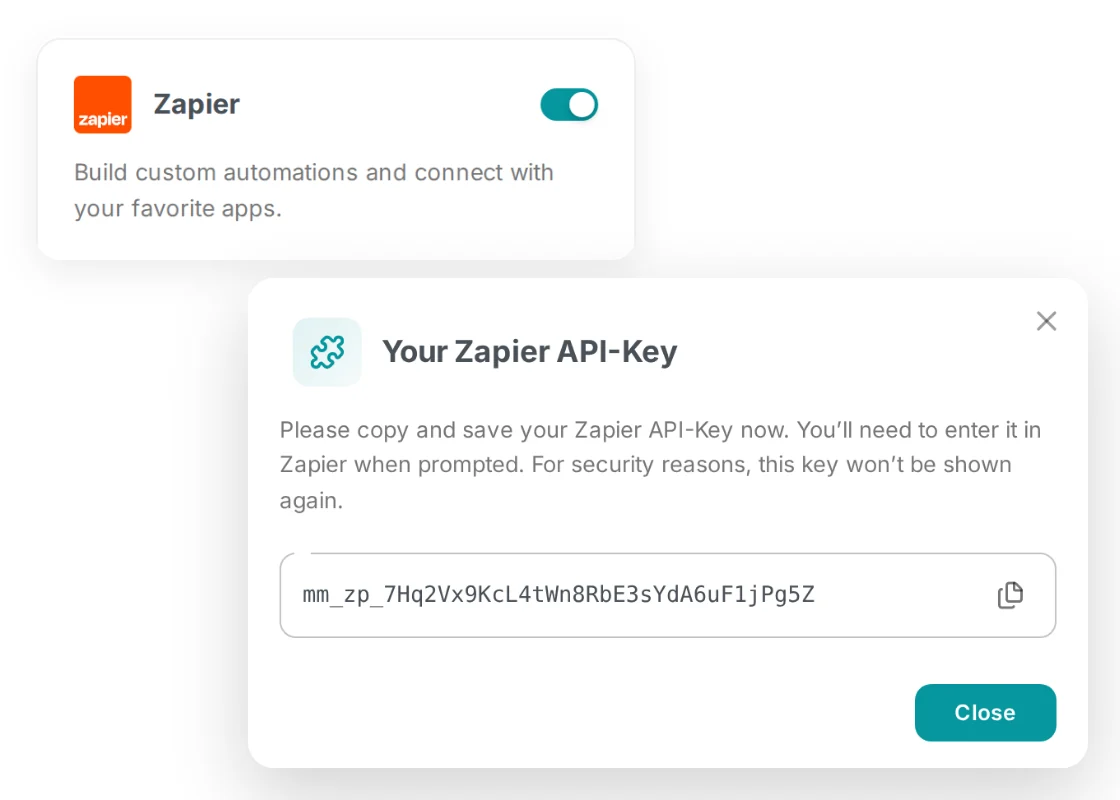
In MailMergic, open Settings, then Integrations, and switch on Zapier. Copy the key that appears. Zapier asks for it once, when you connect your account.
Build your Zap
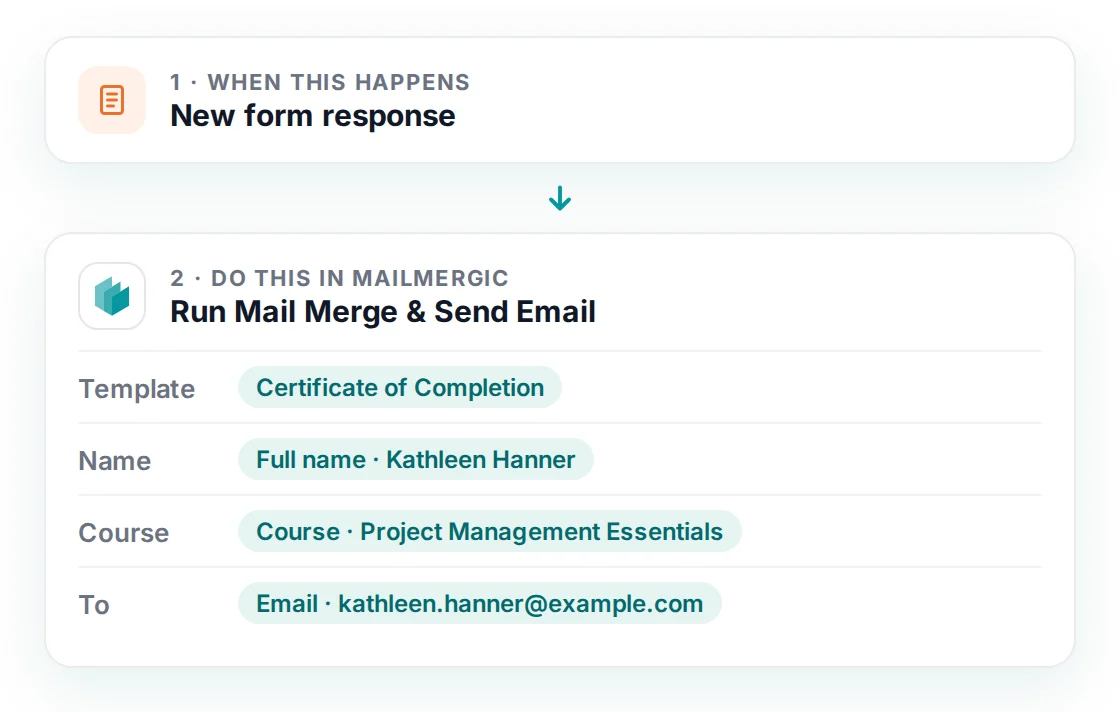
In Zapier, pick what starts it, such as a new form response. Then choose MailMergic, Run Mail Merge & Send Email, your template, and which answer goes into which field.
Your template is the only thing MailMergic needs.
Create your templateWhat MailMergic does in your Zap
Run Mail Merge
Fills your template with the details from the step before and creates the document. The link to the file goes to the next step, for example to save it in Google Drive.
Run Mail Merge & Send Email
Creates the document and emails it as an attachment, with your subject and message, from a sender address you have verified in MailMergic.
PDF or Word
Word templates come out as Word or PDF files. Fillable PDF forms keep their fields, or are flattened so nobody can change them.
Named and protected
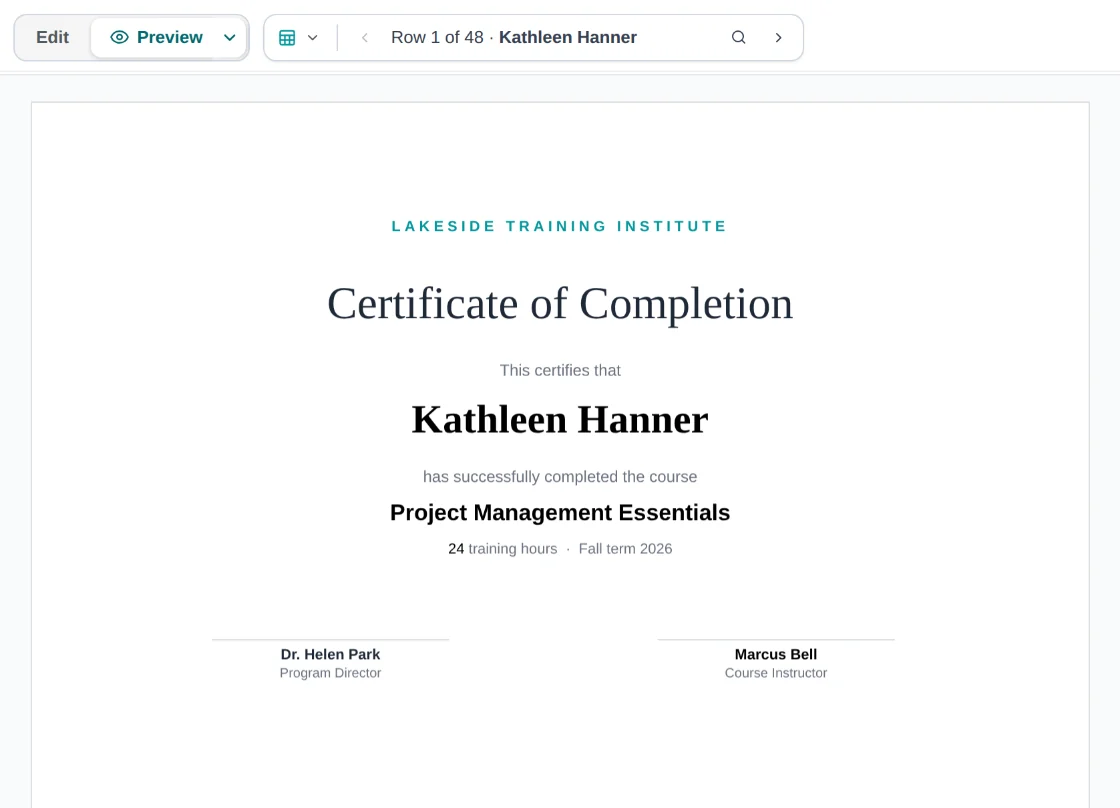
Name each file from your data, such as Certificate_Kathleen_Hanner. Add a password to open or to edit the file when you need one.
Examples
What people automate with MailMergic and Zapier
One template, filled in every time something happens in another app.
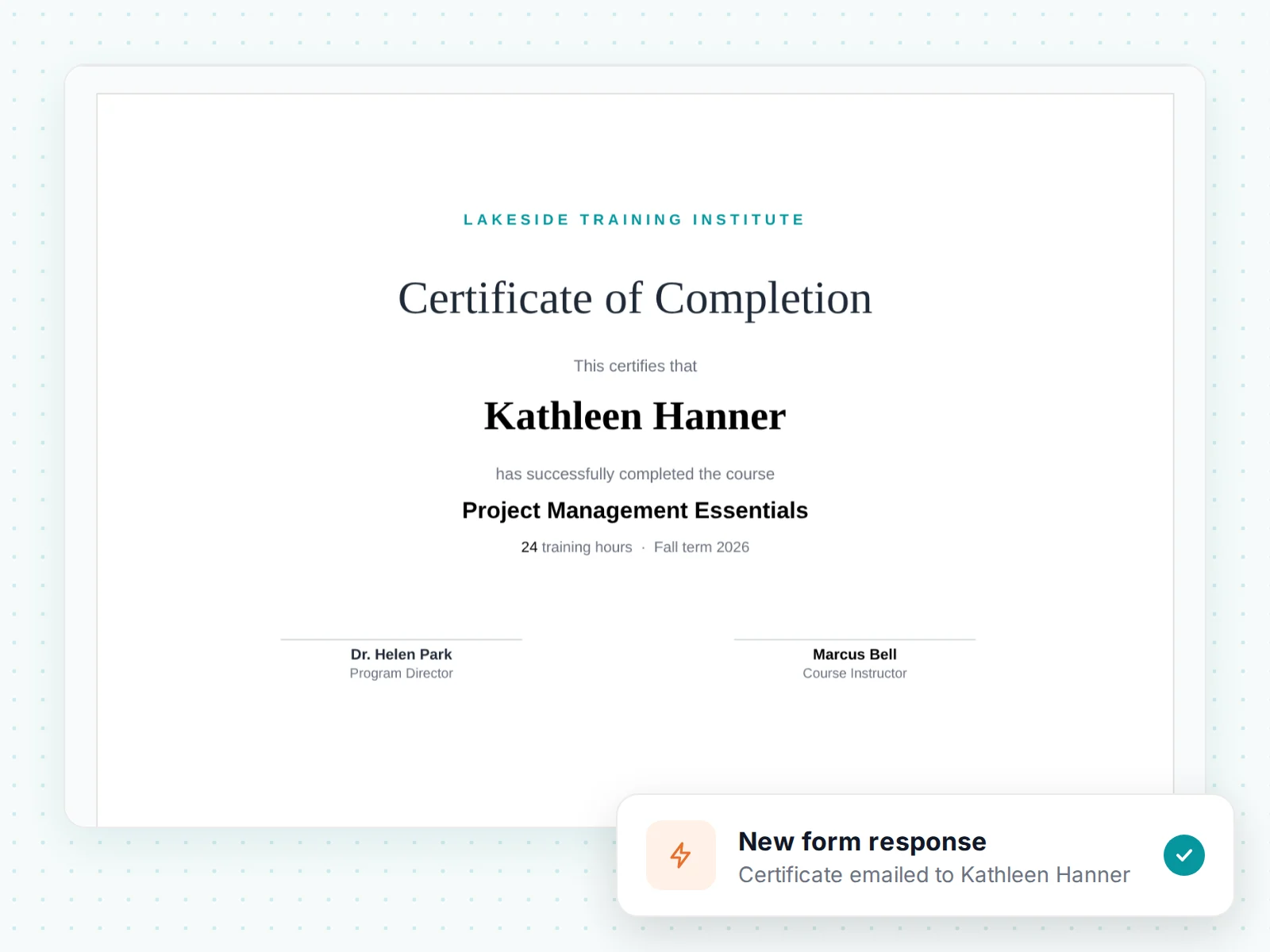
A certificate for every finished course
When a student submits the course completion form, their certificate is filled in with their name and course and sent to their inbox.
- Starts from Google Forms, Typeform, Jotform or your course platform
- Name, course and date filled in
- Emailed to the student as a PDF
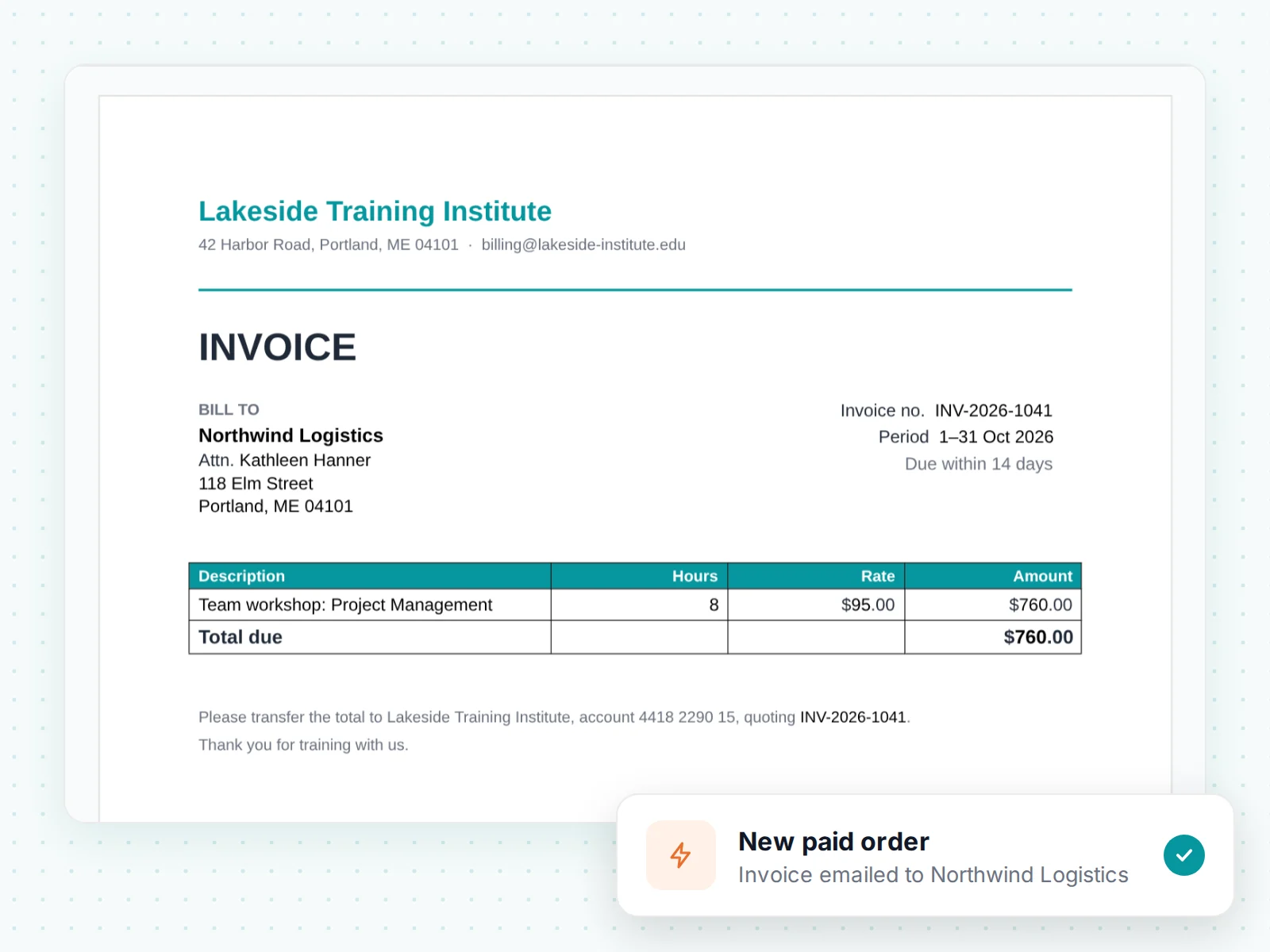
An invoice or receipt for every paid order
When an order is paid, MailMergic fills your own invoice layout with the customer and the amount, and emails it to the customer.
- Starts from your shop, payment or accounting app
- Your own invoice design
- Invoice number in the file name
A contract when a deal is won
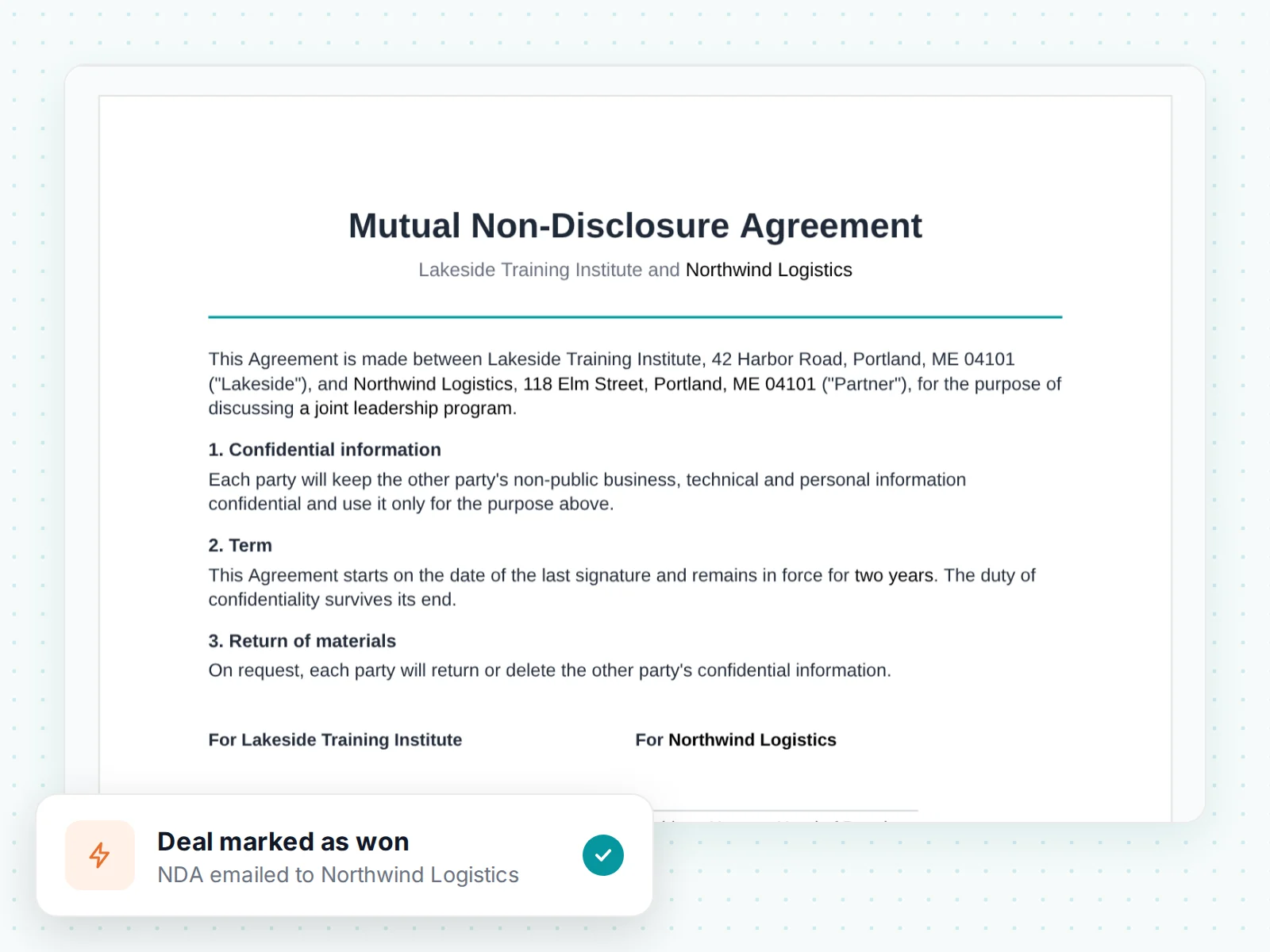
When a deal is marked as won in your CRM, the NDA or contract is filled in with the client’s details and emailed to them.
- Starts from your CRM, such as HubSpot or Pipedrive
- Client name, address and dates filled in
- Optional password on the file