
Reusable Lists: Save Your Spreadsheet Once, Then Reach Only the New People

Every month the club sends a welcome letter and a membership card. Every month someone exports the members spreadsheet, uploads it again, and then faces the same question: who already got their card last time, and who joined since? Usually the answer is a careful hour of sorting rows by hand, or sending everything to everyone and hoping nobody minds.
With reusable lists, MailMergic keeps your spreadsheet for you. You save it once, use it with any template, and the list remembers which documents were made for which rows. Next month you make the card only for the six new members.
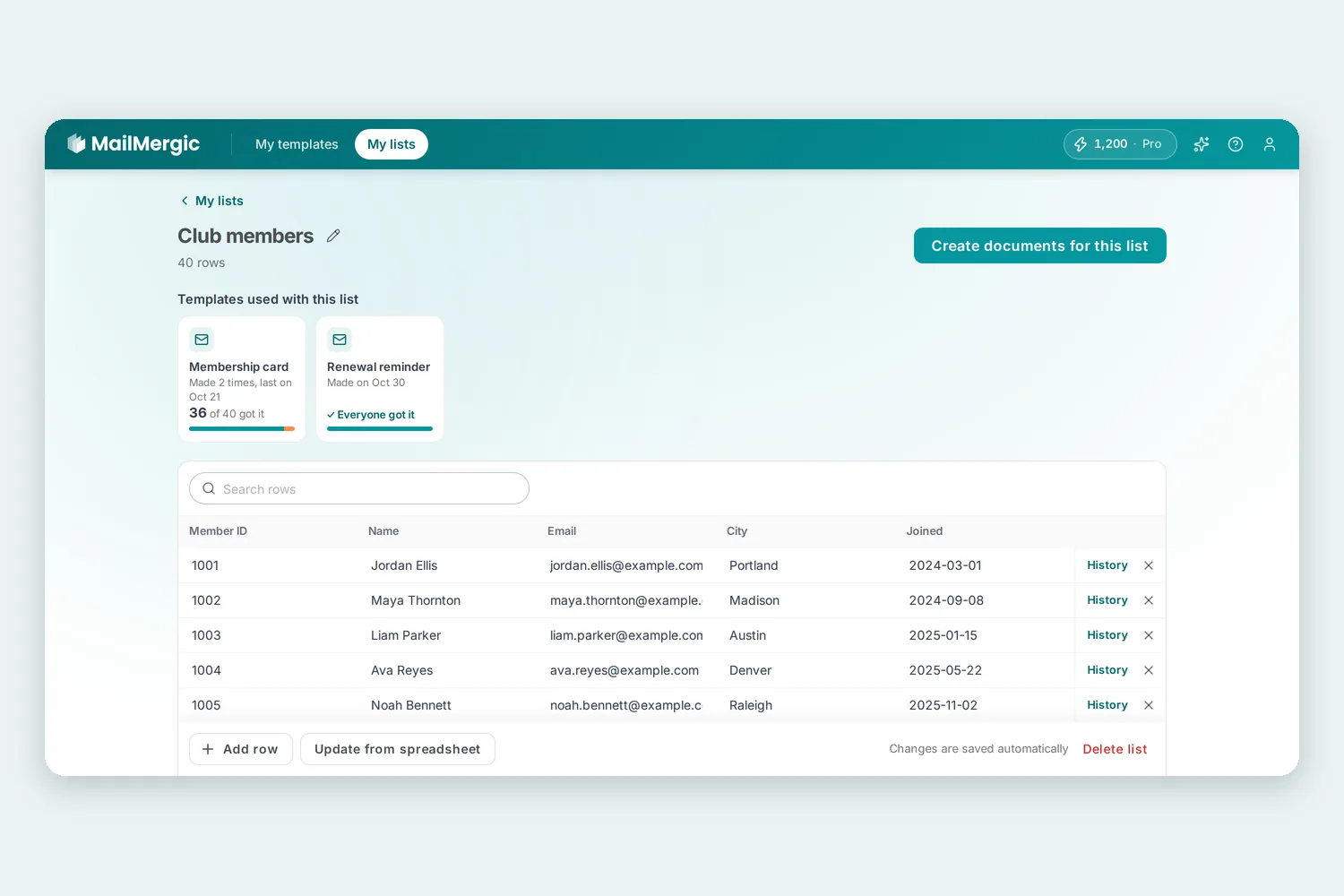
Save a list in one click
You don’t have to set anything up in advance. When documents are ready from your own spreadsheet, a small card asks Save this list for next time? Click Save list and it is saved under the file’s name. Next time you just pick it instead of uploading the file again.
If you have generated documents before, you also find Save as a reusable list right under your spreadsheet on the Spreadsheet step. That is handy when you reopen a template you use every month: last time’s file is still there, and one click turns it into a list.
Once you have saved your first list, a My lists tab appears at the top, next to My templates. You can also start a list there with New list from a spreadsheet. Excel and CSV files both work.
Start from a list
Open a list and click Create documents for this list. MailMergic asks Which template?, and you pick the letter, certificate or card you want.
If that template was already made for some rows of the list, you get one simple question: Who should get it this time? Choose Only the 6 rows that don’t have it yet or All 48 rows. Then the template opens with your list already in place.
It works the other way round too. Inside a template, on the Spreadsheet step, click Use a saved list instead and choose one of your lists. The same question comes up when some rows already have the document.
See who still needs it
At the top of each list, under Templates used with this list, every template you used with it has its own square. Each square tells you how often it was made and when, for example “Made 3 times, last on Oct 2”, and how many rows still need it.
Click a square to see each time it was made, by date. Pick a date, and the table below shows who still needs it and who already got it, with their actual names. For the latest time, one button finishes the job: Create it for these 6 makes the document just for the people who are missing.
Every row also has a History button. It shows which documents were made for that row and when, with their file names. If you emailed documents with MailMergic, it also lists the emails sent to that address and whether each one was Opened, Arrived, not opened or Did not arrive.
When you save a list right after a run, only the rows that run actually covered count as having the document. If you made documents for the first 25 rows only, the other rows still show up as needing it.
Keep the list up to date
Small changes happen right in the list: click a cell and type, use Add row for a new member, or Search rows to find someone. Changes are saved automatically.
When you have a fresh export, click Update from spreadsheet and pick the file. Before anything changes, MailMergic shows you what the file would do: how many rows are new, how many were updated and how many stay unchanged. Rows that are in your list but not in the file are kept unless you choose to remove them, and documents made earlier stay in the history either way. New columns in the file are added to the list.
To tell rows apart, MailMergic uses a column that is different for every row and stays the same over time, like a member number or an email address. The dialog says which one, for example Rows are matched by “Member no.”, and Change lets you pick another. When it can’t be sure, it asks you first. And if the result isn’t what you expected, Undo puts the list back as it was.
Where it helps
- Membership cards and welcome letters. Update the members list from your latest export and make the card only for the people who joined since last time.
- Monthly payslips or statements. Same list, same template, every month. Pick this month’s date and see straight away who still needs theirs.
- Course certificates. Participants who finish late get their certificate a week after the rest, without a second copy for everyone else.
- Several documents for one group. Use one client list for invoices, reminders and the holiday letter, and see for each one who has it.
Try it
Reusable lists are live now for everyone with a MailMergic account. Generate documents from your own spreadsheet once, and MailMergic offers to save it as a list. Open one of your templates, or upload a PDF and start for free. The PDF mail merge page explains the rest.

Upload PDF · Get PDF