
More MailMergic Features You Might Have Missed: Filled Rows, Tidy Addresses and More

Earlier this month we gathered six small MailMergic features in one place. Since then, more have arrived. Here they are, starting with the ones that save the most time.
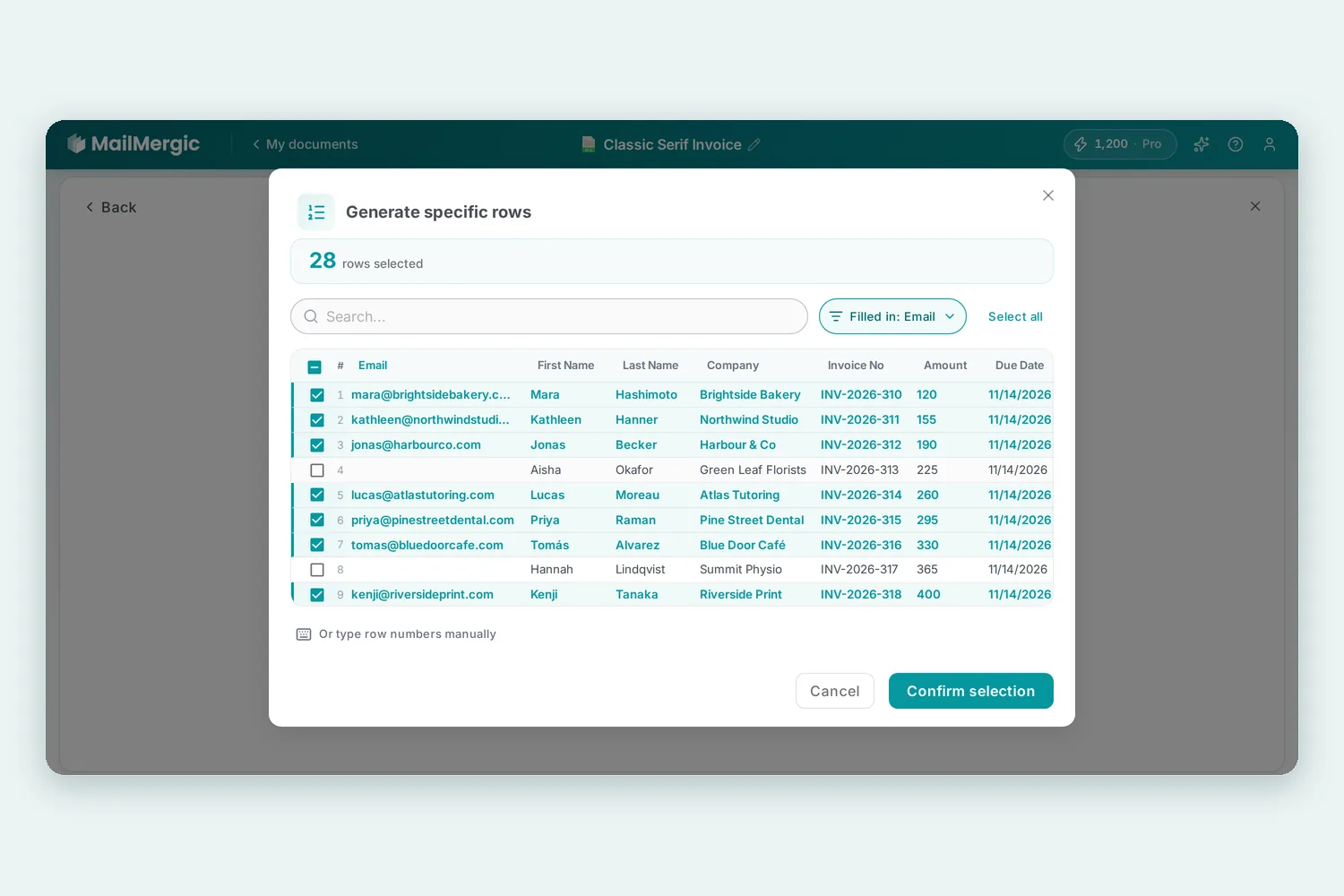
Make documents only for rows that have a value
Your spreadsheet has 500 rows, but only the people who gave an email address need a document. You no longer have to clean up the file first.
On the download step, click Change next to the line that says how many rows will be generated. In the Generate specific rows window, click Rows with a value in… and pick a column. Each column shows how many rows are filled in. MailMergic selects exactly those rows, and you can still tick or untick single rows before you click Confirm selection.
Address blocks without gaps
An address block often mixes your own words with several fields, for example a line that says “Phone:” followed by the phone number. Without a phone number, that line used to print as a lonely “Phone:”.
Now, in a text box where you combine text and fields (you add fields with + Insert placeholder while typing), a line whose fields are all empty is left out, label included, and the lines below move up. If every field in the box is empty for a row, the box prints nothing at all. The editor preview follows the same rules. This works on PDF and image templates.
Password-protected Excel files
In our first roundup we showed how every PDF can get its own password. Excel templates can now do the same. On the download step, open Password-protection. When your output is an Excel file, you’ll see Password for opening the Excel file and Password for modifying the Excel file.
Type one password for everyone, or type @ and pick a column, such as a customer number, so each file gets its own password (this needs one file per row). PDFs made from an Excel template are protected the same way.
Free accounts can send themselves a test email
Before paying for email sending, you want to see how the email really looks in an inbox. When you switch on email sending on the download step, MailMergic tells you that test emails to yourself are free and that sending to everyone on the list needs a Pro plan.
Click Send a test to me in the email editor, or Send yourself a test on the campaign page, and one real email made from your own data lands in your inbox. It always goes to your own verified sender address, up to five times a day.
The Assistant can fix pages and text colors
Blank pages at the end of a PDF, or a cover page that belongs at the back? Just tell the Assistant, for example “remove the last two pages”. It then shows a small card, such as Remove these pages? or Change the page order?. Nothing changes until you click Apply. Fields on a removed page go with it, and the card says so. If you’d rather do it yourself, the editor has a Manage pages button.
The Assistant can also change the color of field text. When a field is hard to read on a dark background, it suggests a lighter color on the same kind of card.
Turn off the unsubscribe link
An unsubscribe link looks odd under an invoice to an existing customer or a note to your own team. If you send from your own domain, your Gmail account or your own mail server, open Senders in your account menu, click the three dots next to the sender and choose Disable unsubscribe link. MailMergic then also stops asking mail apps to show their own unsubscribe button.
For a domain, the setting applies to every sender address on that domain. Enable unsubscribe link in the same menu switches it back on. Senders that use a MailMergic address always keep the link.
Easier uploads: damaged PDFs and dropped images
Some PDFs open fine in your browser but used to be turned away by MailMergic as damaged. MailMergic now tries to repair such a file when you upload it, so many of these PDFs open straight away.
Adding images is quicker too. Click Image in the Add to the page bar and drop PNG or JPG files onto the Upload image area, several at once, up to 2 MB each.
A clearer email report
On a campaign page, emails the mail service has already accepted now show as Sent instead of Pending, so a campaign no longer looks stuck. Emails that haven’t left yet are marked Not yet sent.
If you send from a MailMergic address or your own domain, the Email Report in your account menu now also has an Opened tile that counts real people, with likely automated opens shown separately. Here is how MailMergic tells human opens from automated ones.
Want to try them on your own files? Upload a PDF and start for free.
