
The New Document Editor: See Your Data While You Design

Placing fields on a template used to involve some guesswork. The editor listed your column names on the left, but many people never noticed that those names can be dragged onto the page. And while you designed, the page showed “First name”, not what the letter would actually say for Anna, or for row 87 with the very long company name.
The redesigned editor puts your data right next to the page: every column, with the real value from your spreadsheet.
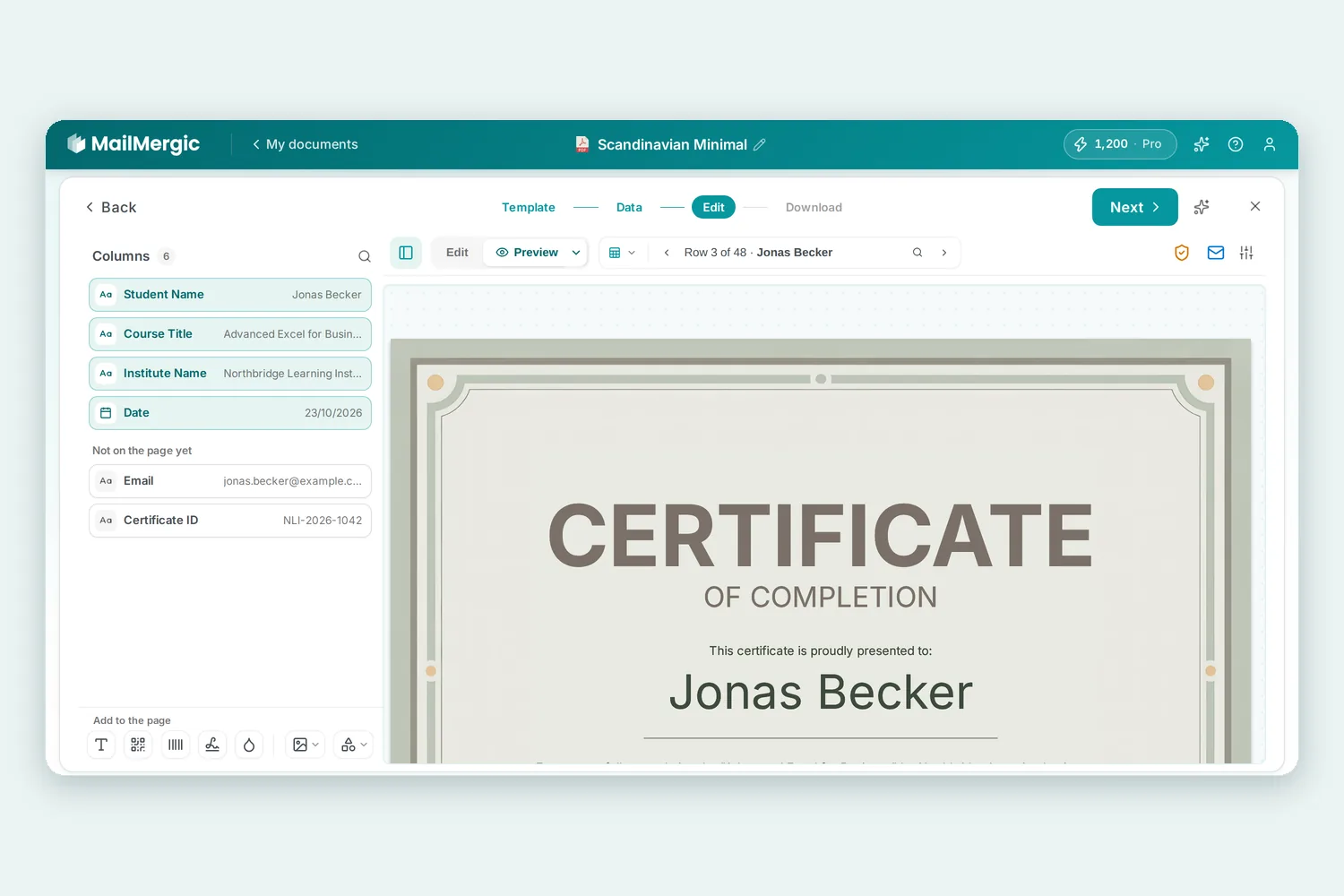
Your columns, with their real values
The panel on the left shows each column as a small card with its name and the value from the current row. Numbers and dates appear in the format you chose for them, and an empty cell says (empty), so a missing value stands out. The symbol at the left of a card shows the kind of value (text, number, date, QR code and so on); click it to change that. In a wide spreadsheet, click the magnifier next to Columns and type part of a name.
Drag a column onto the page
Drag a card onto the page. A small copy follows your pointer, and the field lands exactly where you let go, already selected, so you can change its size or font right away. You can also just click a card and the field appears on the page you are looking at.
A column that is on the page gets a light teal tint and moves to the top of the list; the rest wait below under Not on the page yet. If you used a column more than once, the card shows how often, for example ×2. Clicking a placed column scrolls to its field and selects it. And a field whose column is missing from your spreadsheet shows up in red at the top, with No column. Pick one.
Flip through your rows
Above the page sits a bar with an Edit | Preview switch and the row box. The row box says which row you are looking at, for example “Row 3 of 124”, with a value such as the name next to it. The arrows step one row back or forward, and the panel follows along.
To find a particular person, click the row text and type a name, any other value, or a row number, then press Enter. The search also shows the file name that row’s document will get. Your sheet sits at the start of the row box too, so switching sheets happens right there.
Switch to Preview and the page fills with the current row. The small arrow next to it offers Longest values: every field shows the longest entry of its column, so you can check that the longest name still fits.
A checklist, only when it matters
When everything is in order, Next takes you straight on. Only when something is still open does a short Before you generate list appear: a field without a column (it would print empty on every document), suggested matches for your PDF’s form fields that still wait for your OK, or possible mistakes the Validate check found in your data. Each point has a button that takes you to the fix, and Continue carries on anyway.
Text, images, QR codes, barcodes, signatures, watermarks and shapes now sit at the bottom of the panel under Add to the page. Click one to add it, or drag it where it belongs.
Where it helps
- Long names. Turn on Longest values and see whether the longest entry fits on a certificate or a label.
- Gaps in your list. Step through a few rows and watch for (empty) before a letter goes out with a blank where the customer number should be.
- Wide spreadsheets. An export with 40 columns is no longer a long scroll: search for the column and drag it onto the page.
- One person who matters. Search for the client or pupil you want to double-check and look at their document first.
Try it
The new editor is live now. PDF and image templates get everything described here, and Word and Excel templates show the same column list and row box. Open one of your templates, or upload a PDF and start for free. The PDF mail merge page explains the rest.
