


Meet the All-New Email Editor: Easier to Use, Better-Looking Emails

If sending a personalized email has ever felt like fighting with formatting that just won’t behave, you’re going to love this. You write a nice greeting, you try to add a name, and somehow the spacing goes odd, the font changes, and the whole thing looks a little off by the time it lands in someone’s inbox.
We’ve rebuilt the MailMergic email editor from the ground up. It’s easier to use, and your emails come out looking a whole lot better, with no design skills required.
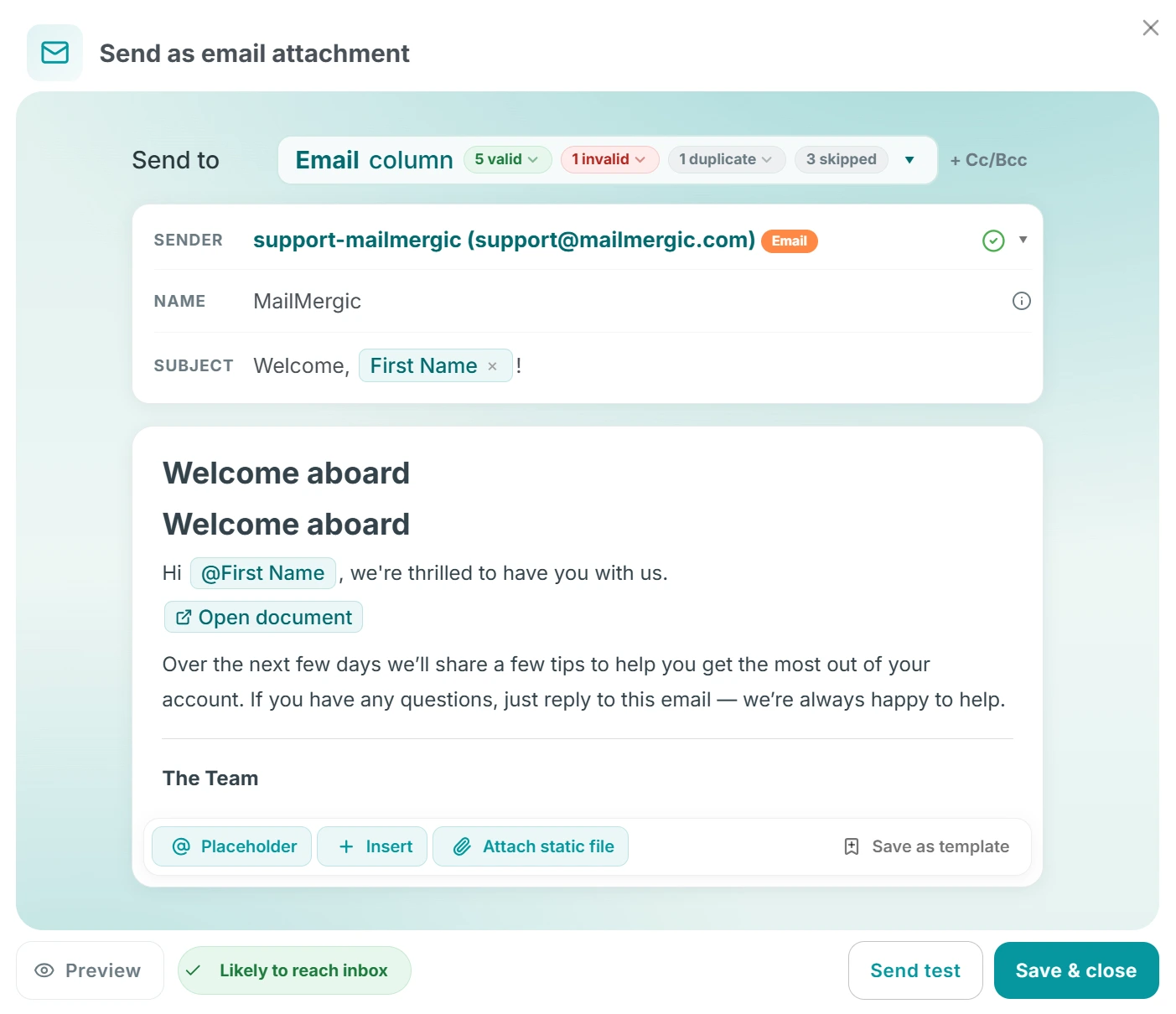
Write the way you want
The new editor gives you proper formatting that just works. You can add headings, bold and italic text, bullet lists, links, fonts, and text colors, just the way you’d expect in any modern writing tool. No clutter, no surprises.
Already wrote your email somewhere else? You can paste straight from Word or Google Docs, and the editor quietly tidies up the messy formatting that usually comes along for the ride. What you see is what your reader gets.
Personalize by typing “@”
This is the part people fall in love with. To drop in a personal detail (a first name, a due date, an amount owed), just type “@” and pick the column you want from your spreadsheet. It appears as a tidy little tag right where your cursor is.
Even better, MailMergic formats those details for you. Dates come out neat and readable, numbers and currency look the way they should, so you don’t end up with a date like “2026-06-18” or an amount with six decimal places. Every email feels written just for that one person.
More than plain text
You can build a real, polished email without touching a line of code:
- Images: add a logo, a header banner, or a product photo
- Buttons: give readers a clear, clickable call to action
- Tables and dividers: lay out details cleanly and break up long sections
Picture a welcome email with your logo at the top, a friendly note that greets each person by name, and a bright button that takes them straight to their account. You can build all of that yourself, in minutes, without asking anyone for help.
And before anything goes out, you can preview the real email for any recipient, names, dates, and all, so you know exactly how it’ll look in their inbox.
Two more highlights
A couple of the bigger features deserve their own spotlight, so we’ll keep this short. Conditional blocks let you show or hide whole sections depending on the recipient, like a different paragraph for paid versus unpaid, for example. And you can save any email as a reusable template, so your best messages are always one click away. Both get their own posts soon.
Open the editor, start a new email, and type “@” to see how easy personalizing has become.