
Mail Merge from Google Sheets: The Add-on Now Does the Whole Job

Your list already lives in Google Sheets: the billing sheet you update every month, the course list a colleague keeps filling in, the register of club members. Until now, the MailMergic add-on handed that sheet over and the rest happened in another tab.
The new version does the whole job from your sheet. Check your data, choose the rows, pick a saved template, run the mail merge, download the documents and mark the rows as done, all in the sidebar next to your list.
Check your data first
Open the sidebar from Extensions, then the MailMergic add-on, then Start PDF mail merge. It checks the sheet straight away for missing or broken email addresses, the same address twice, an empty cell in an otherwise filled column, and rows that carry on after an empty row. This check runs inside your spreadsheet, so nothing is sent anywhere for it.
Open the list and click a problem to jump to its cell. Mark all in sheet puts a short note on each of those cells, and Clear marks removes them. For a closer look, Deep check with AI runs the same data check MailMergic uses in the app. It needs a free MailMergic account and sends your rows to MailMergic for the check (only the first part of a very large sheet).
Choose the rows
Pick All rows, Selected (select the rows in the sheet first) or Not yet done. That last option appears once you have marked rows as done, and it makes next month quick: only the new rows get documents.
Run a saved template
The first time, click Connect MailMergic account. A MailMergic tab opens where you sign in or create a free account, then confirm the code the sidebar shows. From then on, the sidebar lists the templates you have already set up in MailMergic: PDF, Word, Excel or image.
Pick one and the sidebar checks that your sheet has the columns the template needs. If a column has a different name in your sheet, you choose which one to use, and the sidebar remembers that for this sheet. It also tells you how many documents you are about to create and how many credits that uses.
Preview selected row shows the first page of the finished document for the row you have selected, before anything is created. When it looks right, click Generate documents.
Download, then mark the rows as done
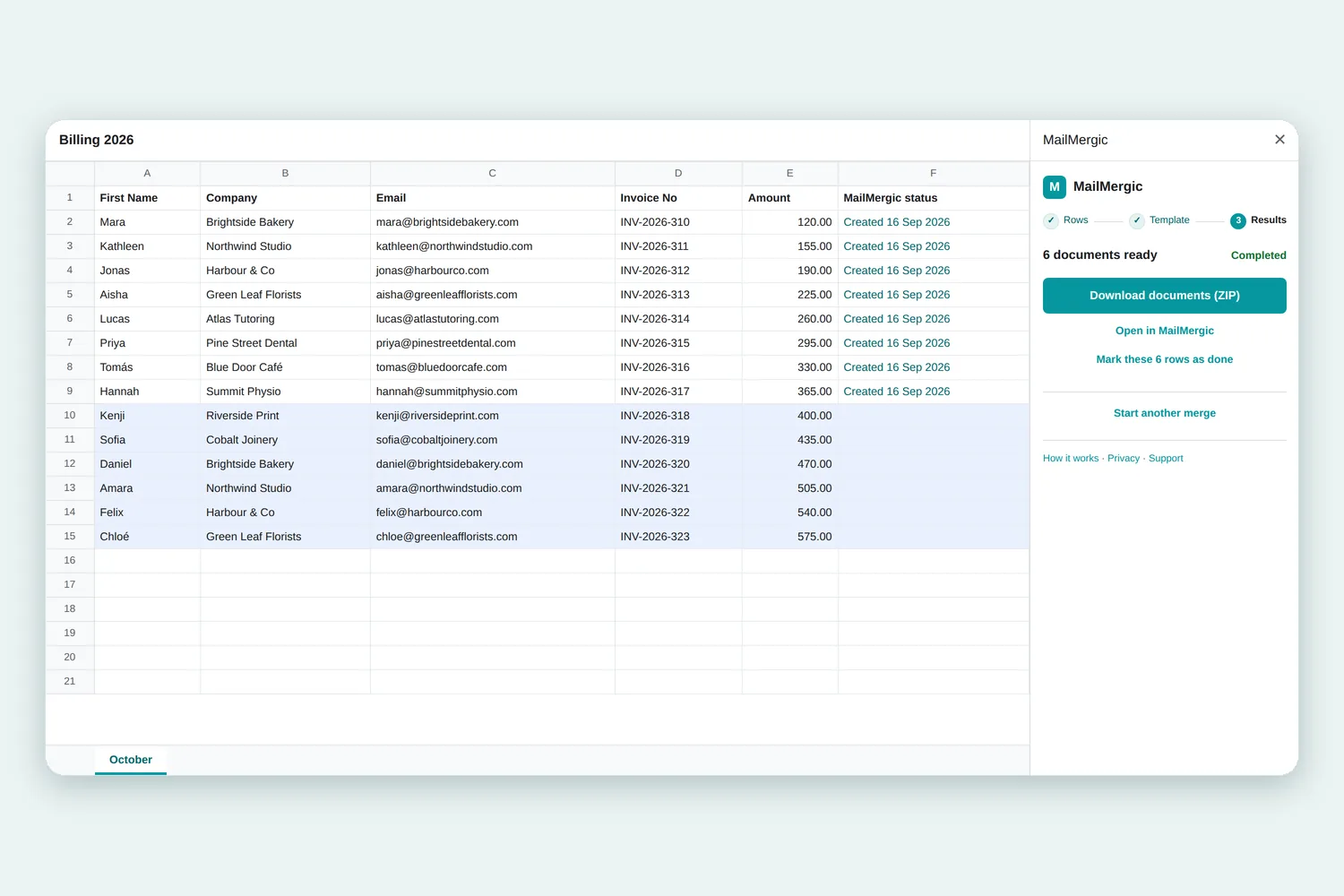
While the documents are created, the Results step shows a progress bar and you can keep working. When they are ready, a Download documents button appears right in the sidebar.
Below it, a link offers to mark these rows as done. Click it and the add-on adds a MailMergic status column with the date the documents were created. Your sheet now shows who already has a document, and Not yet done knows which rows are left.
A new template, or email? Finish in MailMergic
If the template doesn’t exist yet, click Upload a template. MailMergic opens in a new tab with your rows already loaded and says which sheet they came from, so there is no file to download and upload again. Add your template and place your fields. The next time you open the sidebar, it is already connected to the account you used there, with no code to type.
The sidebar creates documents. Emailing each person their own document is set up in MailMergic. After an email mail merge, the Results step shows how delivery is going, and Write results into this sheet adds each row’s delivery status and a link to its document as two new columns.
What the add-on can access
The add-on can only open the spreadsheet you started it in, not the rest of your Drive. It writes to that spreadsheet only when you click: the notes on problem cells, the status column or the result columns.
Your data goes to MailMergic only when you click, too. Choosing a template sends just the column headings, a preview sends that one row, and Generate documents or Upload a template send the rows you chose. Nothing from your sheet is sent in the background.
Where it helps
- Monthly invoices from a billing sheet. Add this month’s customers, choose Not yet done, generate, mark them as done. Same again next month.
- Certificates for a course list. Select the people who finished, preview one certificate to check the name fits, then generate the rest.
- Letters to members. The data check flags an email address listed twice, and the sheet records who got a letter.
Get the add-on
The add-on is free. It is the same one described in our post on the first version, now doing far more of the work.
Install the MailMergic add-on for Google Sheets and run your next mail merge without leaving your sheet.

Upload PDF · Get PDF