


Pull Your Data Straight from Google Sheets — No Downloads Needed

If your team lives in Google Workspace, you’ve probably been through this routine: open Google Sheets, export to Excel, save it somewhere, then upload it into MailMergic. It works, but it’s a few extra steps you shouldn’t have to think about.
Now you don’t have to. MailMergic connects directly to your Google Drive, so you can pick a spreadsheet and start merging — without downloading or converting anything first.
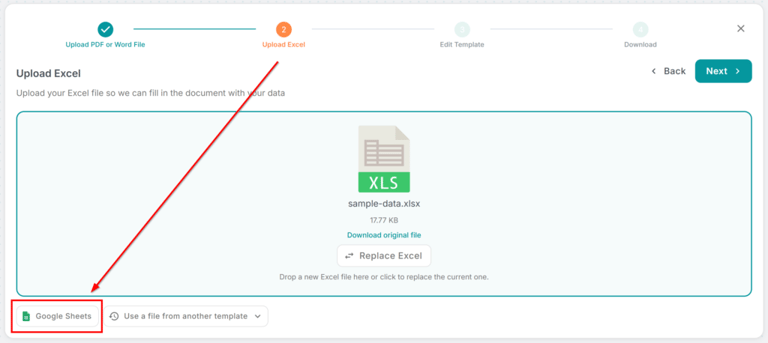
How it works
When you reach the data upload step, you’ll see a new Google Sheets tab alongside the usual file upload. Click Select Spreadsheet, sign in to your Google account (just once), and a familiar file picker opens showing your Drive. Pick any Google Sheet, Excel file, or CSV stored in your Drive — MailMergic pulls the data in automatically.
From there, everything works exactly like before: map your columns to placeholders, preview, and generate your documents.
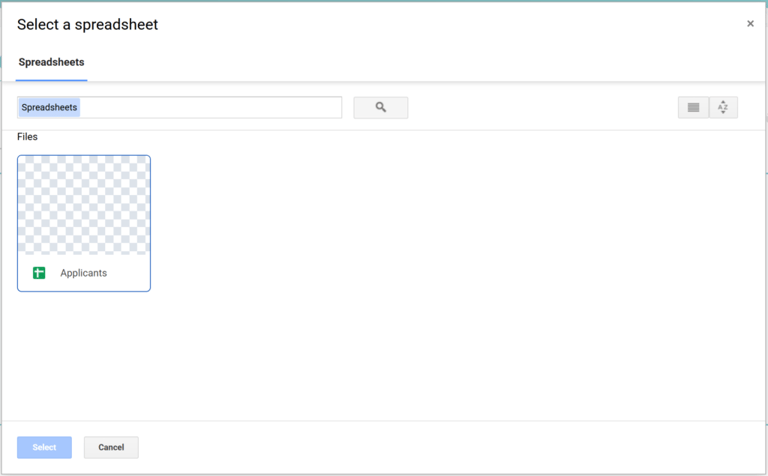
A few things worth knowing
Your data is imported as a snapshot — it doesn’t sync live in the background. If you update your spreadsheet and want the latest version, just click Replace Google Sheet to pull in fresh data. This keeps things predictable: what you see in the editor is exactly what gets merged.
The integration supports Google Sheets, .xlsx, .xls, and .csv files stored in your Drive, so it works regardless of which spreadsheet format your team prefers.
Who is this for?
Anyone who already keeps their data in Google Sheets — schools managing student lists, teams tracking event registrations, HR departments with employee rosters. Instead of an extra export-and-upload step, you go straight from your spreadsheet to your finished documents.
Try it now — open any template in your dashboard, head to the data step, and look for the Google Sheets tab. Your spreadsheet is just a couple of clicks away.