
Print Address Labels from a Spreadsheet: 13 Label Sheets, Ready to Fill

Every autumn the same job comes back. The holiday cards are written, the envelopes are stacked, and someone has to put 140 addresses on them. Or the club newsletter goes out by post, and the member list lives in a spreadsheet. Writing every label by hand takes an evening. Building your own label layout so the text actually lands on the labels can take another.
The template gallery now has a Labels category: ready-made label sheets in the sizes you buy at the office supply store. Pick your sheet, add your spreadsheet of addresses, and download all your labels in one PDF, ready to print.
How it works
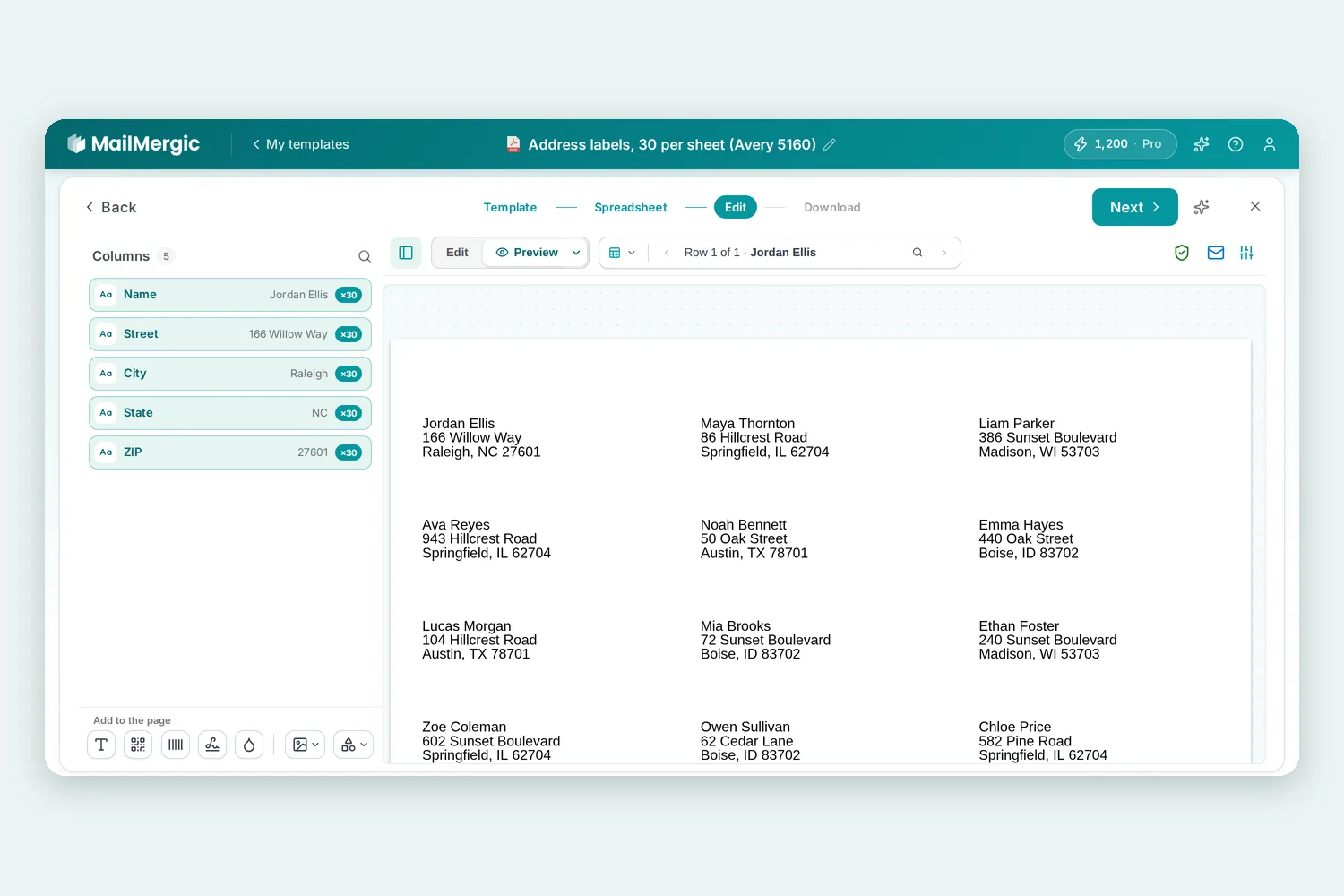
Open the template gallery under Explore templates and click Labels. Each sheet is named after what it holds and the number on the pack, for example “Address labels, 30 per sheet (Avery 5160)”. Pick the one that matches the labels on your desk.
The sheet opens in the editor with the address already placed on every label, so there is nothing to line up. It comes with three made-up rows, and a short note marks them as Example data. Next to it are two buttons:
- Which columns do I need? shows the column names your list should have. For a US address sheet that is Name, Street, City, State and ZIP: one row per person, with these names in the first row. No list yet? Download them as an Excel file to fill in gives you a spreadsheet with exactly those columns.
- Upload my list takes your spreadsheet (Excel, CSV and similar files) and replaces the examples. You can also drop the file straight onto the editor.
Then click Next and generate your labels. Your rows fill the labels in reading order, left to right and top to bottom. When a sheet is full, the next sheet starts. The whole run arrives as one PDF: 200 addresses on Avery 5160 make seven pages in a single file, not seven separate files. Print it at actual size (100%) so every address sits on its label.
Which sheets are there
The Labels category starts with 13 sheets, chosen by what people look for most. On US Letter paper:
- Address labels: Avery 5160 (30 per sheet), 5161 (20 per sheet) and 5162 (14 per sheet)
- Shipping labels: Avery 5163 (10 per sheet) and 5164 (6 per sheet), for packages
- File folder labels: Avery 5366 (30 per sheet), with the folder name in bold over a line of details
- Name badges: Avery 5395 (8 per sheet), with the name large and bold over the company
- Round labels: Avery 22807 (12 per sheet, 2 inch), a name in bold over a second line, for favors, jars or table settings
- Return address labels: Avery 5167 (80 per sheet) and 5195 (60 per sheet)
On A4 paper:
- Address labels: Avery L7160 (21 per sheet) and L7163 (14 per sheet), with the columns Name, Street, Town and Postcode
- Address labels: Avery Zweckform 3475 (24 per sheet), with the postcode before the city, as German addresses are written
The return address sheets work the other way round. Instead of one person per label, each row in your spreadsheet gets a full sheet of its own address: 80 labels on 5167, 60 on 5195. Three rows give you three sheets, one per person, still in one PDF.
Avery also sells some sheets under several numbers with the same layout, so 8160, 5260 and 18160 print on the 5160 template. The print labels from Excel page lists every sheet with its size and the numbers that share it.
Where it helps
- Holiday cards and invitations. Your address list goes onto a few sheets of labels instead of a hundred handwritten envelopes.
- Members and donors. A newsletter or a thank-you letter by post, straight from the member list you already keep.
- Events. Name badges for everyone on the guest list, and round stickers for the gift bags.
- The office. File folder labels for a new filing system, typed once in a spreadsheet.
- Your own return address. One row, one full sheet of return labels for the year’s mail.
Good to know
When you pick a sheet, it becomes your own template and stays in your templates, so next year you start from the same sheet. Every sheet except the return address labels runs on fill mode, already switched on. If your labels are not in the list, that post shows how to lay out any label sheet yourself.
On the free plan, each printed sheet carries a MailMergic watermark. A paid plan prints without it.
Try it
Grab your address list and open the Avery 5160 sheet, or browse all 13 sheets on the print labels from Excel page. Upload your list, generate, print. This year the cards can go out before the stamps run out.
Avery and Zweckform are trademarks of their owners; MailMergic is not affiliated with them.
