
Fill Until Full: Mail Merge for Label and Badge Sheets

Label sheets have never quite fit the mail merge mould. A mail merge classically means one row, one document: one letter per customer, one certificate per participant. But a sheet of 21 address labels wants the opposite, 21 different rows on the same page. The usual workaround is a separate label tool, a thicket of settings, or giving up and typing every label by hand.
MailMergic now handles this with a single option: fill mode. Lay out your sheet, switch it on, and your rows pour into the page until it is full. Then the next document starts.
How it works
Design your template the way the printed sheet should look. If your sheet holds 21 labels, place your name and address fields 21 times, once per label. If you are making eight badges per page, place your fields eight times. The number of copies you place is the number of rows each page will hold.
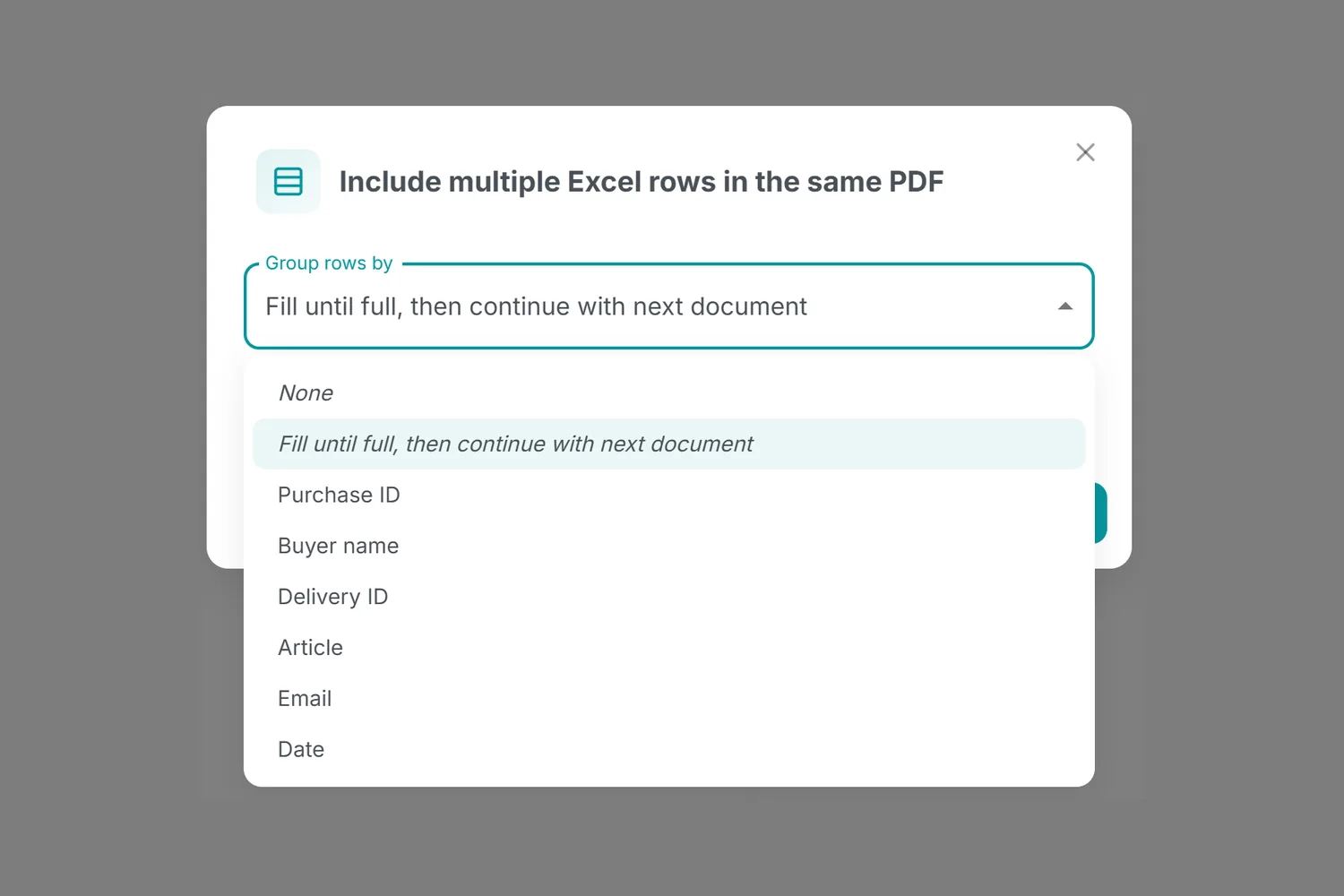
Then open Multiple rows per PDF in the mail merge wizard and choose Fill until full, then continue with next document. When you run the mail merge, your rows fill every repeated spot on the page in order. Once the page is full, a new document starts and the remaining rows continue there. Two hundred rows on a 21-label sheet come out as ten tidy pages, in order, with nothing typed twice.
Where it helps
- Address labels: a whole mailing list onto standard label sheets, ready for the printer
- Name badges: every attendee on your list gets a badge, and the layout matches the perforation of your badge sheet
- Place cards: seating plans straight from the spreadsheet to the table
- Tickets and vouchers: personalized in bulk, several per page, ready to cut
Try it on your next sheet
Fill mode works together with everything else you already use: images, QR codes, number and date formats. Upload your spreadsheet, place your fields once per label, and pick Fill until full, then continue with next document under Multiple rows per PDF. The rows do the rest.

Upload PDF · Get PDF