
Meet the MailMergic Assistant: Describe Your Mail Merge, and It Gets Built

Every mail merge tool asks you to know the steps before you can take the first one. Upload the template, attach the data, place the fields, check a preview, choose the options, send. If that sequence is already in your head, it takes four minutes. If it isn’t, the opening screen is a quiz nobody gave you time to study for.
The new MailMergic Assistant replaces the quiz with a sentence. You describe what you are sending and to whom, drop your files into the chat, and it sets everything up with you, one step at a time, in ordinary words. It went live yesterday, and it works for everyone, including people who have not made an account.
Start from whatever you have
Most tools assume you arrive with a finished template and a tidy spreadsheet. The Assistant assumes a good deal less.
- You have a PDF. Drop it into the chat. It reads the page and tells you what it found.
- You have no PDF. Describe what you want to send and a few designs from the template gallery arrive as picture cards. Tap one and it is set up for you, exactly as if you had brought it yourself.
- You have a spreadsheet. Drop that in as well, in either order. A table that arrives before the PDF waits quietly and attaches itself the moment the document shows up.
- You have no spreadsheet. Type or paste the recipients straight into the chat, in whatever shape they are in. The Assistant sorts them into a proper list, shows it back to you, and only turns it into your data once you say it is right.
If your workbook holds several sheets, it checks that the selected one is really the sheet whose columns match your document, and says so when a different sheet looks like the better fit.
It looks before it advises
This is what makes it more than a chat window. Before it offers an opinion, the Assistant looks at your actual material: it renders your page and reads it, pulls real rows out of your table, and holds the two against each other.
Three useful things follow from that.
Fillable forms fill themselves. If your PDF carries form fields, and application forms usually do, it works out which column belongs in which field and proposes the whole set at once. Every field appears in a card inside the chat, so you can see the full mapping at a glance and change anything you disagree with by tapping it. Where it isn’t sure, it leaves the field empty instead of guessing.
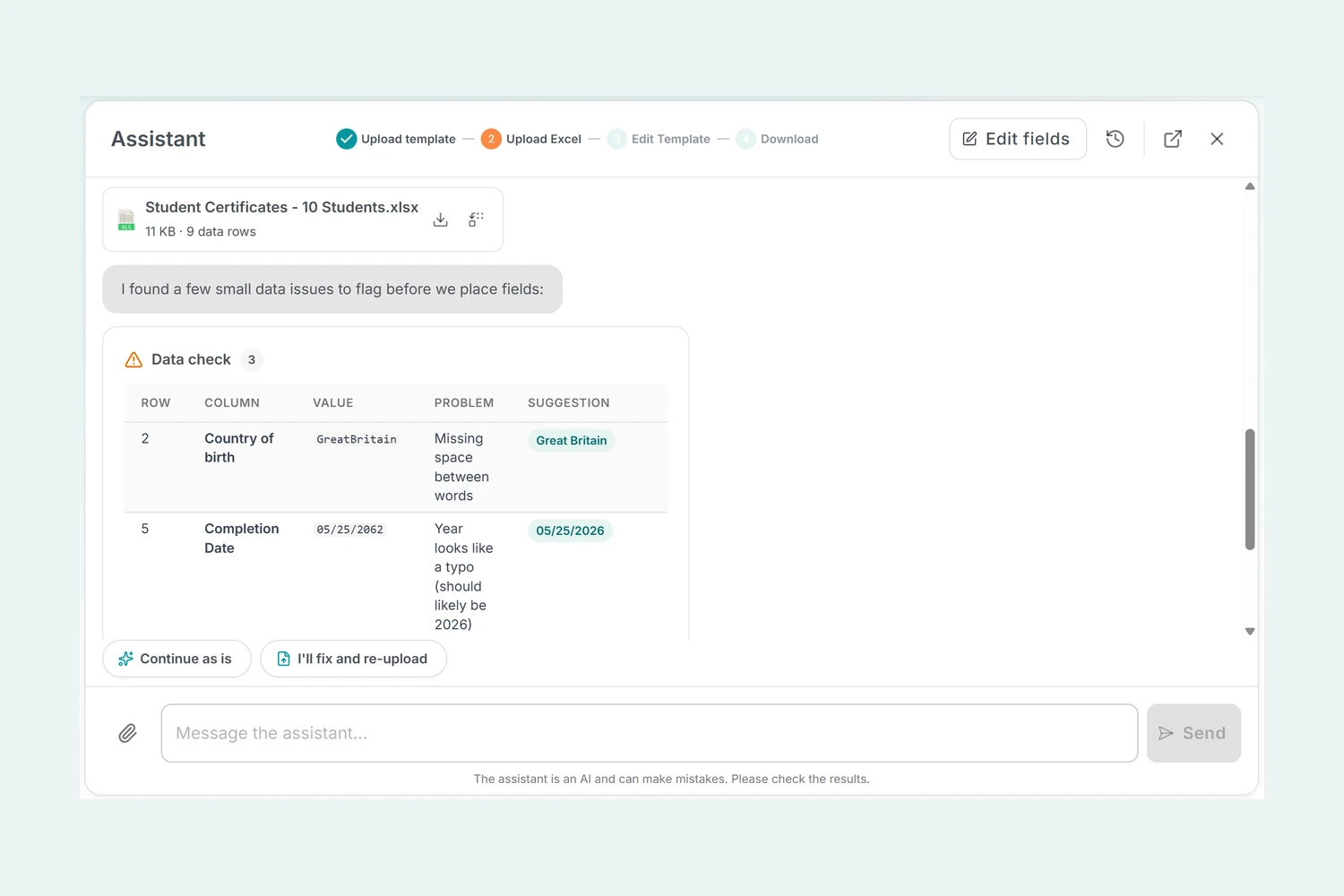
Your whole table gets checked, not just the top of it. A glance at the first few rows hides precisely the problems that spoil a run of 400 documents. The Assistant reads every row and reports the values that do not fit their column: the address broken across two cells in row 87, the one date written in a shape the others do not use, text sitting where numbers belong. They come back as a tidy table, with a corrected value suggested wherever the fix is obvious.
You see a real document early. The moment your fields are bound and your data is attached, it renders the first row without being asked, so you are looking at a finished document rather than imagining one. If something sits wrong on the page, it can move or resize the field itself: it proposes the corrections, you approve them on a small card, and then it renders the page again and looks at the result before it tells you anything is fixed.
One document from several rows
Two things that are genuinely hard to discover in any mail merge tool are simply part of the conversation here.
Grouping. Sometimes several rows belong on the same page: one invoice per customer listing all of their line items, one summary per class, one letter per household. Tell the Assistant how the rows belong together and it sets the grouping up, then explains the one part you still do yourself, placing the repeated lines on the page. Your documents are then counted, and charged, once per group rather than once per row.
Label and badge sheets. When a page holds several copies of the same small design, consecutive rows pour into the repeated spots and a fresh sheet begins when they are full. Three spots on a page and seven rows gives you three sheets, without you working out where each row lands.
Email, with a rehearsal
If every document should reach its own recipient, the Assistant handles the sending side too, and it is deliberately careful about it.
It asks early, and only once, whether you want to download the files or email them, because adding email afterwards means running the whole thing a second time. It explains the ways to set up a sender in a line each, verifying your own email address, connecting your domain, or connecting your mail server, tells you which it would pick and why, and hands anything sensitive to a proper form instead of asking you to type codes or passwords into a chat.
It drafts the subject and the body itself, personalized with your own columns, and puts them into an editable card so you can rewrite whatever you like. Then it offers a test email: one genuine document, built from your real data, delivered to your own inbox, so you see exactly what your recipients will see before a single one of them does. If the send should happen later, agree a time and the documents are produced now while the emails leave then.
Nothing goes out by itself. Emails are sent only after you press the confirmation button on the summary card, never partway through a conversation. Emailing your recipients needs a paid plan; downloading works on every plan, free ones included.
You stay in charge
The Assistant is allowed to set things up. Producing the documents is the one action where it always stops and asks. The summary card lists every option, from the file names to compression and passwords, and you can change any of them there before you confirm.
When a reply ends in a choice, the answers appear as tappable chips, so you rarely type more than a sentence. It replies in your language, and switches the moment you do. And it stays out of jargon on purpose: no talk of placeholders, mappings or header rows, just the fields in your PDF and the columns in your table.
It is also not a walled garden. A Continue in Mail Merge button hands your work to the classic editor at the step you have reached, and a button in the wizard brings you back into the chat with everything you have built. Your conversations are kept, so you can reopen one months later and see how a document was put together.
What it does not do yet
The Assistant drives PDF and Word templates. Word support arrived in September: it reads your Word document, adds the fields that are missing, and can even write a designed document for you when you have none. Excel and image mail merges are still there and entirely unchanged, but you set those up in their own editors, through the New template button on the home page. Everything around them is shared: the same spreadsheets, the same emails, the same scheduling. Ask the Assistant for one of those and it will say so plainly in one line and point you to the right editor, rather than pretending or quietly converting your file into something else.
Where it helps
- The first time. Nobody reads a manual for a task they expect to finish in ten minutes. Here the manual asks you questions instead.
- The job you do twice a year. Annual certificates, the yearly rent letter, the seasonal price list. Long enough between runs to forget every setting, and the conversation remembers them for you.
- Data you did not collect yourself. An export from another system, a list a colleague maintained, a form someone else designed. The full row check finds what a quick scroll never will.
- Application and registration forms. Anything with a lot of fillable boxes, where the tedious part is matching each one to a column.
- Handing the work to someone else. A colleague who has never touched the tool can describe the task and get to a finished document without being trained first.
Try it
Open the Assistant and describe what you want to send, or tap the example and watch a complete run happen in front of you. You get 40 messages a day on the free plan and 200 on a paid one, and you do not need an account to start. Making one keeps everything you built in the conversation, and adds 25 bonus credits to try it on real work.
