
AI Assistant for Word Mail Merge: Bring Your Document, or Have One Written

When the MailMergic Assistant launched in August, it had one blind spot. It could set up a PDF mail merge from a single sentence, but ask it for a Word letter and it politely sent you to a different editor. For many people that was exactly the wrong way round: the letters, reports and certificates they send every year already live in Word.
That blind spot is gone. The Assistant now handles Word mail merges from start to finish, in the same conversation and with the same care it gives a PDF. Bring your own document and it finds the spots where your data belongs. Bring nothing and it writes the document for you.
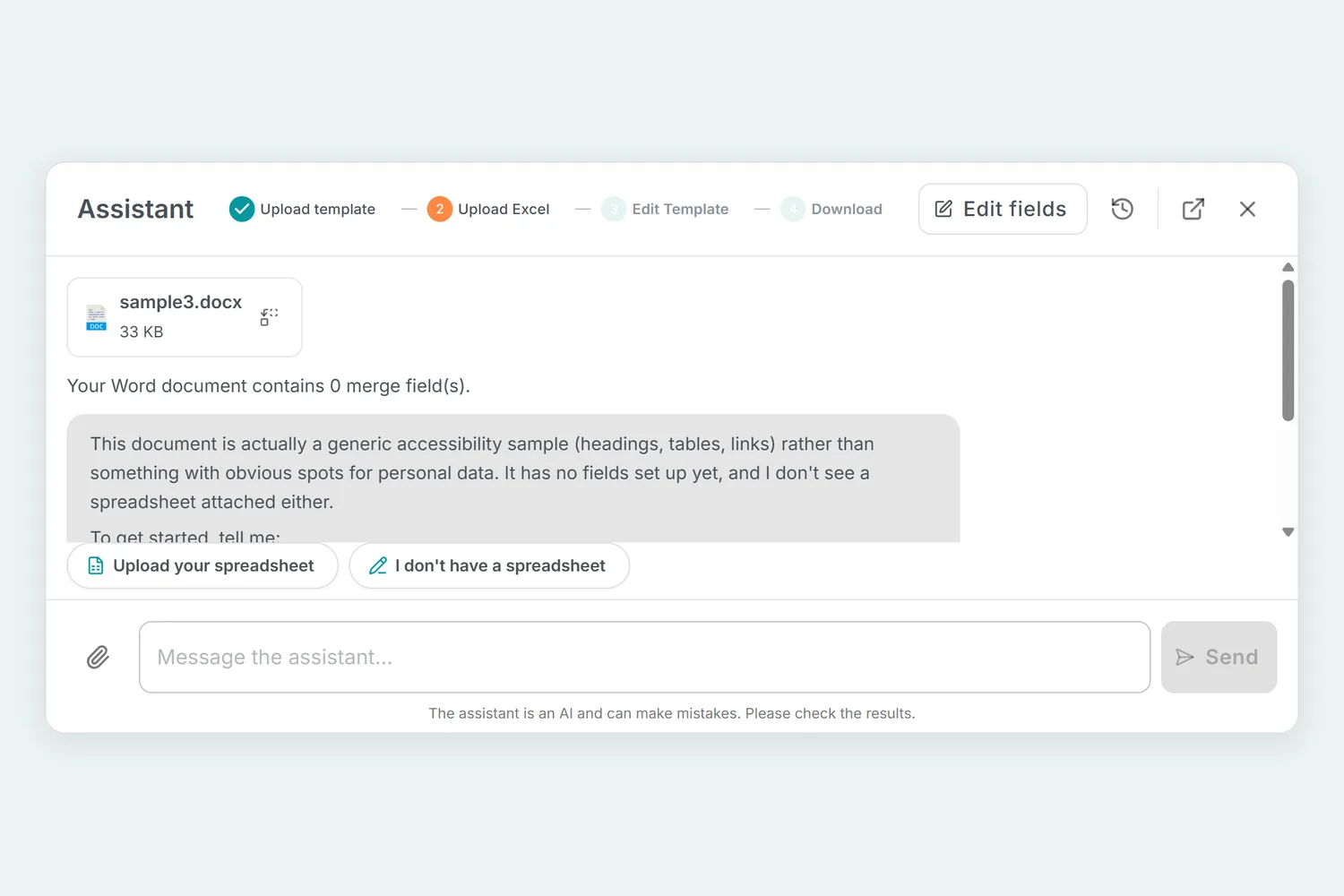
Drop in your Word file
Drag a Word file into the chat just as you would a PDF. Files ending in .docx, .doc, .dotx and .rtf all work. The Assistant reads the whole document before it says anything about it.
If you have used Word’s own mail merge before, the fields you inserted there come along. Every field whose name matches a column in your spreadsheet is connected to that column straight away, so a letter you prepared years ago can be ready after a single upload. Word templates you already keep in MailMergic work too: choose Continue in Assistant from the template’s menu on the home page.
Your recipients arrive the same way as before. Drop in a spreadsheet, in either order, or type the list straight into the chat. The check of every row, the early preview of the first finished document and the tappable answers all work for Word just as they do for PDF.
Fields added for you, with your approval
Most real letters were never written with a mail merge in mind. They say “Dear [Name]”, repeat a customer number someone typed in by hand, or leave the date as “XX.XX.XXXX”. The Assistant compares that text with the columns in your table and proposes swapping the right snippets for fields, all of them in one go.
The proposal appears as a card. Each line shows the exact text and the column that takes its place, for example “[Name]” becomes First name. Nothing in your document changes until you tap Insert fields. Afterwards the Assistant reads the document again and renders the first recipient’s version, so you look at a finished letter instead of taking its word for it.
Prefer to do it yourself? Edit fields opens the Word editor right inside the chat. Type @ where a value should go and pick the column. Save & back to assistant returns you to the conversation, and the Assistant carries on with your changes.
No document? It writes one
Describe what you need (a payment reminder, a school report, a membership renewal) and the Assistant first looks through the template gallery, which now includes Word designs. If nothing there fits, it writes the document itself, in your language, with your columns sitting inside the sentences where they belong.
What comes back is designed, not just typed out. Depending on the document, it opens with a title on a colored band or with your address as a letterhead, gathers names and dates into a tidy details section, puts the amount or deadline in a highlighted box, shows each recipient’s figures in a small table and ends with signature lines, with a short footer on every page. The color and fonts suit the audience: friendly for a school report, navy and formal for a payment reminder, your own brand color when you name it.
Before anything is created, the draft appears in a card that shows how the document will look, with the parts that come from your list highlighted. Tap Create document to keep it, or cancel and say what should change, and it writes a new version. Because every field has to match a real column, the document is written once your list is in the chat, uploaded or typed.
The result is saved with your templates like any other Word template. Open it in the editor later, adjust a sentence, and use it again next year.
PDF or Word, one file or many
A Word mail merge produces PDF files by default, which is what most recipients should get. When you or they need to keep editing, switch the output to Word (.docx) on the summary card, or simply ask.
Either format can also come out as a single file holding every recipient, which is handy for printing a whole batch of letters in one go. Ask for one file and the Assistant sets it up.
Everything after that works exactly as it does for PDF. Download the files, or have each person receive their own document by email, with a draft you can edit, a test email to your own inbox first and an optional send time. Nothing is produced or sent until you confirm on the summary card. Emailing your recipients needs a paid plan; downloading works on every plan.
Where it helps
- Letters you already keep in Word. The yearly rent adjustment, the renewal notice, the offer letter your team has polished for years. Drop it in and let the Assistant find the spots for your data.
- Old Word mail merge setups. Documents built for Word’s own mail merge bring their fields with them, so there is nothing to rebuild.
- Documents that do not exist yet. The payment reminder or course report you would otherwise hunt for online, written and designed around your own columns.
- Files that still need a personal touch. Contracts or reports that get one more line before signing come out as Word documents instead of PDFs.
- One stack for the printer. A single file with every letter in it, ready to print in one go.
What stays in its own editor
The Assistant now covers PDF and Word. Excel and image mail merges are unchanged, and you still set those up in their own editors through the New template button on the home page. Ask the Assistant for one and it points you there in a single line.
Try it
Open the Assistant and drop in a Word file, or describe the document you need. You get 40 messages a day on the free plan and 200 on a paid one, and you do not need an account to start. The introduction to the Assistant covers everything else it does, and the Word mail merge page explains the classic Word editor.

Upload DOCX · Get DOCX or PDF