
Fill PDF Forms from a Spreadsheet: No Fields to Place

Many PDFs you receive from an office already have boxes to type in: a tax form, an application, a new starter form from HR, a membership form for your club. Filling one is easy. Filling sixty of them, one name and address at a time, is an afternoon gone, and every copy is another chance for a typo.
If your PDF already has those boxes, you don’t need to place anything on the page in MailMergic. You tell it which column of your spreadsheet goes into which box, and it does most of that pairing for you. Every row of your list then becomes its own filled form.
Upload the form and your list
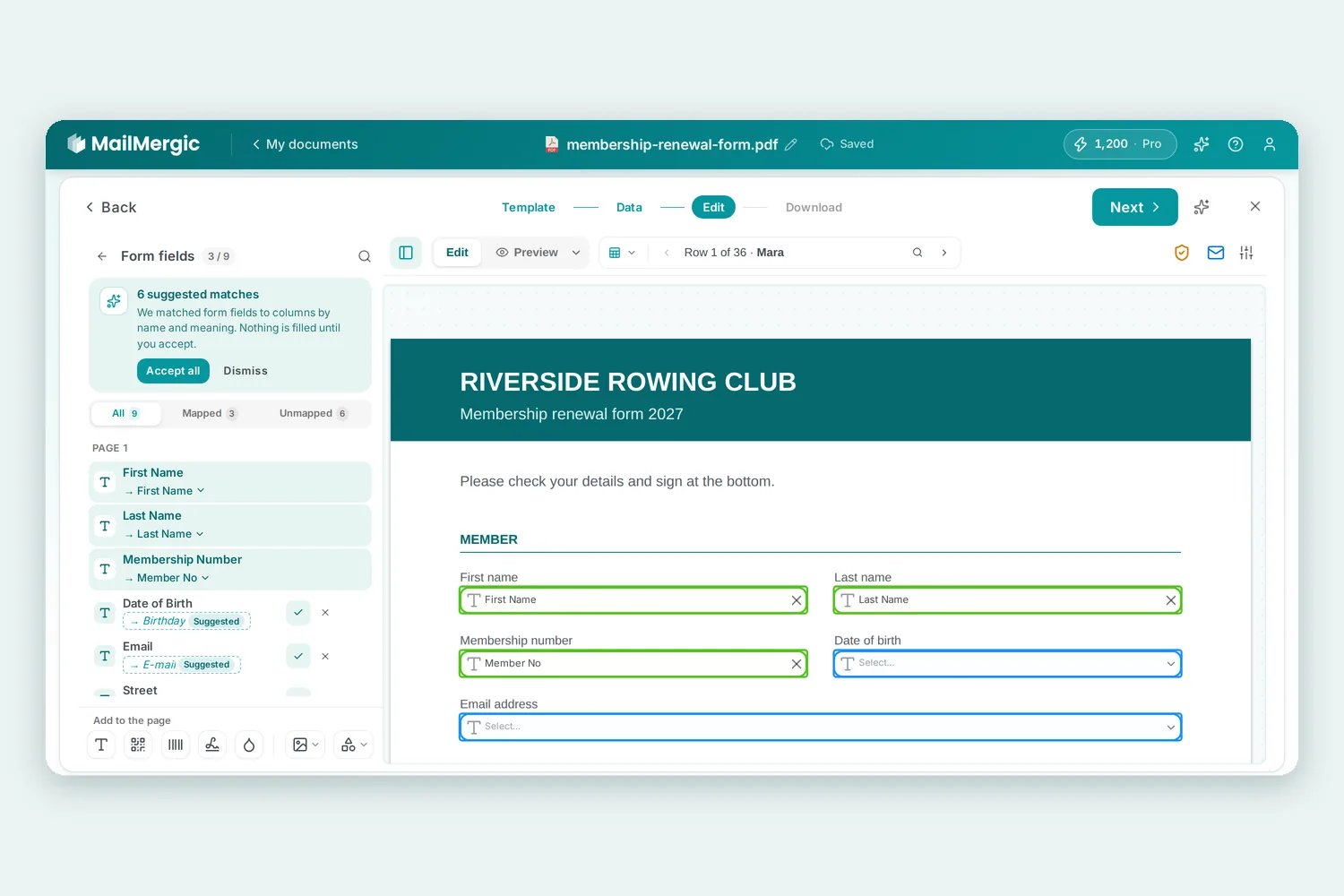
Upload the PDF and your spreadsheet as you would for any PDF mail merge. MailMergic finds the form’s own boxes, the text fields and checkboxes the form already has. In the editor, a Form fields card under your columns shows how many of them are filled so far. Click it to see every box of the form in one list, grouped by page, each with the column that fills it or Not mapped.
Suggestions you confirm
You rarely have to pair the boxes one by one. MailMergic compares the names of the form’s boxes with the headings of your columns. Where they match, it suggests that column. It also looks at what the names mean, with the help of AI, so it can pair a box and a column even when they aren’t spelled the same.
The suggestions wait at the top of the list, in a card that says how many matches were found. Each suggested box shows the column it would get and a Suggested tag, with a tick to accept it and a cross to decline it. Happy with all of them? Click Accept all. Rather do it yourself? Click Dismiss, and the suggestions are gone for good, also when you come back to the template later.
Nothing is filled until you accept. That is on purpose: you stay in charge of what lands in each box, and a form you have already set up never changes behind your back. Picked the wrong one? Click the column next to any box and choose another.
Prefer to drag? That works too
Start dragging a column from your list and the form’s boxes light up on the page, so you can see where they are. Drop the column on one of them and MailMergic asks: This spot is a form field. Choose Fill this form field and the column goes into the box itself, so the PDF stays a working form. Choose Place text on top if you really want separate text there.
See at a glance what is filled
- Filled boxes stay visible. A box with a column behind it keeps its outline on the page, with the column’s name inside, whichever part of the editor you are working in.
- Click a box to change it. Clicking a filled box on the page opens the form field list right at that box.
- Find what is left. Switch the list between All, Mapped and Unmapped to see only the boxes you still have to deal with.
- Checkboxes work too. A box is ticked when the cell says yes, x, 1, true or checked. Under Tick when you can add your own words, such as “member”.
Text where the form has no box
Forms are rarely complete. Maybe you want a reference number in the corner, a date next to the signature line or your logo at the top. Drag a column anywhere on the page where there is no box, and it becomes text on the page, just like on any other PDF template. Boxes and your own text work side by side in the same document.
When you generate, you get one filled PDF per row of your list. By default the boxes stay editable, so people can still correct or add something. If the form should be final, choose Flatten form fields in the Output options on the download page.
Where it helps
- Government and tax forms. The same official form for every client, employee or tenant on your list.
- Application forms. School places, grants or permits where most details already sit in a spreadsheet.
- HR onboarding. New starter forms prepared with name, address and start date before day one.
- Insurance and club forms. Membership renewals or policy forms that go out to everyone at once, each with their own details.
Try it
Take the form you would otherwise fill by hand, add your list and accept the suggestions that fit. Upload a PDF and start for free, or read more on the auto-fill PDF page. Your PDF has no boxes yet? Here is how to make a PDF fillable, or simply place your columns on the page yourself.

Upload PDF · Get PDF