


Per-Recipient Images in Word: Signatures, Photos, and More From a Spreadsheet

Imagine sending out a hundred certificates, each one signed by the right person, or a batch of welcome letters that show every new hire’s photo. Until now, you could personalize the words in a Word document, but the pictures stayed the same for everyone. If you wanted a different signature or headshot on each copy, you were out of luck.
That changes today. Image mail merge has come to Word documents. Now your .docx templates can include pictures that change for each recipient, exactly the way they already could in PDF templates.
How it works
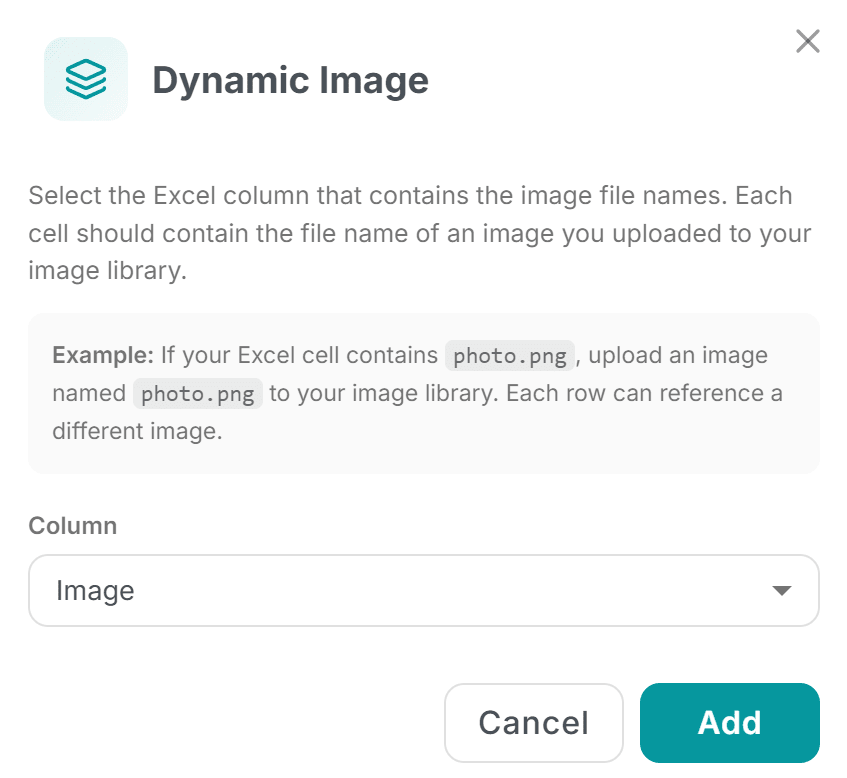
Open your Word template in the MailMergic editor and look for the Images panel. From there you can add two kinds of images:
- Static image: the same picture in everyone’s copy. Think of a company stamp or a logo that never changes.
- Dynamic image: a picture tied to a column in your spreadsheet. Each row names which image to use, so every recipient gets their own.
A dynamic image is where the magic happens. You point it at a column in your spreadsheet, and that’s really all there is to it. When you run the merge, MailMergic reads each row and drops the right picture into each person’s document automatically. There’s no copy-pasting, no building each file by hand, and no opening a hundred documents one at a time. You set it up once, and every copy comes out personalized.
Where it helps
Once your pictures can change per recipient, a lot of everyday documents get a lot easier:
- Personal signatures: let each certificate or letter carry the signature of the right manager, teacher, or team lead
- Product photos: send quotes or order confirmations that show the exact item each customer bought
- Profile pictures: add a member’s photo to an ID card, badge, or welcome packet
- Team headshots: give every introduction email or onboarding sheet the face that belongs with it
Anywhere you’d normally swap a picture by hand, your spreadsheet can now do it for you.
Nothing slips through
Spreadsheets get edited, columns get renamed, and a typo is easy to make. So if a dynamic image points at a column MailMergic can’t find, you’ll get a clear warning before the merge runs. That way you can fix the mix-up first, instead of discovering a blank space in a hundred finished documents after they’ve already gone out.
It’s the same careful, “we’ll catch it for you” approach you already rely on for your text placeholders, now extended to your images too.
Open your Word template, head to the Images panel, and give your documents a personal face. Your recipients will notice the difference.