
Check Your Data Before You Generate: MailMergic Spots Mistakes in Your Spreadsheet

You generate 240 letters, open the first few, and everything looks right. Then a reply comes in: “Dear Jonh”. Further down the list a city is written “houston”, one email address has no @, and one cell says #REF!. None of it is your template’s fault. It was in the spreadsheet all along, and with a few hundred rows nobody reads every cell.
MailMergic now does that reading for you. While you place your columns in the editor, it looks over the rows behind them and points out the ones that may look wrong in your documents, each with a suggested fix you can switch on.
It checks while you work
There is nothing to start. A few seconds after you place a column on the page, MailMergic checks that column in the background, using AI, across every row of your spreadsheet. It reads only the columns your template uses, and when you place another one later, that one gets checked too.
If some rows look off, a small orange button appears just left of Next, for example 3 things to check. The shield icon in the editor’s toolbar (Check data for errors) shows the same count, and turns green once a check has found nothing. Click either one to see the rows.
One list, and a switch per row
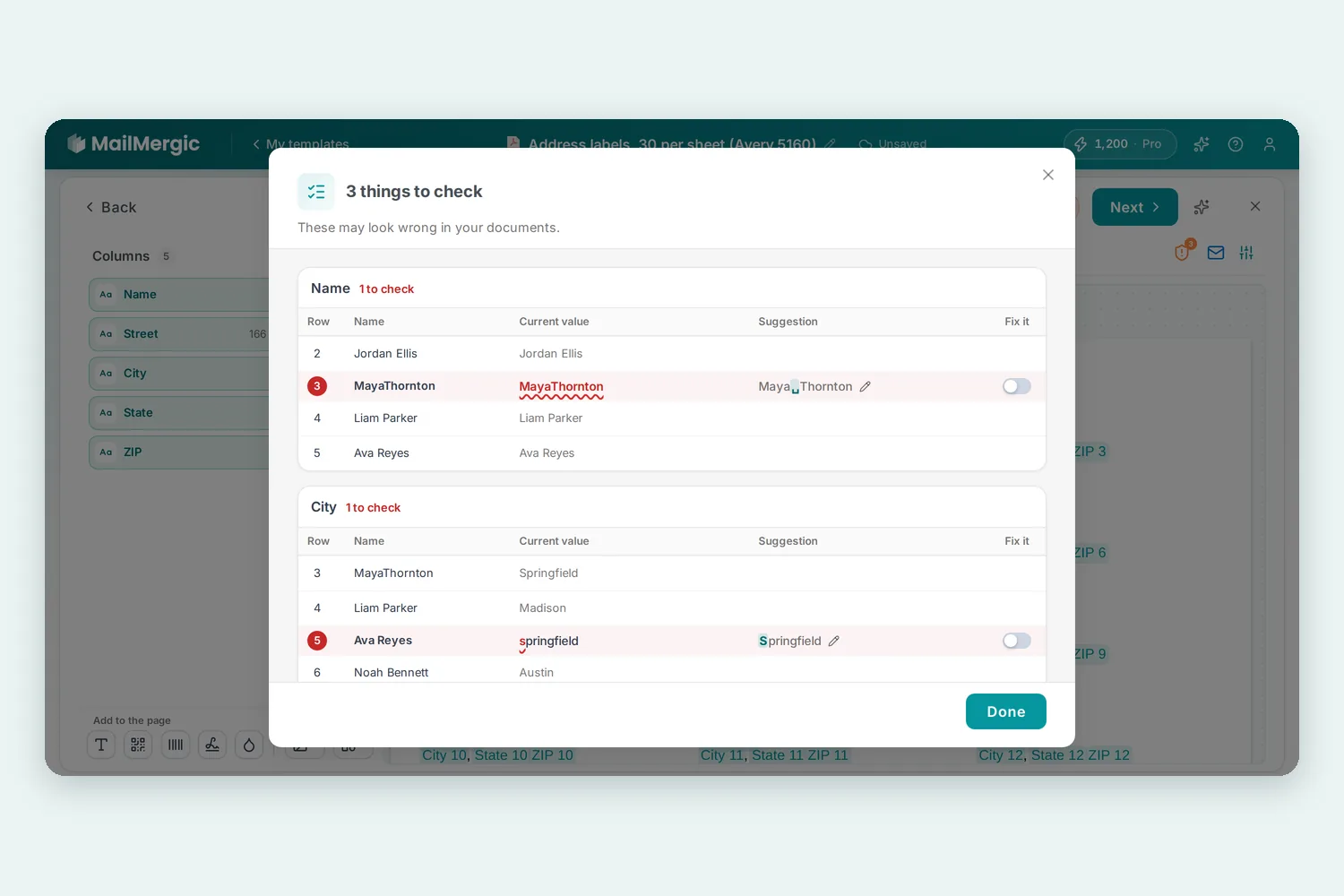
The list opens in one window, titled with the count, for example 3 things to check, and the line These may look wrong in your documents. Each column with something to look at gets its own card, and each card lists its rows side by side:
- Row, the row number, plus the person’s name when your spreadsheet has a name column.
- Current value, what your spreadsheet says, with the part that looks wrong underlined in red, the way a spell checker does it.
- Suggestion, the value MailMergic thinks was meant, with the change highlighted.
- Fix it, a switch that is off until you turn it on.
Turn the switch on and your documents use the suggestion: the old value is struck through and the new one is marked Used. Turn it off again and the row goes back to what your spreadsheet says. If the suggestion is not quite right, click the pencil next to it (or double-click the value), type what it should be and click Save.
When there is no way to tell what a value should be, the row has no suggestion, only a short note such as “Email address is missing the @”, and the pencil to type the right value yourself. When only a few rows of a column are flagged, the rows around them are shown too, so you can compare the odd one with its neighbours.
You decide, and your file stays as it is
Nothing changes until you switch a fix on. The check suggests; you decide, and you can ignore every suggestion.
A fix changes your documents, not the spreadsheet on your computer. The window says so in plain words: Only your documents change, not the file on your computer. If your data comes from a list you saved under My lists, your fixes also go into that list, and the window names the list.
When you click Next and there are rows you have not looked at yet, the same window opens first. You can go Back to editor, or Continue anyway; once nothing is left open, the button just says Continue. A check that is still running never holds you up.
The check is also remembered per template. Come back next week and the rows you already saw do not stop you at Next again, and columns whose values have not changed are not checked twice. Upload a changed spreadsheet and the changed columns are checked again.
What it looks for
The check looks for what would look like a mistake on a printed letter:
- Typos. A misspelled word, letters or words run together, a doubled word, a stray character, a value cut off mid-word.
- Names and places in lowercase. “Becky pham” or “houston”.
- Broken values. #REF!, #VALUE!, NaN or a leftover formula instead of the value you wanted to print.
- Email addresses that cannot work. A missing @ or a broken domain, before the email bounces.
- Odd formats. A date written differently from the other rows, or text in a column of numbers.
What it does not flag: empty cells, values that repeat across rows, and your own house style. Dates written the way most of your rows write them, abbreviations such as St or NY, names in capitals: that is how your file is written, and the check leaves it alone. Its suggestions follow the way the column already writes its values, and it does not invent information that is not there, such as a missing house number.
The check is a second pair of eyes, not a guarantee. It can miss something, and now and then it may point at a value that is fine, which is why every fix waits for your switch. Very large spreadsheets are too big to check; the window then says it couldn’t check your data right now, and you generate as usual. The offline desktop app does not have the check, and it skips the made-up example rows of gallery templates.
Try it
The check is live now for PDF, image, Word and Excel templates. Open one of your templates, place a few columns, and watch the space next to Next. New here? Upload a PDF and start for free, or read how PDF mail merge works.
