
Placing Fields Feels Like a Design Tool Now: Guides, Combining and Text That Fits

Most of the time you spend on a new template goes into one thing: putting the fields in the right place. The name has to sit on the line, the date has to line up with the signature, and a long company name must not run off the edge of the box. Until now that meant nudging, zooming in and checking the preview again and again.
We rebuilt how fields behave on the page, so it works the way design tools like Canva do. You drag a field, and the editor shows you where it lines up.
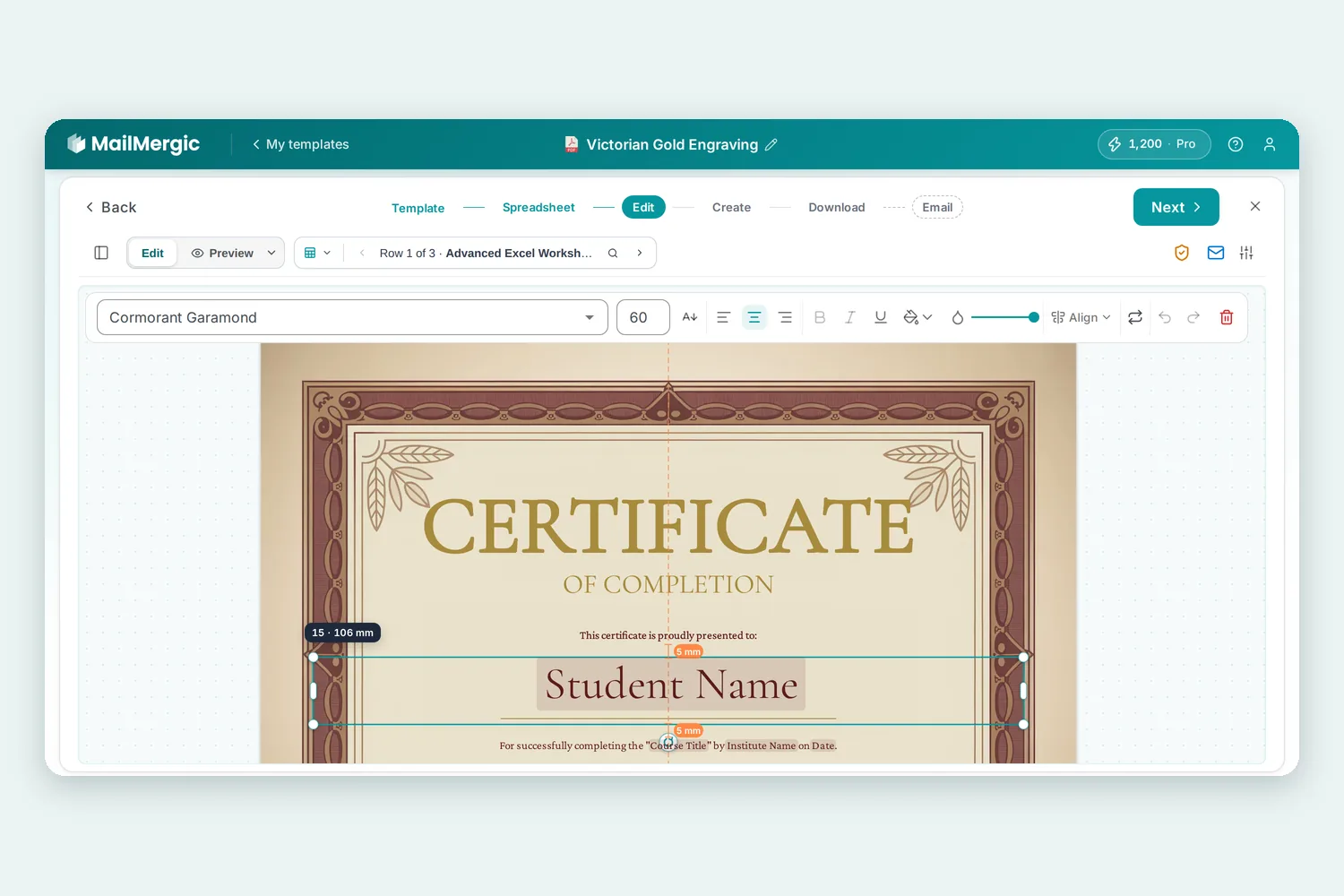
Guides while you drag
When you move a field, teal lines appear as soon as its edge or centre lines up with the page or with another field, and the field snaps into place. If you place a third field in a row, it snaps to the same gap as the other two, and an orange measure shows that gap in millimetres. While you drag, a small label shows the position on the page, also in millimetres. Hold Alt if you want to place a field freely without snapping.
The handles are easier to grab, too. Pull a side handle to make a text field wider, and the text reflows at once. Pull a corner handle to make the text bigger or smaller, with the font size shown as you go. The round knob below a field rotates it and clicks into place at every 45 degrees.
To work on several fields at once, drag a box around them on an empty part of the page, or hold Ctrl and click each one. Ctrl+A selects every field of the template. The whole group then moves and snaps like a single field.
Drop one field onto another to combine them
First name and last name in separate columns, but one line on the certificate? Drag the first name field onto the last name field. A small card appears with the button Combine with “Last name” and a choice between a space and a new line. Click it, and you get one text box with both columns that keeps the font and position of the field you dropped onto. If a row has no first name, MailMergic leaves out the extra space, so the line never starts with a gap.
Changed your mind? Click Undo or press Ctrl+Z. Later, a right-click on the box offers to split it back into separate fields.
Long values that still fit
Names and addresses come in every length. Turn on Shrink text to fit (the small “A with an arrow” next to the font size), and a value that is too long for its box is written smaller in that one document, down to size 8. Short values keep the size you chose. The preview in the editor uses the same calculation as the finished documents, so what you see while you edit is what you get.
Filling an official PDF form instead? Form fields have a fixed size, and the PDF cuts off whatever does not fit. MailMergic now spots those rows before you generate. The data panel shows which column runs over, and Fix opens a list of the rows with a small picture of how each value looks in the form. Shorten a value right there and the picture updates until it says Fits. Your file on your computer stays as it is.
Start over in one click
Sometimes the quickest way is a clean page. In Settings, Remove all placeholders takes every field off the template while your PDF and your spreadsheet stay as they are. To clear just one page, open the page sidebar and use the eraser on that page. Both can be undone with Ctrl+Z.
Where it helps
- Certificates and awards. Centre the name on the page and line it up with the date and the signature line in seconds.
- Letters. Combine title, first and last name into one address line that never shows a gap.
- Name badges. Long names shrink to fit the badge instead of running off it.
- Government and HR forms. See which entries the form would cut off before you create a single document.
Try it
The new field handling is live for everyone, on PDF and image templates. Word and Excel templates keep their fields inside the document, so nothing changes there. Open any template on the Edit step and drag a field. New to MailMergic? Upload a PDF and start for free, or see how PDF mail merge works.
