
Stuck? Ask the AI Assistant or Write to Our Team, Right From the App

Most questions we get in support are short: Where do I change the email text? Why is this field empty? How do I put two rows on one page? You should not have to wait a day for that answer. But some questions need a person, and we never want to hide that option behind a chatbot.
So the question mark at the top of the app now offers both, side by side and the same size. You pick.
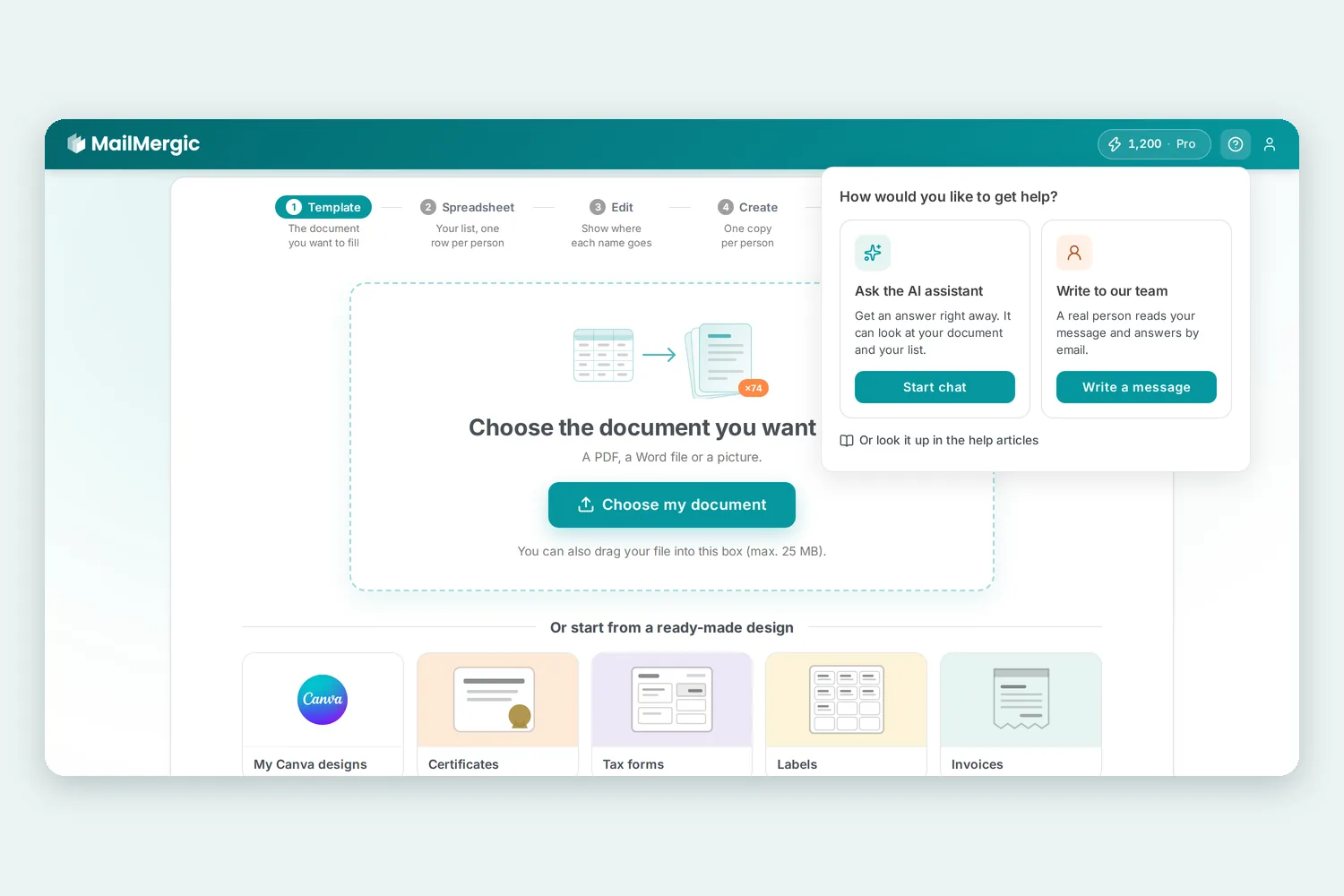
Where you find it
Click the question mark at the top right of the app. A small panel asks How would you like to get help? and shows two cards: Ask the AI assistant and Write to our team. Below them, a link takes you to our help articles if you prefer to look it up yourself.
The AI assistant: answers right away
Click Start chat and type your question in your own words. The assistant answers in a few seconds and tells you exactly where to click, with the names of the buttons and steps as you see them in the app.
While you are working on a template, it can look at your document and your list. So if you ask “Why is the date empty on page 2?”, it can check your actual file instead of giving a general answer.
One thing it never does: change anything. It explains and points, but your document, your list and your account stay exactly as they are. You make every change yourself, so nothing happens that you did not see.
Our team: a real person, by email
Click Write a message to write to us directly. A real person reads it and answers by email.
Already chatting with the assistant and it cannot help? Click Our team at the top of the chat window, or Send this chat to our team. Your chat goes along with your message, so you do not have to explain everything again. Nothing is sent until you press send. For payments, invoices, refunds or anything about your account, the assistant sends you to us anyway.
Good to know
- The assistant answers questions about PDF and Word templates, your lists, emails and your plan. It cannot open Excel or picture templates, and you cannot upload files to it.
- It answers a limited number of questions per day. When that is reached, our team is still there.
- The desktop app keeps its own Support menu for writing to us.
Try it
The new help panel is live for everyone, including guests trying MailMergic without an account. Click the question mark and ask whatever is on your mind. New to MailMergic? Upload a PDF and start for free, or browse our help articles.
