
MailMergic in ChatGPT and Claude: Create Documents From a Chat

A lot of work now starts in a chat. You ask ChatGPT to tidy up a list of names, or Claude to write the text of a letter. Then you still have to open MailMergic, upload everything and set up the documents yourself.
Now MailMergic works inside the chat. Connect your account once, and you can ask ChatGPT or Claude to fill in your MailMergic templates. “Make the certificates for this list” is enough.
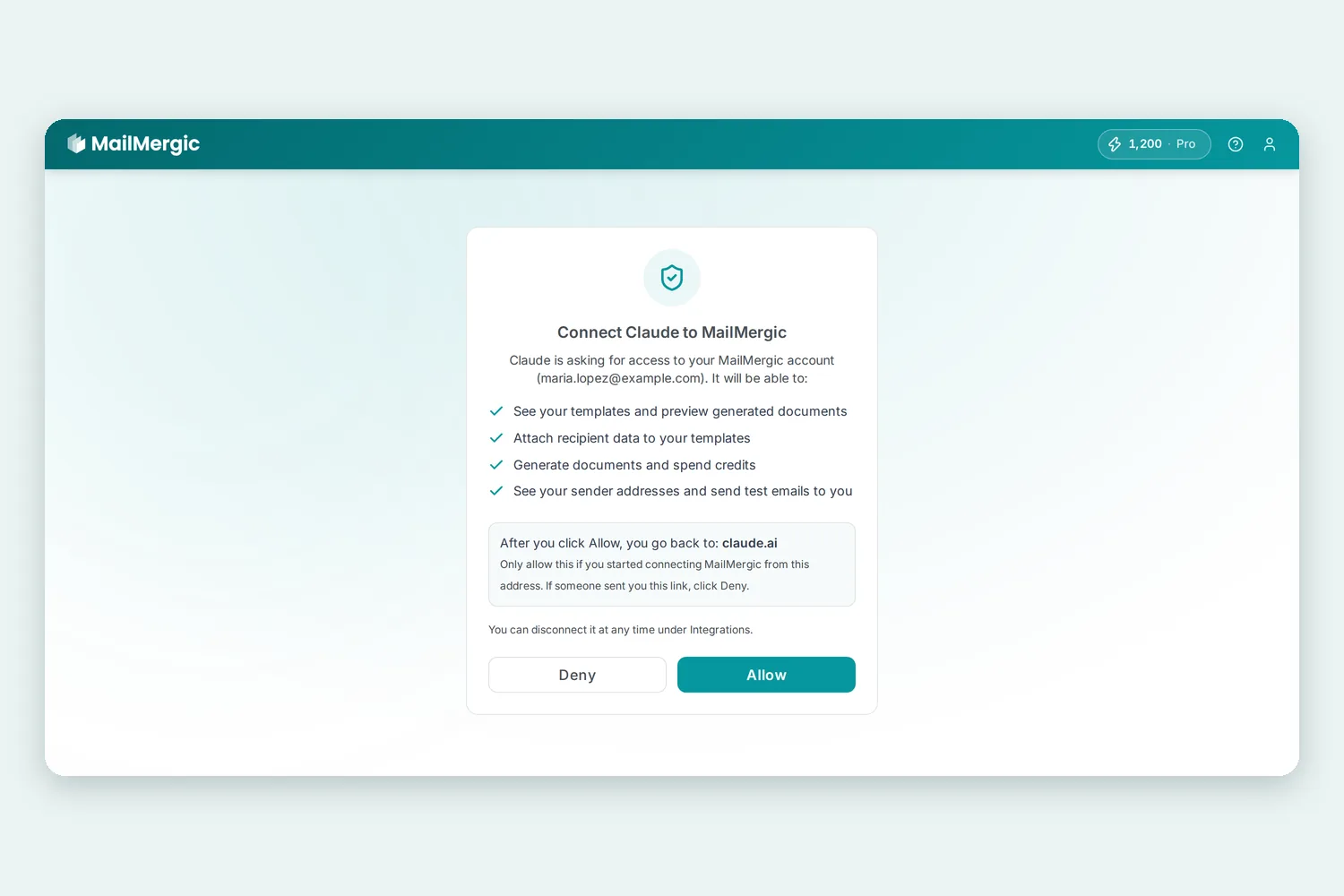
Connect your account
If you find MailMergic in the list of apps or connectors in ChatGPT or Claude, open it and click Connect. Otherwise add it yourself with this address: https://api.mailmergic.com/v1/mcp
- In Claude: open Settings, then Connectors. Click Add custom connector, name it MailMergic and paste the address.
- In ChatGPT: open chatgpt.com/plugins, click the plus button, then Add custom MCP server. Name it MailMergic, paste the address, keep OAuth as the sign-in method and click Create as a plugin.
A MailMergic page opens. It shows which app is asking and what it will be able to do. Sign in, click Allow, and you are connected. The ChatGPT and Claude page walks through every step in more detail.
What you can ask
Talk to it the way you would talk to a colleague. In the chat, you can:
- See your templates and which details each one needs, including the ones your list does not have yet.
- Hand over your list. In ChatGPT, attach the spreadsheet to your message. In Claude, ask for an upload link, drop the file there and say you are done. A Google Sheets link shared with “anyone with the link” works in both. For a few names, just type them into the chat.
- Look at one document as a picture, filled in with the details from any row, before anything is created.
- Create all the documents and get a download link.
- Send yourself a test email with one of the documents.
The assistant always asks before it creates documents or sends the test email, because both use credits and an email cannot be taken back. Each document uses one credit from your MailMergic plan, the same as in MailMergic itself, so there is nothing extra to pay.
Your templates can be made from a PDF (with or without form fields), a Word file or an Excel file.
What stays in MailMergic
Some things you still do in MailMergic itself, where you can see everything before it goes out: designing a template, placing the details on the page, and emailing documents to your whole list. When you ask for one of these in the chat, you get a link straight to the right place.
The chat only receives what your request needs: template names and details, the column names of your list, one preview picture, and download links that stop working after an hour. MailMergic does not use your data to train AI models. To end the connection, open Integrations in MailMergic, then Connected apps, and click Disconnect.
Where it helps
- A list you just made in the chat. Clean up names and dates with the assistant, then turn them into certificates or letters without switching tools.
- A handful of documents. Type three names and get three name badges.
- Checking before you create. Ask how the document for row 12 looks, and fix the list first if something is off.
Try it
The connection works with every MailMergic account, including the free plan. You need at least one template in MailMergic first: upload a PDF and start for free, then follow the steps on the ChatGPT and Claude page.
ChatGPT is a trademark of OpenAI. Claude is a trademark of Anthropic.
