
One Document at a Time: Type the Details In, No Spreadsheet Needed

Not every document goes out to a hundred people. A car dealer fills in the same sales paperwork for each buyer. An HR team prepares a leave form whenever someone asks for one. A loan officer completes the same application while the customer sits across the desk. One person, one document, needed now.
Until now, MailMergic asked for a spreadsheet even then. So many of you did the sensible thing: open last time’s file, overwrite the one row with the new person’s details, save it as “buyer (12).xlsx” and upload it again. It works, but it is a detour every single time.
Now you can skip the spreadsheet. Type the details into MailMergic, and your template is filled in exactly as it would be from a file.
Where you find it
The option shows up once you have made one or two documents from a template. When they are ready, the Download step asks Next one? with the line “Same document for someone else.” Click Type the next one in and you are back on the Spreadsheet step with the form open.
You can also open it yourself on the Spreadsheet step. At the bottom of the card that shows your file, click Add data by hand. If your last file had just one entry, the link says Type the next one in instead. Once you have used it, it stays in that card on all your templates.
How it works
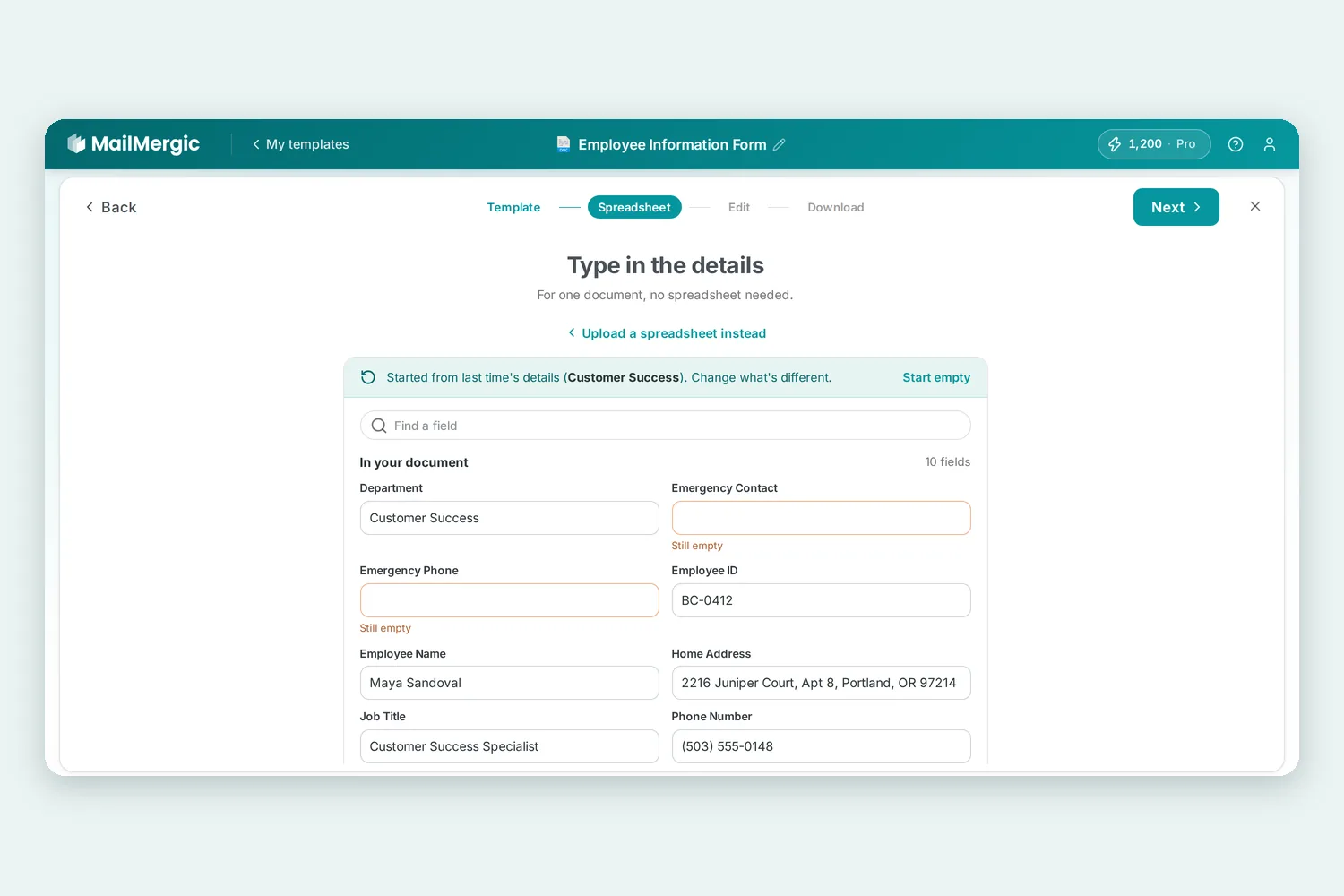
The form, Type in the details, has one box for each detail your template needs: the name, the date, the address, whatever you placed on the page. Below them, under Also in your spreadsheet, are the columns that are not printed but still matter, like the email address you send the document to or the column you use for the file name.
If your last document was for one person, the form starts with their details, so you only change what is different. A note at the top says whose details you started from, and Start empty clears the form if you would rather begin fresh. Boxes you have not filled in yet are marked Still empty, and Only show empty fields hides everything that is already done.
Official forms can have dozens of boxes. When there are many, Find a field lets you type part of a name, like “phone” or “date of birth”, and shows just the boxes that match.
When you are done, click Next. Your details go to the Edit step like any spreadsheet would, so you see the filled-in document before you create it. Then download it or email it on the Download step, as usual. MailMergic keeps what you typed as a small file named after the first detail, for example “Maria Lopez (typed in)”, so next time the form starts from there.
Changed your mind? Upload a spreadsheet instead takes you back to the upload area. And for lists, nothing changes: drop your spreadsheet and you get one document per row, as always.
Where it helps
- Sales paperwork. Contracts, bills of sale and registration forms for each buyer, filled in while they wait.
- Applications. Loan, grant or permit forms you complete for one client at a time.
- HR forms. Leave requests, onboarding forms and letters for a single employee.
- Certificates on demand. A completion certificate for the one student who finished this week.
Try it
Typing the details in is live now for everyone with a MailMergic account. Make one document from your template, then click Type the next one in. New to MailMergic? Upload a PDF and start for free, or see how PDF mail merge works.

Upload PDF · Get PDF