How do I embed Audio and Video in PDFs for FREE?

Learn what free tools can really do when you want audio or video inside a PDF. LibreOffice can carry a video into an exported PDF, while PDFsam Basic, PDFescape and Smallpdf cannot add media at all and a PDF downloaded from Google Slides loses it, so this article covers the one route that works and what to do instead.
Table of Contents
Introduction
In today’s world, digital documents are becoming increasingly common. With this, the ability to embed audio and video files into PDF documents has become a necessary feature for many users. Whether it is for presentations, reports, or other types of documents, adding multimedia elements can enhance the reading experience and make the content more engaging. This is particularly often the case when these documents have been created as mail merge in Word and are intended to reach a large number of recipients in a personalized manner. The catch is that most free PDF tools cannot do this at all, so it is worth knowing which route actually works before you start.
Comparative Table:
| Tool | LibreOffice | PDFsam Basic | PDFescape | Smallpdf | Google Slides |
|---|---|---|---|---|---|
| Cost | Free | Free | Free | Free | Free |
| Supported Platforms | Windows, macOS, Linux | Windows, macOS, Linux | Web | Web | Web |
| Audio in the exported PDF | Not carried over | Not supported | Not supported | Not supported | Not carried over |
| Video in the exported PDF | Yes, as a screen annotation | Not supported | Not supported | Not supported | Not carried over |
| Additional Features | Full office suite with PDF export | Split, merge, rotate and extract PDF pages | Form filling and annotation | PDF conversion and light editing | Presentation creation |
LibreOffice is a free office suite, not a PDF editor: you write the document in Writer or Impress, insert the media there, and export the result to PDF, and its PDF export can carry a video into the finished file. PDFsam Basic is a free desktop tool that splits, merges, mixes, rotates and extracts PDF pages, with no editor and no media feature at all. PDFescape and Smallpdf are web-based editors for text, images, annotations and form fields, and neither of them can add audio or video to a PDF. Google Slides can hold audio and video in a presentation, but its PDF download flattens every slide, so the media does not survive the export. That leaves one free route to media inside a PDF, and it starts in LibreOffice.
Before you spend time on any of these tools, check the one thing that matters here: whether it can put media into the finished PDF at all. Then think about the person opening the file, because a video inside a PDF only plays in a viewer that supports multimedia.
Using LibreOffice
LibreOffice is a popular open-source office suite, and it is the one free option here that can put a video inside a PDF. It is not a PDF editor, so the work happens the other way round: you author the document in Writer or Impress, insert the media there, and then export the file to PDF.
Here’s how to get a video into a PDF for free with LibreOffice:
- Open LibreOffice Impress for a presentation, or LibreOffice Writer for a document, and write your content there. Do not start from a finished PDF: LibreOffice can only open a PDF in Draw, as a rebuilt approximation of the original.
- In Impress, click “Insert” in the menu bar and then “Audio or Video”. In Writer, the same command sits under “Insert” > “Media” > “Audio or Video”.
- Browse your computer for the file you want to insert, select it and click “Open”.
- Position and resize the media object on the slide or page, the same way you would place an image.
- Export the file with “File” > “Export As” > “Export as PDF”.
- Open the exported PDF in a reader that supports screen annotations and check that the video plays.
Two caveats. LibreOffice’s PDF export carries video into the finished file, but not audio: a sound object you insert in Writer or Impress is gone once the document becomes a PDF. And playback depends on the reader, so test the file before you send it out. Adobe Acrobat Reader is the most common viewer that plays embedded media, while many other viewers ignore it entirely and show a still frame. Watch the file size too, because an embedded video makes the PDF a great deal larger.
Google Slides and PDF Export
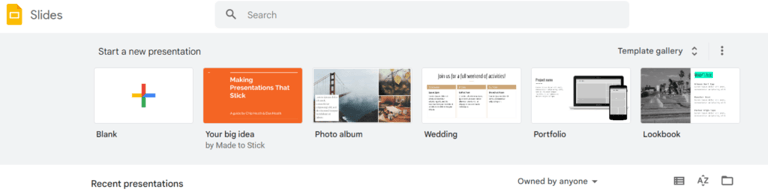
Google Slides is often suggested as a free shortcut, and a presentation really can hold media: you upload an MP3 or WAV file to your Google Drive and place it with “Insert” > “Audio”, and you add a video from YouTube, from a link, or from your Drive with “Insert” > “Video”.
The export is where it falls apart. “File” > “Download” > “PDF Document (.pdf)” flattens every slide into a static image, and the audio and video are not carried over. The reader ends up with a picture of the slide, video thumbnail included, and nothing that responds to a click.
So use the PDF download for the static part of a deck, its text, images and charts, and share the presentation itself when playback is the point: the Slides link, or the presentation published to the web, keeps the audio and video working. If your audience needs one file to keep, a video file will serve them better than a PDF.
Conclusion
In conclusion, audio and video can make a document more engaging, but the free route to media inside a PDF is a narrow one: author the document in LibreOffice Writer or Impress, insert your video there, export to PDF, and check the result in a reader that plays embedded media. PDFsam Basic, PDFescape and Smallpdf cannot add media at all, and a PDF downloaded from Google Slides arrives without it. When the audio or video is the whole point of the document, a shared link or a plain video file will reach your audience more reliably than a PDF.
If you want to learn about the impact of PDFs on the print and publishing industries, you can read about it in our previous blog article.