5 Ways to Convert PDF to Excel for FREE

Discover 5 ways to convert PDF to Excel: Smallpdf, other online converters, the PDF import built into Excel for Windows, Tabula, and plain copy and paste. Four of them are free, and the Excel import needs a Microsoft 365 subscription. Compare the benefits and limitations of each method to find the one that suits your requirements.
Table of Contents
- Introduction
- #1 PDF to Excel with Smallpdf
- #2 Online PDF to Excel Converters
- #3 PDF to Excel with Microsoft Excel (Power Query)
- #4 Convert PDF to Excel with Tabula
- #5 Convert PDF to Excel by Copy and Paste
- Conclusion
Introduction
PDF or Portable Document Format is a widely used file format for sharing and distributing documents online. However, one limitation of PDFs is that they cannot be easily edited or manipulated. For instance, it may be difficult to extract data from PDFs, particularly if they contain tables or graphs. This is where converting PDFs to Excel comes in handy. Excel is a spreadsheet software that can easily manipulate data and perform complex calculations. While there are many paid software options available to perform this task, there are also several free methods to convert PDF to Excel. In this article, we will discuss 5 different ways to convert PDF to Excel, four of them completely free.
Comparative table:
| Method | Ease of use | Accuracy of conversion | Customization options | Price |
|---|---|---|---|---|
| Smallpdf | Very easy | Good | Limited | Free and paid plans |
| Online PDF to Excel Converters | Easy to moderate | Varies | Limited | Free and paid plans |
| Microsoft Excel for Windows (Power Query) | Moderate | Good | Advanced | Needs Microsoft 365 |
| Tabula | Moderate | Good | Advanced | Free |
| Copy and paste into a spreadsheet | Easy | Varies | Limited | Free |
#1 PDF to Excel with Smallpdf
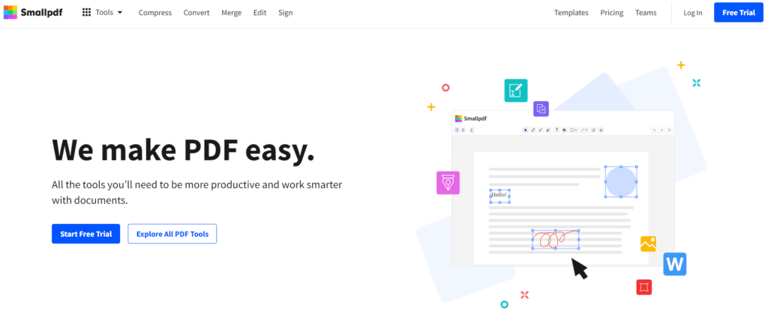
Smallpdf is an online PDF tool that offers a variety of functions, including PDF conversion, editing, merging, and compression.
How to convert PDF to Excel with Smallpdf:
Step 1: Go to Smallpdf
The first step in converting a PDF to Excel with Smallpdf is to go to the Smallpdf website.
Step 2: Upload your PDF
Once you’re on the Smallpdf homepage, click on the “PDF to Excel” option to go to the conversion page. From there, click on the “Choose Files” button to upload the PDF file you want to convert. Alternatively, you can drag and drop your PDF file into the designated area.
Step 3: Select your conversion options
Once you’ve uploaded your PDF, Smallpdf asks you to pick a conversion mode instead of a page range. “Basic” reads the selectable text in the file, and “Advanced with OCR” also reads text inside images, which is what a scanned, image-based PDF needs. OCR is a Smallpdf Pro feature, so on the free plan you are limited to the Basic mode unless you start the Pro trial.
Step 4: Download your Excel file
Once Smallpdf has finished processing your PDF, click on the “Download” button to save your Excel file to your computer. Smallpdf shows no spreadsheet preview in the browser and offers no place to adjust the formatting first, so you check the result once the downloaded .xlsx file is open.
Step 5: Open your Excel file
After you’ve downloaded your Excel file, open it in Microsoft Excel or a similar spreadsheet program. The converted file holds the table data, but a converter does not reproduce the layout of the PDF, so expect to fix split columns, merged cells and stray header or footer rows. You can now work with the data in your Excel file and make any necessary changes.
Converting a PDF to Excel can be a time-consuming task, but Smallpdf makes it easy and quick. With just a few clicks, you can convert your PDF to an Excel spreadsheet and start working with the data. Whether you’re working with financial data, sales reports, or any other type of data, Smallpdf can help you get the job done quickly and efficiently.
Pros:
- Very easy to use: Smallpdf’s interface is user-friendly and intuitive, making it easy for anyone to convert PDF to Excel.
- Good accuracy of conversion: Smallpdf’s conversion algorithm is generally accurate, ensuring that most tables are converted to Excel without errors.
- Batch processing: Smallpdf’s paid plans offer batch processing, which allows you to convert multiple PDFs to Excel at once, saving time and effort.
- Security: Smallpdf takes security seriously and ensures that all files are encrypted and deleted from their servers after a certain period of time.
Cons:
- Limited customization options: Smallpdf doesn’t offer advanced customization options, such as the ability to adjust the column width or font size. This may not be a problem for most users, but those with specific requirements may need to use other tools.
- Limits on the free plan: Smallpdf lets you convert PDFs to Excel for free with some usage limits, and keeps unlimited conversions, batch processing and OCR for Pro. That is fine for the occasional document, but regular use runs into the limits or into a paid plan.
- Paid plans: While Smallpdf offers a free plan, some of the more advanced features are only available on the paid plans. This may not be a problem for those who only need to convert PDF to Excel occasionally, but it could be a concern for power users who require more advanced features.
#2 Online PDF to Excel Converters
Online PDF to Excel converters are web-based tools that can be used to convert PDF files to Excel spreadsheets for free.
Here’s how to convert a PDF to Excel for free using an online PDF to Excel converter:
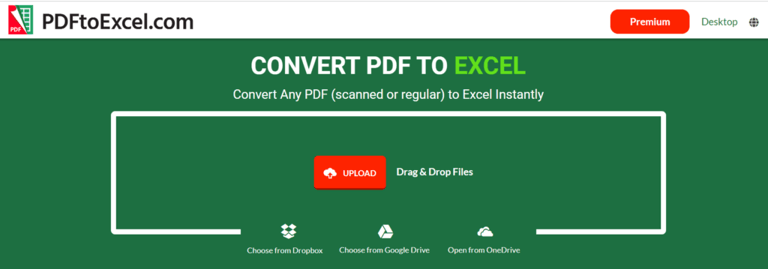
- Choose an online PDF to Excel converter: There are several online PDF to Excel converters available for free, including SmallPDF, Zamzar, and PDFtoExcel.com. Choose the one that best suits your needs and navigate to its website.
- Upload your PDF file: Once you’re on the website, click on the “Upload” or “Choose file” button to select the PDF file you want to convert. Some websites may allow you to drag and drop the file directly onto the website.
- Start the conversion process: Once the PDF file is uploaded, click on the “Convert” or “Start” button to begin the conversion process. The website will analyze the PDF file and attempt to convert it to an Excel spreadsheet.
- Download the converted file: Once the conversion is complete, the website will provide a download link for the converted Excel spreadsheet. Click on the link to download the file to your computer.
- Review the converted file: Open the downloaded Excel spreadsheet in Microsoft Excel or another spreadsheet program to review the converted data. Ensure that the data is accurate and that the formatting is correct.
Keep in mind that some online converters may have file size limitations or may require you to sign up for an account to use their services.
Pros:
- Easy to use
- No need to download software
Cons:
- Limited accuracy, may have file size restrictions, potential privacy concerns
#3 PDF to Excel with Microsoft Excel (Power Query)
Excel can pull tables straight out of a PDF with Power Query’s PDF connector, reached through Data > Get Data > From File > From PDF. It is the one PDF import Microsoft builds itself, and it exists only in Excel for Windows with a Microsoft 365 subscription: Excel for the web and Excel for Mac cannot import PDFs at all. Once the table sits in a sheet, the data is ready for a mail merge from Excel.
Here’s how to convert a PDF to Excel with Excel for Windows:
- Open a workbook in Excel for Windows: Start the Windows desktop version of Excel with a Microsoft 365 subscription and open the workbook that should receive the data. Excel for the web and Excel for Mac have no PDF import at all, so neither one can stand in for the Windows desktop app here.
- Open the PDF connector: On the “Data” tab, click “Get Data”, then “From File”, then “From PDF”.
- Choose the PDF file: Browse to the PDF on your computer and select “Open”.
- Pick the tables in the Navigator: Excel lists the tables and pages it found in the file. Select one to see a preview, then click “Load” to put it straight into a sheet, or “Transform Data” to clean it up in the Power Query Editor first.
- Check the result and save the workbook: Compare the loaded table with the PDF, since rows that ran over several lines in the original are the usual trouble spot. Fix what needs fixing, then save the workbook as usual.
Pros:
- Built into Excel, so the document never leaves your computer
- Reads the text layer of the PDF, with no OCR guesswork
- Power Query can reshape the table before it lands in the sheet, and the query can be refreshed when the PDF is replaced
Cons:
- Windows only: the connector is missing from Excel for the web and from Excel for Mac
- Not free, it needs a Microsoft 365 subscription
- A scanned, image-only PDF has no text layer, so the connector finds no tables in it
- Rows spread over several lines often need repairing by hand
#4 Convert PDF to Excel with Tabula
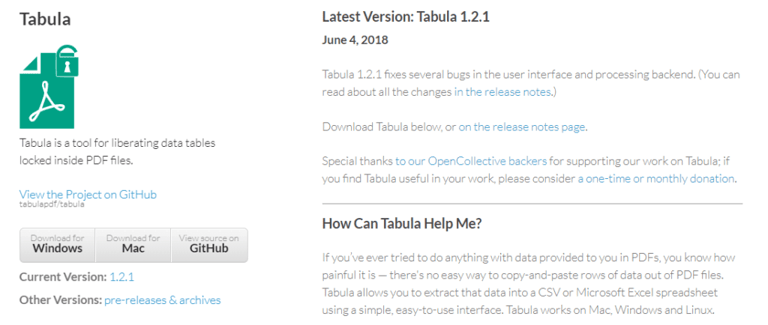
Tabula is a free and open-source tool that can be used to extract data from PDF files and convert them into CSV or Microsoft Excel format.
Here’s how to convert a PDF to Excel for free using Tabula:
- Download and install Tabula: Visit the Tabula website (https://tabula.technology/) and download the software for your operating system. Install the software on your computer.
- Open Tabula and upload the PDF file: Once Tabula is installed, open the software and upload the PDF file you want to convert by clicking on the “Browse” button or dragging and dropping the file into the designated area.
- Select the table or area to convert: Tabula will analyze the PDF file and attempt to identify tables or areas that can be extracted. Use your mouse to select the table or area you want to convert. You can also use the “Auto-detect” feature to automatically select tables or areas.
- Preview and adjust the data: Tabula will provide a preview of the selected data. Review the data to ensure that it is accurate and adjust the selection if necessary. You can also adjust the data using the “Edit” and “Preview” tabs.
- Export the data as an Excel file: Once you’re satisfied with the data, click on the “Export” button and select “Excel” as the output format. Choose a location to save the file on your computer and click on “Save“.
Pros:
- Free and open-source
- Accurate
- Can handle complex PDFs
Cons:
- Requires software download and installation
- May require manual adjustment of data
- Not suitable for non-technical users
#5 Convert PDF to Excel by Copy and Paste
When a PDF has selectable text, you can move a table into a spreadsheet with nothing but copy and paste, then let the spreadsheet split the pasted lines into columns. An image editor such as GIMP cannot stand in for this: it rasterizes the page into a picture, and a picture holds no cells and no readable text.
Here’s how to convert a PDF to Excel for free with copy and paste:
- Select the table in the PDF: Open the file in any PDF reader and drag the text cursor over the rows you want. If nothing highlights, the page is a scan and there is no text to copy.
- Copy the selection: Press Ctrl+C, or Cmd+C on a Mac.
- Paste it as plain text: In Excel, open the “Home” tab, click the arrow under “Paste”, choose “Paste Special” and pick the text option. Each line of the table lands in a cell of its own.
- Split the lines into columns: Select the pasted column, then use “Text to Columns” on the “Data” tab in Excel, or “Split text to columns” in the “Data” menu in Google Sheets. Split on the delimiter your table uses, or choose “Fixed width” when the columns line up in even blocks.
- Clean up and save: Check numbers and dates, rejoin any row that wrapped onto two lines in the PDF, then save the file as an Excel workbook.
Pros:
- Free, with no download, no account and no upload
- The document stays on your computer, which matters for confidential files
- Quick when you only need one small table
Cons:
- Works only when the PDF has selectable text, so scanned pages are out
- Manual, so it does not scale to many pages or many files
- Column alignment and multi-line rows usually need fixing by hand
Conclusion
In conclusion, there are multiple ways to convert PDF to Excel, and each method has its pros and cons.
Smallpdf is an online PDF tool that allows you to convert PDF to Excel with ease. It offers good accuracy of conversion, although the customization options are limited. Smallpdf offers both free and paid plans, with the paid plans offering additional features such as batch processing and higher conversion limits.
Online PDF to Excel converters offer a wide range of tools and can be accessed from anywhere.
The PDF import in Excel for Windows suits you best if you already pay for Microsoft 365 and would rather not upload the document anywhere.
Tabula is a powerful tool for extracting data from complex PDFs, and copy and paste is the quickest route when you only need one small table.
When choosing a method for converting PDF to Excel, consider factors such as the complexity of the PDF, the accuracy and speed of the conversion, the level of control over the output, and the availability of additional features such as batch processing. Overall, it’s important to assess your needs and choose the method that works best for you. With the variety of options available, it’s possible to find a free solution for converting PDF to Excel that fits your requirements.