
Create, Then Download or Email: A Clearer Last Step in MailMergic

For most of you, a mail merge ends in one of two ways. You download the documents and print or file them, or you email each person their own copy. Until now both paths lived inside one step called Download, even when you never meant to download anything. That confused a lot of people, and we heard it in support again and again.
So we rebuilt the end of the wizard. The step bar now tells you what happens next, in the order it happens.
The new steps
After Template, Spreadsheet and Edit, you now see:
- Create: you make one document per row of your spreadsheet.
- Download or Review: you save the documents to your computer, or, if you are emailing them, check every email before it goes out.
- Email or Report: the last step stays a dashed, optional Email while email is off. Once you turn email on, it becomes Report, where you see who got and opened their email.
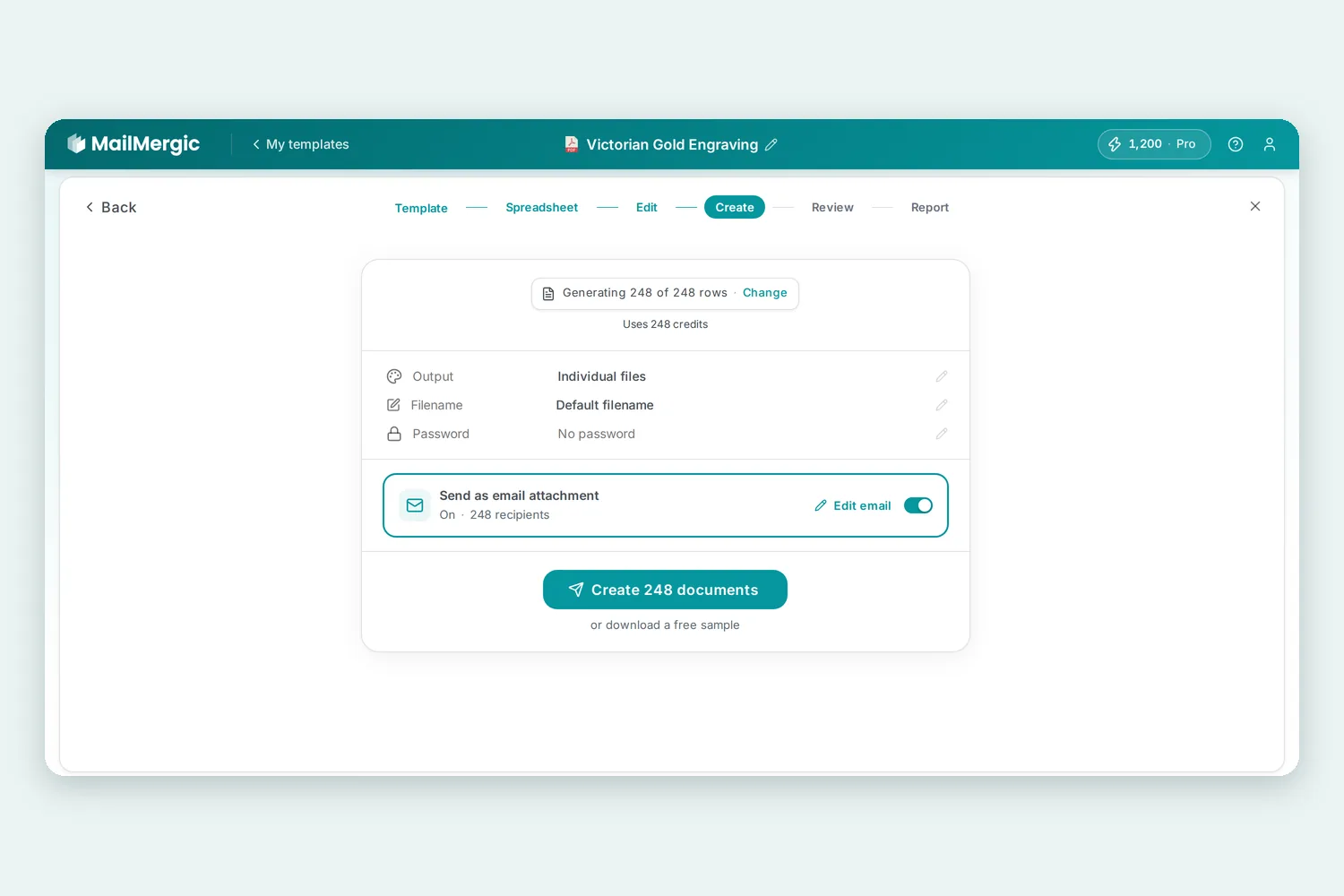
Create: one switch, one button
The Create step has a single card for email, Send as email attachment, with a switch that says Off or On. Leave it off, and Create 248 documents (with your own number) makes the documents for download. Turn it on, and the Write email window opens with a first draft already written: a subject and a short greeting that you change to suit. The card then shows how many people will get an email, and warns you if some rows have no address or an address that looks wrong.
Right above the button, one line tells you what it costs: Uses 248 credits, one per document. Nothing is sent at this point, even with email on.
Review: check, change, then send
With email on, the next step is Review. You see the subject, the attachment and the sender, plus the full list of recipients, and you can open any email to see exactly what that person gets. Only Send 248 emails sends them, after you confirm. Schedule for later picks a date and time instead, and if you are not ready yet, the draft waits in your template’s history.
New here: you can still change the email at this point. Click Edit email. A new subject, a different sender or From name is applied to the ready emails straight away. If you change the text or the attachments, MailMergic makes the emails again by itself and brings you back to Review, with no extra credits. Before, a typo you spotted at the last moment meant going back and creating everything again.
Downloaded first? Email them without paying twice
Many of you download the documents first, look through them, and only then decide to send them out. Under a finished download, the Send as email attachment card now says: “No extra credits: these documents are already paid for.” Switch it on, write the email, and click Review the emails. You land on Review with the same documents attached, and sending them uses no credits.
This works within 7 days of the download, as long as the template and the spreadsheet have not changed since. It is not offered when you chose all documents in one file.
What you need to send
Creating, downloading, reviewing and sending yourself a test email are free on every plan. Sending the emails to your whole list needs a paid plan and a verified sender address. If you are on the free plan, the Review step shows your ready emails and an Upgrade link, and the plan picker opens right there, so you do not lose your place.
Try it
The new last step is live for everyone. Open any template, go to Create, and switch email on or leave it off. New to MailMergic? Upload a PDF and start for free, or read how mail merge with attachments works.

Upload PDF · Get PDF