
How to Batch Print Personalized Certificates with Mail Merge

To batch print personalized certificates, mail merge your list into one combined PDF with one certificate per page, sorted in the order you will hand them out. Print a single test page on plain paper to check alignment, then print the whole file at actual size (not "fit to page") on certificate paper, in batches you can check as you go. This guide covers the details that decide whether a print run goes smoothly: paper, print settings, ordering, alignment on pre-printed certificate stock and printing a back side.
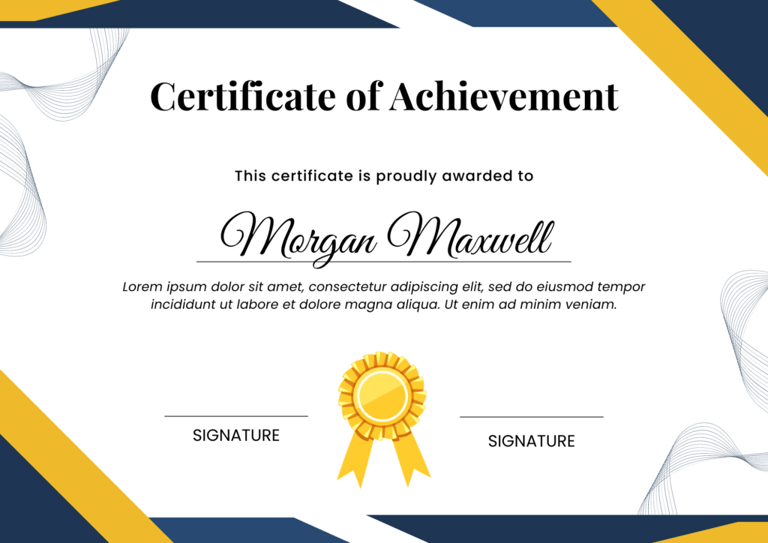
Step 1: Create one combined, print-ready PDF
For printing, one combined PDF beats a folder of individual files. You send a single print job instead of opening 80 files, every certificate gets the same print settings, and page numbers map directly to rows in your list. If certificate 37 jams, you reprint page 37 and nothing else.
Two things to check before you print:
- One certificate per page, always. If a long name or course title wraps onto a second line and pushes text onto an extra page, every certificate after it is out of step. Preview the longest name on your list before generating the batch.
- The template size matches your paper. An A4 template printed on US Letter (or the other way round) gets scaled or cropped. Set up the design for the paper you will actually load.
If you have not built the template and list yet, this guide to mail merging certificates to PDF walks through it step by step.
Step 2: Put the list in handing-out order
The certificates come out in the order of the rows in your spreadsheet, so sort the list before you mail merge it, not the paper afterwards. Sort by surname for a ceremony where names are read alphabetically, by class or group if each teacher hands out their own stack, or by seating order if that is how people are called up. When groups are handed out separately, run one mail merge per group so each stack is its own file.
Then check how your printer stacks paper. Most office laser printers deliver pages face down, so the stack comes out in the right order. Printers that deliver face up produce a reversed stack; in that case, use the reverse order option in the print dialog if your printer driver offers one.
Step 3: Choose the paper
- Weight. Standard copy paper (80 gsm or 20 lb) feels flimsy for a certificate. Heavier paper or light card, roughly 120 to 250 gsm, feels like a document worth keeping. Check your printer's specification for the maximum paper weight, and use the manual or bypass tray for heavier stock, since it usually has the straightest paper path.
- Finish. Matte, parchment and linen-textured papers suit certificates and take toner and ink well. Glossy paper is made either for inkjet or for laser printers, and the two are not interchangeable.
- Pre-printed certificate stock. Paper with a printed border, seal or foil saves you printing the artwork yourself. Check the pack says it suits your printer type: foil and embossed stock is not always safe in a laser printer, where the fuser heats the paper.
- Spares. Buy at least 10 percent more paper than you have certificates. Misfeeds, a misspelled name and the test sheets all use paper.
Step 4: Print settings that keep the layout intact
- Actual size or 100 percent. In the print dialog of your PDF reader, choose "Actual size" rather than "Fit" or "Shrink oversized pages". Fitting scales the page by a few percent, which is enough to move every name off its line on pre-printed stock.
- Orientation. Landscape certificates should print in landscape. If the reader offers auto-rotate, check the first page on the preview.
- Paper type. Set the paper type in the printer driver to heavy paper, card or cardstock, so the printer adjusts its speed and fuser temperature. Skipping this is a common cause of smudged toner on thick paper.
- Single-sided by default. Many office printers print on both sides out of the box. Switch to single-sided unless you are deliberately printing a back side (see step 6).
- Tray. Choose the tray you loaded with certificate paper, so the printer does not pull plain paper from the main cassette halfway through.
Step 5: Align the names on pre-printed certificate stock
When the border, title and logo are already printed on the paper, your template must contain only the text that changes per person, placed exactly over the blank lines. The usual way to get there:
- Set up a template without the artwork: a blank page in the paper size of your stock, with only the fields on it. A scan of a blank certificate helps as a reference for where the lines are, but it must not end up in the print file.
- Print page 1 on plain paper. Before printing, draw an arrow on the sheet's top edge and note which side faces up, so you learn how your printer feeds paper.
- Hold the test print on top of a blank certificate against a window or a light, and measure how far the name sits from its line, in millimetres.
- Move the fields by that amount, regenerate and test again. Two rounds are usually enough.
- Print one real certificate, check it, then print the rest.
Two limits to plan for: most office printers cannot print to the very edge of the sheet, so keep all text a few millimetres away from it. And paper never feeds in exactly the same position twice, so leave some tolerance around pre-printed lines instead of placing text tight against them.
Step 6: Printing a back side (duplex)
Some certificates carry information on the back: a list of course modules, hours per topic, verification instructions or terms. For duplex printing, the combined PDF has to alternate front and back pages (front 1, back 1, front 2, back 2), so each certificate is exactly two pages. If your back side is the same for everyone, it still has to appear after every front page.
For landscape certificates, choose flip on short edge in the duplex settings if the sheet is turned over sideways like a book page; flip on long edge prints the back upside down relative to that. Printer drivers label these options differently, so print one two-sided test sheet and turn it over the way a recipient would before you print the batch.
Step 7: Print in batches and check as you go
- Print in batches of 20 to 50 pages, using the page range in the print dialog. A paper jam then costs you a few sheets, not the whole stack.
- Look at every tenth certificate or so for creeping misalignment, streaks or low toner.
- Keep a short list of pages to reprint (jams, misfeeds, late spelling corrections) and print them at the end as one page range.
- Let inkjet prints dry before stacking them, and store the stack flat.
- If certificates are signed by hand, plan the signing time: 200 wet-ink signatures take a while. A printed signature image avoids that.
Printing a certificate mail merge from Word
If your certificate is a Word document, Mailings > Finish & Merge > Print Documents sends the merged certificates straight to the printer, and the dialog lets you print all records, the current record, or a range of records. The safer route is Finish & Merge > Edit Individual Documents: Word creates one document with all certificates, which you can scroll through, fix and save as PDF before printing. Watch for names that wrap to a second line, because Word then pushes the rest of that certificate onto a new page and the stack goes out of step. A fixed-size text box around the name, or a slightly smaller font, prevents that.
Batch printing certificates with MailMergic
MailMergic produces the print file for you in the browser. Upload your certificate as a PDF or Word file, or pick a design from the certificate template gallery, add your list from Excel, CSV or Google Sheets, and drag the columns onto the page. Choose a single combined PDF as output, and you get one print-ready file with one certificate per row, in the order of your list. For pre-printed stock, upload a blank page in the paper size of your stock, place only the fields, and fine-tune their position with the test print described above.
For smaller formats, such as award cards or wallet certificates that fit several to a sheet, fill mode places several rows on each page until it is full. The same mail merge run can also produce one PDF per person, to email each recipient a digital copy alongside the printed one. Note that the free plan prints a watermark on every PDF; for certificates you hand out, you will want a paid plan. Create your certificate print file in MailMergic.
Still deciding what goes on the certificate itself? See what a certificate of completion must include. For the mail merge itself, see how to generate certificates from Excel.
