
What “Verification Method” should I choose to verify an email sender?

In this article we will show you what verification method you should use to verify a new sender.
Note: In most use cases it is absolutely sufficient to use the “Email Address” method. Most of our existing customers have had very good experiences with it and have consistently achieved delivery rates of 100%. If you would rather have your emails come from your own Gmail address, the Gmail / Google Workspace method does exactly that.
| Gmail / Google Workspace 3 | Email Address | SMTP Server | Domain | |
|---|---|---|---|---|
| Setup difficulty | Easy | Easy | Medium | Expert |
| Recommended for | Anyone with a Gmail or Google Workspace account | Small and medium businesses | Large Enterprises | Large Enterprises |
| Delivery rate | 100% * | 99.9% | 100% * | 100% |
| Anti-spam score (by mail-tester.com) | 100% * | 100% | 100% * | 100% |
| Daily sending limit | approx. 500/day (Gmail), 2,000/day (Workspace) | None, only your monthly credits | Whatever your server allows | None, only your monthly credits |
| Recipient can see that email was sent with MailMergic? 1 | ❌ | ✅ | ❌ | ❌ |
| Emails appear in your own “Sent” folder | ✅ | ❌ | ❌ | ❌ |
| “Unsubscribe” footer 2 | Optional | ✅ | Optional | ✅ |
| Email report about failed and delivered emails | ❌ | ✅ | ❌ | ✅ |
| HIPAA-compliant | ❌ | ❌ | ✅* | ❌ |
| DMARC-compliant | ✅ | ✅ | ✅* | ✅ |
1. Recipient can see that email was sent with MailMergic?
Your email will be sent to an email address we provide. The email address will appear as your.name@mail.mailmergic.com. All replies will still go to the email address you provide. For example, if the recipients use Gmail, this is how it will look to them:
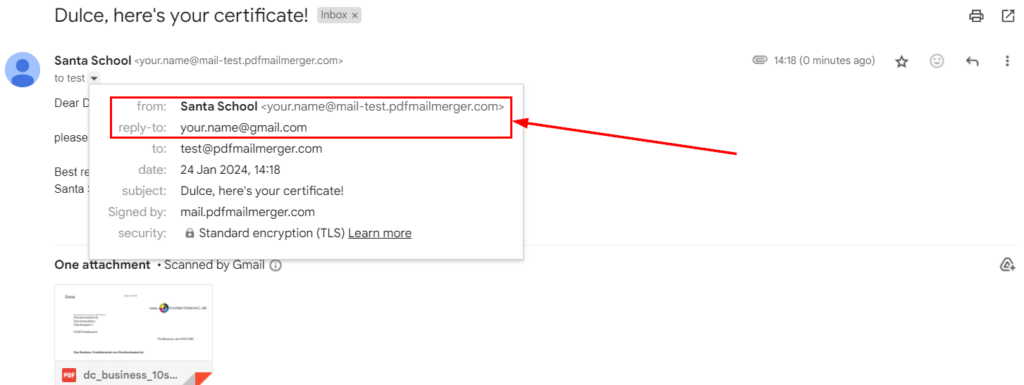
2. “Unsubscribe” footer
For the Email Address and Domain methods we always include an unsubscribe footer in every email, which greatly reduces the chance that your email will be classified as spam:

For the SMTP and Gmail methods the footer is optional: tick “Add unsubscribe link” when you set the sender up, and every email gets the same footer plus the one-click unsubscribe headers that Gmail and Yahoo expect from bulk senders. The option is off by default, because emails sent from your own server or mailbox often already carry a footer of their own.
Whichever method you use, an unsubscribe is remembered: MailMergic skips that recipient in every future sendout from your account, even if you switch the option off again.
3. Gmail / Google Workspace
Connect your Google account with Google sign-in and MailMergic sends every personalized email through Gmail, from your own address. The emails stay in your Gmail “Sent” folder and replies come straight back to your inbox, exactly like mail you write yourself.
MailMergic asks Google for a single permission: to send email on your behalf. It cannot read, search or delete anything in your mailbox, and it never downloads your messages or contacts. You can withdraw the access at any time in your Google account, or by deleting the sender in MailMergic.
The limit to keep in mind is Google’s, not ours: a personal Gmail account can send around 500 emails a day, a Google Workspace account around 2,000. MailMergic warns you while you compose when a sendout gets close to that, and if the limit is reached mid-run it stops cleanly and leaves the remaining recipients queued, so you can continue the next day or send that campaign with the “Email Address” method instead, which has no daily cap.