


Rotate Images and Codes in Word: Orient Logos, Photos, and Barcodes Your Way

Sometimes a picture just won’t sit the way you need it to. A logo that should run down the side of a cover page, a badge that looks better at a slight angle, or a photo that only fits your layout if you turn it on its side. Until now, you had to fix all of that somewhere else, rotating it in another program first, then bringing it into your document and hoping it lined up.
Inside the Word document editor, you can now rotate an image with a simple right-click, so you can point your logos, photos, and codes exactly the way you want them, right where you’re already working.
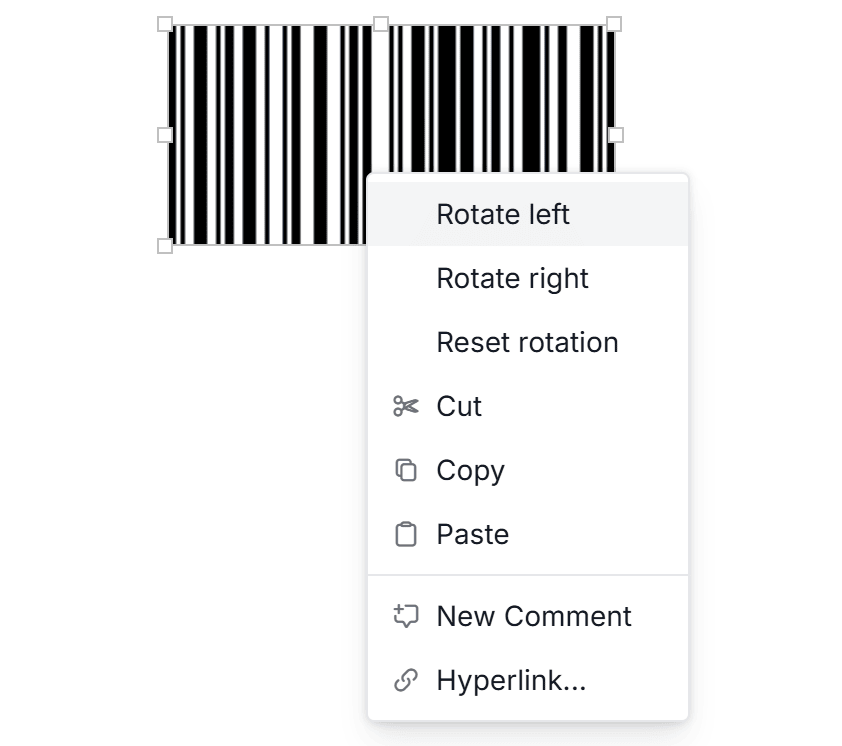
How it works
Right-click any image in your Word template and choose to rotate it. Each turn moves the image a quarter-turn, 90 degrees at a time, so one click lays it on its side, a second turns it upside down, and a third stands it up the other way. Keep clicking and you come right back to where you started, so there’s nothing to undo if you change your mind.
This works on more than just photos. You can rotate:
- Regular images: any picture you’ve added to the template
- Your brand logo: turn it to fit a header, a footer, or a vertical edge
- QR codes and barcodes: the codes you add to your Word templates
No need to open a separate program, crop, or re-save anything. Just right-click and turn.
Where it helps
A quarter-turn is a small thing, but it solves a lot of everyday layout headaches:
- Sideways labels: turn text or an image label so it reads down the side of a page
- Angled badges and seals: give a certificate or award a little more character
- Vertical spine text: orient a logo or title to run down the spine of a cover
- Tight spots: simply fit a picture into a narrow corner of your layout
Whatever the reason, you stay in control of which way every image points.
It shows in your download
Here’s the honest, simple part: the rotation is applied to your finished, downloaded document. When you turn an image in the editor and then download your Word file, it comes out oriented exactly the way you set it. There’s no separate export step and no extra setting to remember. What you arrange on screen is what lands in the file you send out.
Open your Word template, right-click an image, logo, or code, and turn it your way. It only takes a click, and your documents are about to fit together a whole lot better.