


Design Professional Layouts with Shapes

A great-looking document isn’t just about the data — it’s about how it’s presented. Colored backgrounds behind headings, divider lines between sections, decorative borders around important information. These small visual touches turn a plain PDF into something polished and professional.
MailMergic’s editor now includes a Shapes panel that lets you drag and drop shapes directly onto your template canvas.
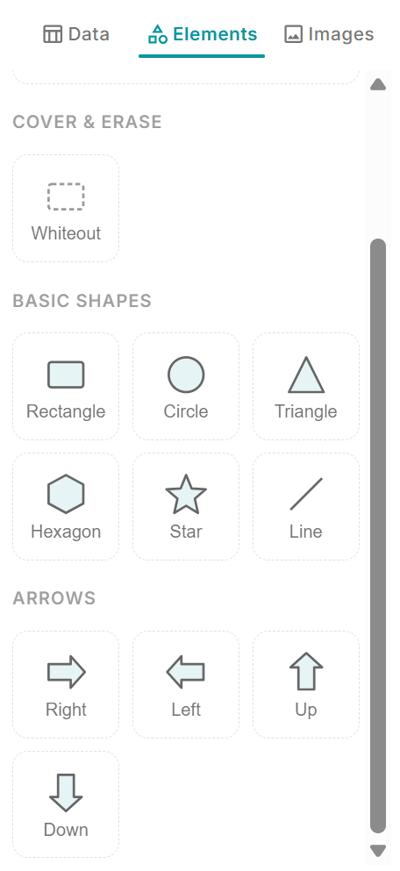
What’s available
You’ll find the shapes in a new tab in the editor sidebar. The collection includes:
Basic shapes:
- Rectangle
- Circle
- Triangle
- Hexagon
- Star
- Line
Arrows:
- Right, left, up, and down
Drag any shape onto the canvas, then resize, reposition, and customize it. Each shape can be styled with different colors to match your brand or template design.

How people are using them
Shapes are surprisingly versatile once you start experimenting:
- Header backgrounds — place a colored rectangle behind your title text for a clean, modern look
- Section dividers — drop a line between sections to create visual structure
- Badges and seals — combine a circle or star with text for award badges or certification seals
- Callout boxes — use a rectangle to highlight important information like deadlines or instructions
- Arrows — draw attention to specific areas or show flow between elements
Works with everything else
Shapes layer naturally with the rest of your template. Place them behind text and images, use them alongside placeholders, or combine them with the repeat-on-pages feature to add decorative elements across your entire document.
Since they’re built right into the editor, there’s no need to switch to a separate design tool, create an image, and import it back. Everything stays in one place.
Head to the editor and check out the Shapes tab in the sidebar. A few well-placed shapes can make a big difference in how your documents look.