
How to Do a Word Mail Merge with Excel: The Easy Way (Without MS Office)

Mail merge helps you create many personalized documents at once. Think invoices, letters, certificates, or contracts. Traditionally you do a mail merge in MS Word with an Excel spreadsheet. That works, but it can be slow, fragile, and it often needs Outlook or extra setup.
This guide shows how to run a Word mail merge the easy way with MailMergic. No Microsoft Office required. You can connect Excel, Google Sheets, CSV files, or cloud storage. You can generate Word files or PDFs, send emails with attachments, and automate the whole flow. Follow this tutorial step by step and you will be done in minutes.
Quick summary busy readers
How to do a Word mail merge without MS Office in 5 steps:
- Upload your Word template.
- Upload your data from Excel or Google Sheets.
- Drag and drop placeholders where you want them — or just type @ to insert a placeholder directly in the editor.
- Choose output settings and email options.
- Generate files and download or send them.
MailMergic is an easy mail merge tool that does Word document generation from Excel or Google Sheets, supports mail merge with attachments, and sends mail merge email attachments without Outlook.
Why move away from classic Word mail merge
Word’s built-in mail merge works, but it has limits:
- Requires Microsoft Office and sometimes Outlook.
- Produces one combined document rather than individual files.
- Difficult to attach custom files per recipient.
- Can need macros or manual steps to automate.
MailMergic is different:
- Ready in 2 minutes, no install.
- Works with Excel, Google Sheets, CSV, Dropbox, OneDrive and Zapier.
- Exports individual Word or PDF files.
- Sends emails with multiple attachments.
- Built-in AI checks detect common data errors.
In short: MailMergic is a modern automatic document generator and document assembly software that makes word document generation and letter generation software tasks fast and reliable.
Comparison at a glance
| Feature | MailMergic | Microsoft Word mail merge |
|---|---|---|
| Setup | Ready in 2 minutes, no install | Requires MS Office and Outlook setup |
| Learning curve | Intuitive, minimal tech skill | Steeper, needs Word know-how |
| Data sources | Excel, Google Sheets, CSV, cloud | Mainly Excel |
| Output | DOCX and PDF, separate files | DOCX only, often combined |
| Custom filenames | Yes | No |
| Attachments | Multiple per email supported | Limited |
| Batch sending | Thousands of emails fast | Limited by Outlook and providers |
| Automation | Zapier + 8,000+ apps | Not supported |
| AI error checks | Yes | No |
| Macros needed | No | Often yes |
Full tutorial: Word mail merge step by step
This section expands each step with practical tips, troubleshooting notes, and examples so you can follow the mail merge steps without fuss.
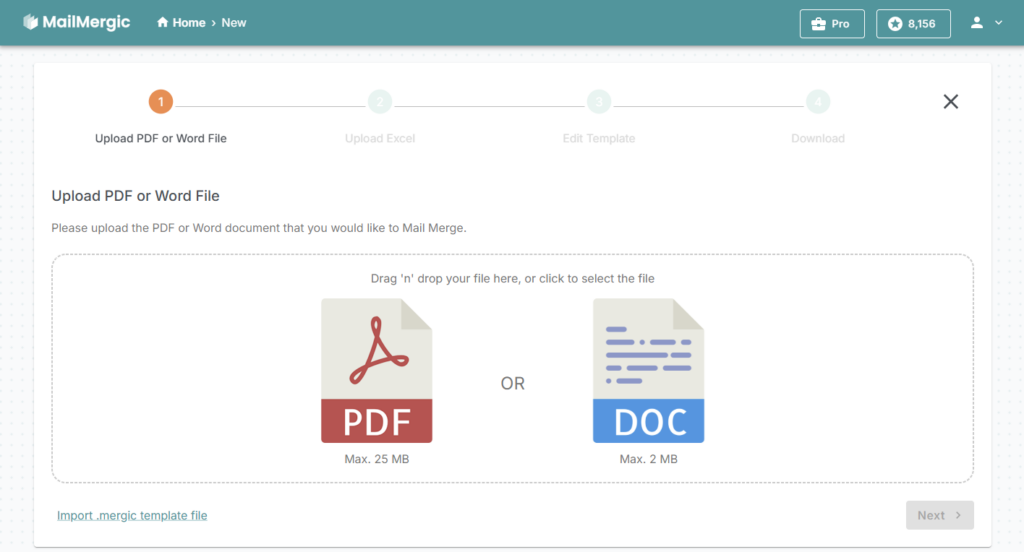
Step 1 — Prepare and upload your Word template
- Log in to MailMergic and click Create Mail Merge.
- Upload your Word file (.docx). This is your template. It can be a letter, invoice, contract, certificate, or any document.
- Tip: Keep the layout simple. Use tables for aligned fields like addresses. Avoid complex floating elements that behave differently when converted to PDF.
Why this matters: a clean template prevents layout shifts and makes word document generation predictable.
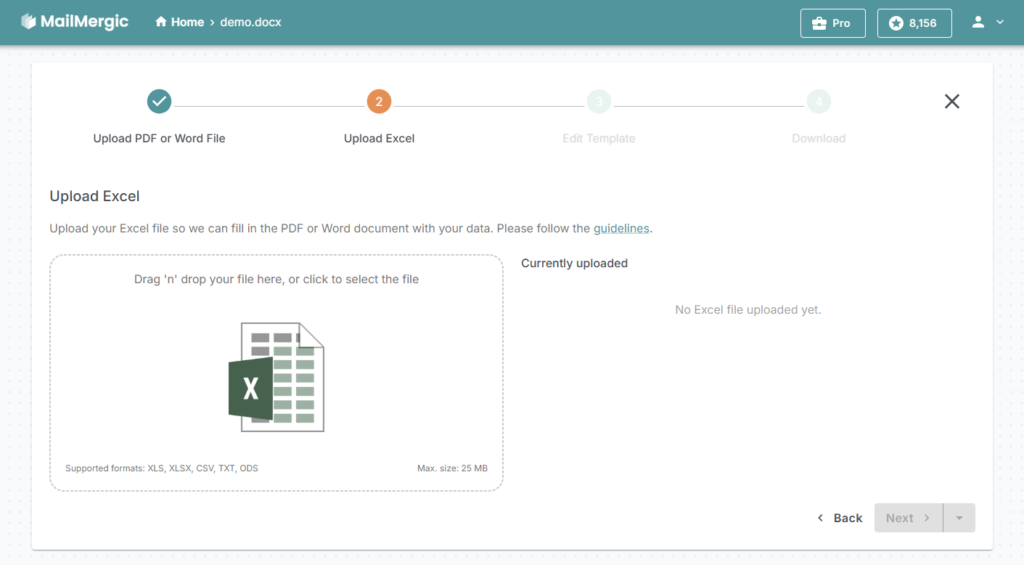
Step 2 — Add your data source: Excel, Google Sheets or CSV
- Upload an Excel file or connect a Google Sheet. MailMergic supports both mail merge for Excel and mail merge Google Sheets.
- Make sure the first sheet contains the data and that each column has a clear heading. Example headings:
FirstName,LastName,Email,InvoiceNumber,Amount. - Tip: Remove empty columns and avoid merged cells. Use one row per recipient.
Why this matters: column headings become the placeholders you will drop into the Word file.
Step 3 — Insert placeholders into the Word file
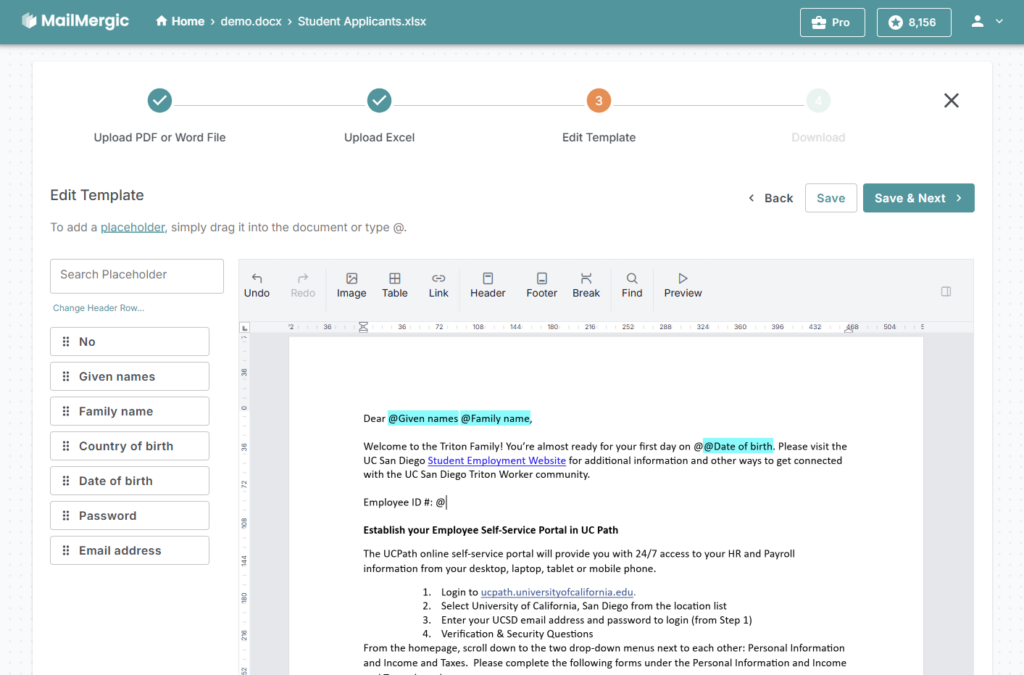
- After upload, the editor shows your spreadsheet headings as placeholders.
- Drag and drop tokens wherever you want personalized details — like
@FirstNamein a greeting or@InvoiceNumberon an invoice. You can also type@and pick the placeholder you need from the dropdown, right at that spot. - Use the toolbar to set font, size, alignment, and formatting. MailMergic supports 600+ Google Fonts and lets you upload your own.
- Preview with actual data to catch formatting issues early. Use the preview to flip through different rows and verify spacing, line breaks, and page breaks.
Troubleshooting tips:
- If placeholders look wrong, use Change Header Row to pick the correct row with column names.
- If a field overflows, reduce font size or allow text to wrap.
- If dates or numbers look wrong, check the data format in Excel or Google Sheets.
Step 4 — Set filenames, output options, and email settings
- Custom file names: Use variables to create unique file names. Example:
Invoice-@InvoiceNumber.pdf. - Output format: Choose individual DOCX files, individual PDFs, or a combined PDF.
- Attachments: Upload extra files or select documents to include per recipient. MailMergic supports mail merge with attachments and multiple attachments per email.
- Email sending: Write an email, pick the recipient column (for example
Email), and choose whether to send immediately or schedule. MailMergic handles sending without Outlook. - Batch sending: For large lists, MailMergic sends in efficient batches so you can send thousands of emails quickly.
Pro tip: Send a test email to yourself first to confirm layout and attachments.
Step 5 — Generate, download, or send
- Click Generate. MailMergic will produce one file per row.
- Download a ZIP of files or send the documents as email attachments.
- If you selected PDF, MailMergic converts the Word files to PDF automatically. If you selected DOCX, you get Word documents ready to open.
- If sending email attachments, MailMergic logs delivery status and errors so you can retry or fix bounced addresses.
Practical use cases and examples
Here are real world ideas for how to use MailMergic as your letter generation software and automatic document generator:
- Invoices: Pull invoices from Excel, generate PDF invoices, and email them with the invoice PDF attached. File names like
Invoice-2025-InvoiceNumber.pdfkeep records tidy. - Contracts: Create personalized contracts with client data and deliver them as signed-ready Word files or locked PDFs.
- Event tickets: Generate unique tickets or QR codes per attendee using data from Google Sheets.
- Certificates: Make certificates for training or events and export as separate PDFs for printing or emailing.
- Onboarding packs: Send a folder of documents to new hires with a custom welcome letter and attachments.
FAQs
Q: What is mail merge for Excel?
A: Mail merge for Excel means using an Excel spreadsheet as the data source to fill placeholders in a document automatically. Each row becomes one personalized document or email.
Q: Can I mail merge Google Sheets?
A: Yes. MailMergic supports mail merge Google Sheets so you can skip exporting to Excel and merge directly from Google Drive.
Q: How do I send mail merge email attachments?
A: Use MailMergic’s email settings to attach the generated file to each email. You can add multiple attachments and send thousands of messages without Outlook.
Q: Is this easier than Word mail merge?
A: Yes. MailMergic removes the need for Office installs, macros, and Outlook setup while offering more file formats and automation options.
Q: Can I do a mail merge without Microsoft Word or Outlook?
A: Yes. MailMergic runs in your browser and does mail merge without MS Office or Outlook.
Q: Can I use Google Sheets for mail merge?
A: Yes. MailMergic supports mail merge Google Sheets directly.
Q: Can I attach files to each email in a mail merge?
A: Yes. You can add multiple attachments per email. This is mail merge with attachments.
Q: Do I need to know code or macros?
A: No. MailMergic is an easy mail merge tool with drag and drop placeholders. No macros required.
Q: Can I export as Word and PDF?
A: Yes. MailMergic supports both Word document generation and PDF conversion.
Q: How do I name files automatically?
A: Use variables in the filename field, for example Invoice-@InvoiceNumber.pdf.
Q: Is there AI help for errors?
A: Yes. MailMergic checks for common data problems and flags likely errors before you send.
Troubleshooting common issues
- Missing placeholders: Make sure the spreadsheet header row is selected and has unique column names.
- Wrong name formatting: Check Excel cell formats and trim extra spaces. Use formulas in Excel to create a
FullNamecolumn if needed. - Large attachments causing bounces: Split big files or host large files in cloud storage and link them instead of attaching.
- Emails blocked by providers: Use verified sending domains and observe provider limits. MailMergic helps with batching to reduce throttling.
Final checklist before you hit generate
- Template looks correct in preview.
- Column headings are accurate and match placeholders.
- File naming uses variables where needed.
- Email template text is tested with a preview email.
- You confirmed delivery limits for large sends.
Try it free and scale later
Mail merge does not need to be hard. If you are still using classic Word mail merge or wondering how to manage mail merge for Outlook and attachments at scale, MailMergic gives you a modern, automated path. It combines the features of document assembly software with the ease of an online tool and the power of an automatic document generator.
Create a free account to test a small merge and see how much time you save. If you need help, support@mailmergic.com is ready to assist.