


How to type on a PDF?

Learn how to easily type on a PDF document with these tips for using PDF editors such as PDF-XChange Editor, Foxit PDF Editor, DocHub, Soda PDF, or Smallpdf. Improve your workflow and increase productivity by typing on PDF files with confidence.

Table of Contents
- Introduction
- #1 Type on a PDF using PDF-XChange Editor
- #2 Type on a PDF using Foxit PDF Editor
- #3 Type on a PDF using DocHub
- #4 Type on a PDF using Soda PDF
- #5 Type on a PDF using Smallpdf
- Tips for Typing on a PDF
- Conclusion
Introduction
PDFs (Portable Document Format) are a popular file format used for sharing documents. However, many people often face the challenge of editing PDFs, especially when it comes to typing on a PDF. While some may assume that paid software is necessary to type on a PDF, there are many free tools available that allow users to add, edit, and delete text on a PDF file. In this article, we will explore five tools that enable you to type on a PDF – PDF-XChange Editor, Foxit PDF Editor, DocHub, Soda PDF, and Smallpdf. We will provide an overview of each tool, compare their features, and provide instructions on how to use them. Note that not all five are free: Foxit PDF Editor needs a paid license or subscription, and Soda PDF lets you edit in your browser but asks for a paid plan before you can download or save the result. PDF-XChange Editor, DocHub and Smallpdf can be used at no cost, within certain limits.
Comparative Table:
| Tool | Free Version | Online/Offline | Text Editing Features | Additional Features |
|---|---|---|---|---|
| PDF-XChange Editor | Yes | Offline | Add, Edit, Delete Text, Highlight, Underline, Strikethrough, etc. | OCR, Bates Numbering, Watermarking, Annotation, and Forms |
| Foxit PDF Editor | No (paid license or subscription, free trial) | Offline | Add, Edit, Delete Text, Highlight, Underline, Strikethrough, etc. | OCR, Bates Numbering, Watermarking, Annotation, and Forms |
| DocHub | Yes | Online | Add, Edit, Delete Text, Highlight, Underline, Strikethrough, etc. | Digital Signature, Share and Collaborate, Fillable Forms, etc. |
| Soda PDF | No (paid plan required to save or download) | Online and Offline | Add, Edit, Delete Text, Highlight, Underline, Strikethrough, etc. | Merge and Split PDFs, Redact Text, Convert to other Formats, etc. |
| Smallpdf | Yes (Limited) | Online | Add, Edit, Delete Text, Highlight, Underline, Strikethrough, etc. | Merge, Split, Convert to other Formats, eSign PDFs, etc. |
#1 Type on a PDF using PDF-XChange Editor
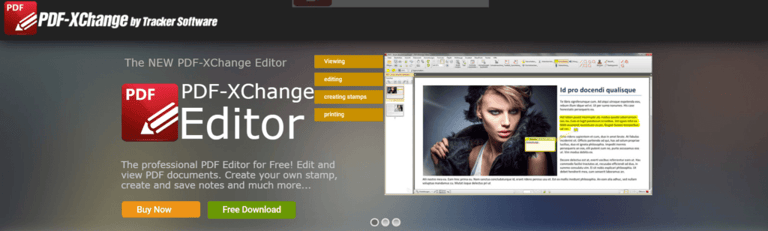
PDF-XChange Editor is a popular PDF editing software that allows you to add and edit text, images, and other elements to your PDF documents. If you want to add text to a PDF file using PDF-XChange Editor, you can do so easily by following the steps below:
Step 1: Open your PDF file in PDF-XChange Editor
The first step is to open your PDF file in PDF-XChange Editor. To do this, launch the PDF-XChange Editor software, and then click on the “Open” button in the top-left corner of the window. Select the PDF file that you want to edit from your computer, and then click “Open.”
Step 2: Select the “Typewriter” tool
Once you have your PDF file open in PDF-XChange Editor, you can begin adding text. To do this, select the “Typewriter” tool from the toolbar on the left-hand side of the window. The Typewriter tool is represented by an icon that looks like a typewriter.
Step 3: Place your cursor where you want to add text
Once you have selected the Typewriter tool, place your cursor where you want to add text. You can click anywhere on the page to create a new text box. You can also click and drag to create a text box of a specific size.
Step 4: Type your text
With the text box in place, you can begin typing your text. You can use the standard keyboard shortcuts for formatting text, such as bold, italic, and underline. You can also change the font, font size, and font color using the options in the toolbar at the top of the window.
Step 5: Save your changes
Once you have added your text, you should save your changes. To do this, click on the “Save” button in the top-left corner of the window. If you want to save your changes as a new file, click on “Save As” instead.
Adding text to a PDF file with PDF-XChange Editor is a simple process that can be done in just a few steps. With the Typewriter tool you can add text to any PDF file and then easily save the changes. If you need to add a quick note, fill out a form or make other changes to a PDF document, PDF-XChange Editor is what you need.
#2 Type on a PDF using Foxit PDF Editor
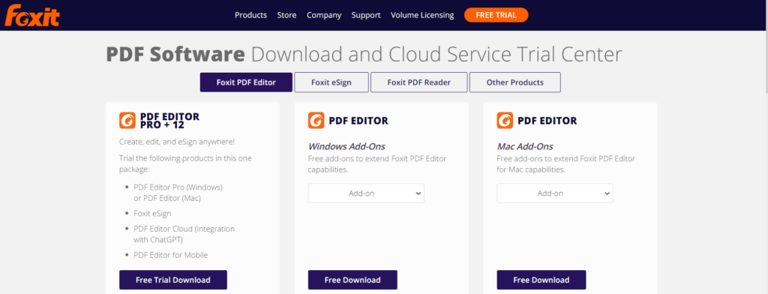
Foxit PDF Editor (formerly Foxit PhantomPDF) is a powerful PDF editor that allows you to add and edit text, images, and other elements to your PDF documents. It is a paid product: there is a free trial, but keeping it beyond that needs a license or a subscription. If you want to add text to a PDF file using Foxit PDF Editor, you can do so easily by following the steps below:
Step 1: Open your PDF file in Foxit PDF Editor
The first step is to open your PDF file in Foxit PDF Editor. To do this, launch the Foxit PDF Editor software, and then click on the “Open” button in the top-left corner of the window. Select the PDF file that you want to edit from your computer, and then click “Open.“
Step 2: Select the “Add Text” tool
Once you have your PDF file open in Foxit PDF Editor, you can begin adding text. To do this, open the “Edit” tab on the ribbon at the top of the window and choose the “Add Text” tool. Use the “Edit Text” tool on the same tab only when you want to change wording that is already in the PDF: it works on existing text and will not open a new text box on an empty spot.
Step 3: Place your cursor where you want to add text
Once you have selected the Add Text tool, click on the page where you want the text to start. You can also click and drag to create a text box of a specific size.
Step 4: Type your text
With the text box in place, you can begin typing your text. You can use the standard keyboard shortcuts for formatting text, such as bold, italic, and underline. You can also change the font, font size, and font color using the options in the toolbar at the top of the window.
Step 5: Save your changes
Once you have added your text, you should save your changes. To do this, click on the “Save” button in the top-left corner of the window. If you want to save your changes as a new file, click on “Save As” instead.
Adding text to a PDF file using Foxit PDF Editor is a simple process that can be completed in just a few steps. By following the steps outlined above, users can select the Add Text tool, click where they want to add text, type their text, and save their changes. With the ability to use standard keyboard shortcuts for formatting, changing font size and color, and adding images and signatures, users can easily customize their PDF files to suit their needs. Overall, Foxit PDF Editor is an excellent option for anyone who needs to edit and manipulate PDF files regularly, as long as the paid license fits your budget.
#3 Type on a PDF using DocHub
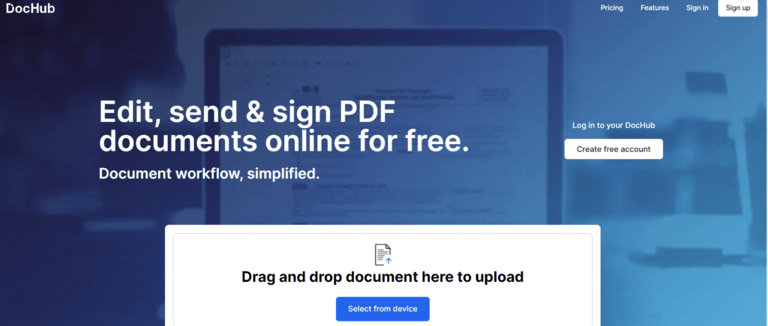
DocHub is a popular online PDF editor that allows users to edit and sign PDF files. One of the most useful features of DocHub is the ability to add text to a PDF file.
If you need to add text to a PDF file using DocHub, here’s what you need to do:
Step 1: Open your PDF file in DocHub
The first step is to open your PDF file in DocHub. To do this, log in to your DocHub account, or create a new account if you don’t have one already. Once you are logged in, click on the “Upload” button and select the PDF file that you want to edit.
Step 2: Select the “Text” tool
Once you have your PDF file open in DocHub, you can begin adding text. To do this, select the “Text” tool from the toolbar on the left-hand side of the window. The Text tool is represented by an icon that looks like a “T” inside a square.
Step 3: Place your cursor where you want to add text
Once you have selected the Text tool, place your cursor where you want to add text. You can click anywhere on the page to create a new text box. You can also click and drag to create a text box of a specific size.
Step 4: Type your text
With the text box in place, you can begin typing your text. You can use the standard keyboard shortcuts for formatting text, such as bold, italic, and underline. You can also change the font, font size, and font color using the options in the toolbar at the top of the window.
Step 5: Download your edited file
DocHub has no “Save” or “Save As” button: your edits stay with the document in your DocHub account. To get the file itself, click the “Download / Export” icon in the top-right corner of the editor, choose “Save to computer” (you can also export straight to Google Drive, Dropbox or OneDrive), pick PDF or DOCX, and confirm the download.
DocHub is an excellent tool for editing and signing PDF files, including adding text. With its intuitive interface and powerful features, it is easy to add text to PDF files using DocHub. By selecting the Text tool, users can place their cursor where they want to add text, type their text, and format it using standard keyboard shortcuts. DocHub also offers a range of other tools for editing PDF files, including adding images and signatures. Exporting is a separate step: the edited version stays with the document in your DocHub account, and the Download / Export dialog hands you a PDF or DOCX copy whenever you need one.
If you want to know about how to remove a Password from PDFs, you can read about it in our previous blog article.

#4 Type on a PDF using Soda PDF
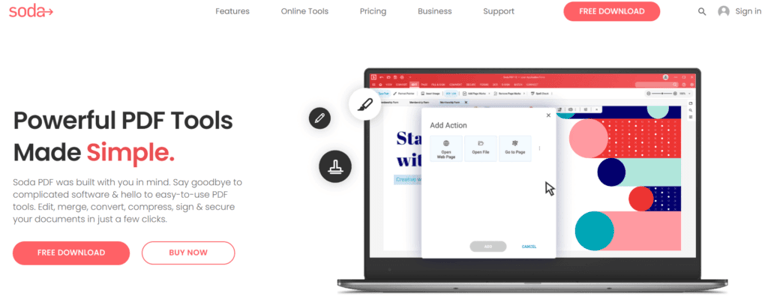
Soda PDF is a PDF editor that offers a wide range of features, including the ability to add and edit text within PDF files. It runs both in your browser and as a Windows desktop application. Editing is free to try, but a paid plan is needed before you can save or download the result, so budget for that before you start. If you need to add text to a PDF file using Soda PDF, here’s what you need to do:
Step 1: Open your PDF file in Soda PDF
The first step is to open your PDF file in Soda PDF. To do this, launch the Soda PDF application and click on “Open File” in the main menu. Select the PDF file that you want to edit and click “Open“.
Step 2: Select the “Edit” tab
Once you have your PDF file open in Soda PDF, select the “Edit” tab at the top of the window. This will display a range of editing tools that you can use to modify your PDF file.
Step 3: Select the “Add Text” tool
Next, select the “Add Text” tool from the editing tools on the left-hand side of the window. This tool is represented by an icon that looks like a “T” inside a circle.
Step 4: Place your cursor where you want to add text
Once you have selected the Add Text tool, place your cursor where you want to add text on the PDF file. You can click anywhere on the page to create a new text box. You can also click and drag to create a text box of a specific size.
Step 5: Type your text
With the text box in place, you can begin typing your text. You can use the standard keyboard shortcuts for formatting text, such as bold, italic, and underline. You can also change the font, font size, and font color using the options in the toolbar at the top of the window.
Step 6: Save or download your file
Once you have added your text, use Soda PDF’s save or download option to keep the result. This is the point where the free tier stops: per Soda PDF’s own editor page, downloading, printing, emailing or saving your file is only possible with a monthly plan or an annual subscription, so without one the text you typed in the browser cannot leave it.
Adding text to a PDF file using Soda PDF is a simple process that can be completed in just a few steps.
#5 Type on a PDF using Smallpdf
Smallpdf is a popular online PDF editor that allows users to easily add and edit text in PDF files.
If you need to add text to a PDF file using Smallpdf, here’s what you need to do:
Step 1: Open your PDF file in Smallpdf
The first step is to open your PDF file in Smallpdf. To do this, visit the Smallpdf website and click on “Edit PDF” in the main menu. You can then drag and drop your PDF file into the editor or select it from your computer by clicking on “Choose File“.
Step 2: Select the “Text” tool
Once you have your PDF file open in Smallpdf, select the “Text” tool from the toolbar on the left-hand side of the window. This tool is represented by an icon that looks like a “T” inside a square.
Step 3: Place your cursor where you want to add text
Next, place your cursor where you want to add text on the PDF file. You can click anywhere on the page to create a new text box. You can also click and drag to create a text box of a specific size.
Step 4: Type your text
With the text box in place, you can begin typing your text. You can use the standard keyboard shortcuts for formatting text, such as bold, italic, and underline. You can also change the font, font size, and font color using the options in the toolbar at the top of the window.
Step 5: Save your changes
Once you have added your text, you should save your changes. To do this, click on “Apply Changes” in the top right-hand corner of the window. You can then download your edited PDF file by clicking on “Download” in the main menu.
Adding text to a PDF file using Smallpdf can be completed in just a few simple steps. By selecting the Text tool, placing the cursor where you want to add text, typing your text, and saving your changes, you can easily customize your PDF file to suit your needs. Smallpdf also offers a range of other tools for editing PDF files, including adding images and signatures, making it a versatile and powerful tool for PDF editing. Overall, Smallpdf is an excellent option for anyone who needs to edit and manipulate PDF files.
Tips for Typing on a PDF
Typing on a PDF can be a useful way to add text, comments, or annotations to a document.
Here are some general tips for typing on a PDF:
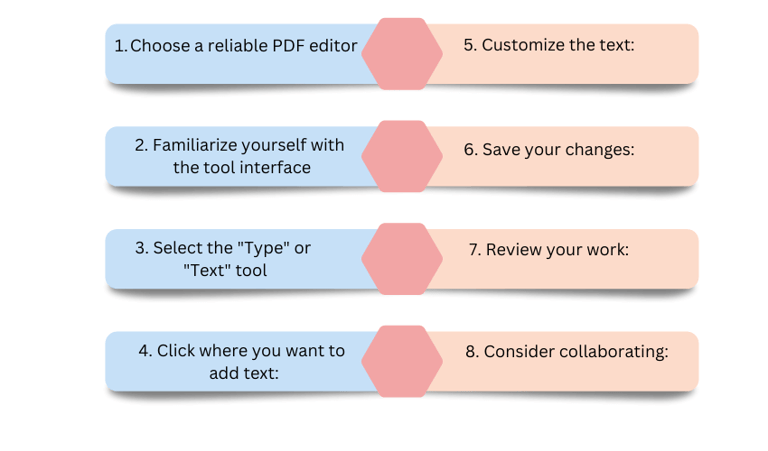
- Use a reputable PDF editor: Choose a reliable PDF editor tool that allows you to type on PDF files, such as PDF-XChange Editor, Foxit PDF Editor, DocHub, Soda PDF, or Smallpdf.
- Familiarize yourself with the tool’s interface: Each PDF editor tool has its own interface and features, so take some time to explore the tool and get comfortable with its tools and functionalities.
- Select the “Type” or “Text” tool: Look for the “Type” or “Text” tool in the tool palette, which typically looks like a cursor or an “A” icon. This tool will allow you to add new text to the PDF.
- Click where you want to add text: Once you have selected the “Type” or “Text” tool, click on the PDF where you want to add text. This will place a cursor where you can start typing.
- Customize the text: Most PDF editors offer options for customizing the font, size, color, and style of the text you add to the document. Use these tools to match the formatting of the existing text, or to make your added text stand out.
- Save your changes: Once you have finished typing on the PDF, save your changes to the document. Some editors may offer an “Save” or “Export” option, while others may automatically save your changes as you work.
- Review your work: Take some time to review your changes and make sure that the text is clear and easy to read. Make any necessary edits or adjustments before sharing the document.
- Consider collaborating: If you are working on a document with others, consider using a PDF editor tool that offers collaboration features, such as commenting or markup tools. This can help to streamline feedback and ensure that everyone is on the same page.
Overall, typing on a PDF can be a useful way to add new text to a document, or to provide feedback and comments on an existing PDF. By selecting the right PDF editor tool and following these tips, you can quickly and easily add text to any PDF document.
Conclusion
Typing text into PDF doesn’t have to be a daunting task, and with the right tool it takes only a few clicks. In this article, we looked at five tools that allow you to type text into PDF. Three of them, PDF-XChange Editor, DocHub and Smallpdf, can be used at no cost within certain limits, while Foxit PDF Editor and Soda PDF need a paid license or subscription. While all of the tools share some features in common, each has unique capabilities that meet different needs. PDF-XChange Editor and Foxit PDF Editor have similar features, including OCR, Bates numbering, watermarks, annotations, and forms. However, DocHub stands out because it allows you to share and collaborate with others and has digital signing capabilities. Smallpdf has an eSign feature, which is handy for signing documents online. Soda PDF is suitable for those who need to convert and edit PDFs. Overall, the choice of tool depends on your specific needs.