How to compress a PDF?

Learn why you should compress PDF files, how to compress them using desktop tools like Preview on Mac or Adobe Acrobat, and the benefits of using online PDF compression tools. Discover free desktop options and popular online tools for compressing your PDF files, and why Microsoft Word is not one of them.

Table of Contents
- Why Compress PDFs?
- Online PDF Compression Tools
- The benefits of using Online PDF Compression Tools
- Offline PDF Compression Tools
- Compress PDF in Preview on Mac
- Why Microsoft Word Cannot Compress a PDF
- Conclusion
Why Compress PDFs?
PDFs (Portable Document Format) are a popular file format for sharing documents, reports, and other forms of information. However, large PDF files can be cumbersome to send and receive, especially if you have a slow internet connection. This is where PDF compression comes in. PDF compression reduces the size of a PDF file, usually by recompressing or downsampling the images inside it, which trades some image quality for a smaller file. There are several tools available that can help you compress your PDFs. We will discuss the different methods of compressing a PDF.
Compressing PDFs is crucial for many reasons, and it is essential to know why it’s necessary to reduce the size of PDF files.
- Firstly, sharing large PDF files over email or uploading them to websites can be a challenging task, particularly when dealing with slow internet speeds or limited bandwidth. Compressing PDF files can significantly reduce their size, making it easier to share them online.
- Secondly, large PDF files take up storage space on your device or server and take longer to open, back up and transfer. Compressing PDF files frees up that space and shortens those transfers.
- Moreover, online application forms usually have a maximum file size limit for uploaded documents, and compressing PDF files can help meet those requirements without sacrificing the quality of the content. Compressed PDF files also have quicker load times, enabling users to access information quickly and easily.
- Additionally, compressing PDFs can help save costs related to storage space, particularly for businesses that deal with large volumes of PDF files. Storing large files can be costly, and compressing files can help reduce storage costs in the long run.
Compressing PDFs is essential for a smooth workflow, faster processing times, quicker load times, and cost savings related to storage space. There are several methods to compress PDF files, including using online compressors, Adobe Acrobat, Preview on Mac, and Microsoft Word. Understanding the importance of compressing PDF files and using the appropriate tools to compress them can help improve productivity, save time and money, and optimize online experiences.
How to Compress a PDF?
There are several ways to compress a PDF file, including:
- Using Online PDF Compression Tools
- Using Offline PDF Compression Tools
Online PDF Compression Tools
Online PDF compression tools have gained popularity in recent years due to their ease of use and accessibility. These tools allow users to quickly and easily reduce the size of their PDF files without the need for specialized software or technical knowledge.
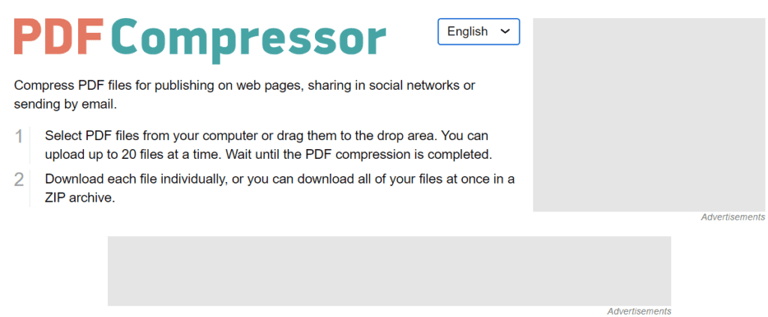
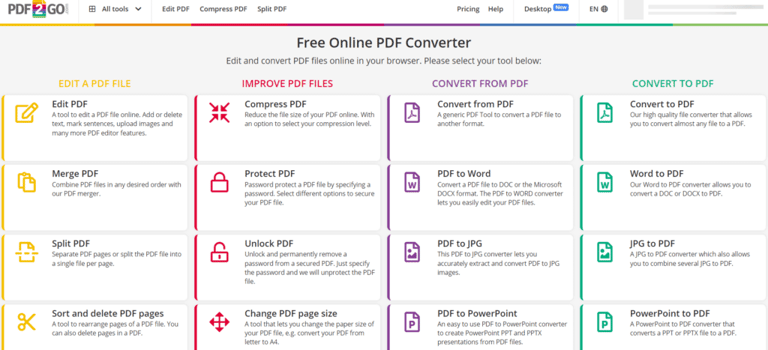
The first step in using an online PDF compression tool is to choose a reputable website that offers the service. Some popular options include Smallpdf, PDF Compressor, and PDF2Go. Once you have selected a website, simply upload your PDF file to the compression tool, and the website will automatically begin the compression process.
It is important to note that some online PDF compression tools require users to sign up or pay a fee to use their service. Therefore, it is essential to read the website’s terms and conditions before compressing your PDF files to avoid any unexpected charges or hidden fees.
Once the compression process is complete, the website will usually provide a link to download the compressed PDF file. Some online compression tools also allow users to compress multiple files at once, which can be useful for businesses that deal with a large volume of PDF files.
The benefits of using Online PDF Compression Tools
- One benefit of using online PDF compression tools is that they often offer different compression settings, allowing users to choose the level of compression they prefer. For instance, some tools allow users to choose between low, medium, and high compression levels. Choosing a lower compression level will result in a smaller reduction in file size, but the quality of the content will be preserved. In contrast, choosing a higher compression level will result in a more significant reduction in file size, but the quality of the content may be slightly compromised. It is essential to keep in mind that the quality of the content is vital, and it should not be compromised when compressing PDF files. Therefore, it is important to choose a compression tool that ensures high-quality output. Some online PDF compression tools provide previews of the compressed PDF file, allowing users to compare the quality of the compressed file to the original file before downloading it.
- Another benefit of using online PDF compression tools is that they are often free, making them accessible to anyone who needs to compress their PDF files quickly and easily. This can be particularly useful for individuals or businesses that deal with occasional PDF files and do not have the budget to purchase specialized software. Free tiers do come with limits, though: Smallpdf, for example, reserves its “Moderate” and “Strong” compression levels for its paid Pro plan.
There are many free online PDF compression tools that you can use to compress your PDF files. Some of the most popular ones include:
| Tool | Pros | Cons |
|---|---|---|
| Smallpdf | Easy to use, no software installation required, supports a wide range of file formats. | Free use comes with usage limits, and the stronger “Moderate” and “Strong” compression levels are reserved for the paid Pro plan. |
| PDF Compressor | Fast, no software installation required, supports batch compression. | Only supports PDF files, and you can upload up to 20 files at a time. |
| PDF2Go | Supports a wide range of file formats, no software installation required. | Free use runs on a limited credit allowance, with a lower maximum file size and a standard processing queue; large files can take some time to upload. |
Offline PDF Compression Tools
There are many desktop PDF compression tools available that can help you reduce the size of your PDF files while keeping control over how much quality you give up.
- One popular option is Adobe Acrobat, which is a well-known software suite that offers a range of PDF editing tools, including compression. With Acrobat, you can choose to reduce the size of your PDF file by optimizing images and removing unnecessary data. Additionally, you can use the PDF optimizer feature to reduce file size further by adjusting settings such as image quality, font embedding, and resolution.
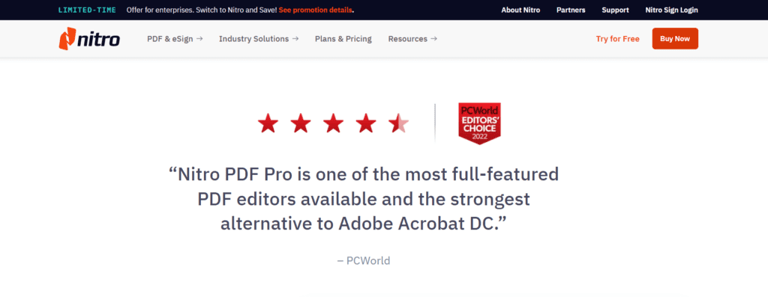
Another option is Nitro Pro, which is a comprehensive PDF software that includes a range of features, including compression. With Nitro Pro, you can reduce the size of your PDF files using various compression options, such as image compression, text and graphics optimization, and font embedding. Nitro Pro also allows you to compress multiple files at once, making it a great choice for users who work with large numbers of PDF files.
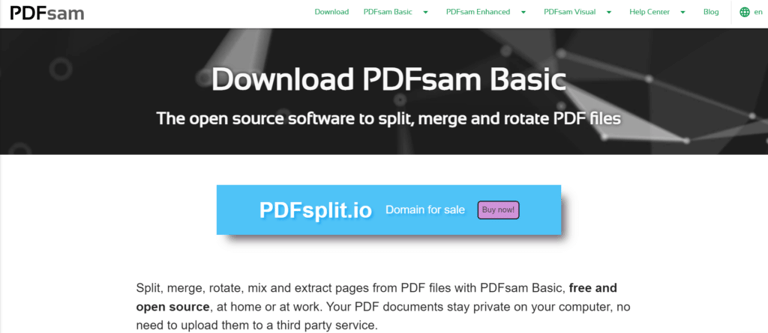
- A free option is PDF24 Creator. PDF24 Creator is free to use and includes a dedicated PDF compression tool that shows you the original and the compressed size and lets you change the compression settings. It is a desktop solution, so your files stay on your PC instead of being uploaded, but it runs on Windows only. Be aware that PDFsam Basic, which is often suggested as a free alternative, has no compression tool at all: it splits, combines, rotates, mixes and extracts pages, and its Compress option only affects how the output stream is written, not the images that usually make a PDF large.
If you prefer to use desktop software, there are several options available. Some of the most popular ones include:
| Tool | Pros | Cons |
|---|---|---|
| Adobe Acrobat Pro DC | Comprehensive PDF editing and compression tools, supports a wide range of file formats. | Expensive, may require some time to learn how to use all the features. |
| Nitro Pro | Comprehensive PDF editing and compression tools, supports batch compression. | Expensive, may require some time to learn how to use all the features. |
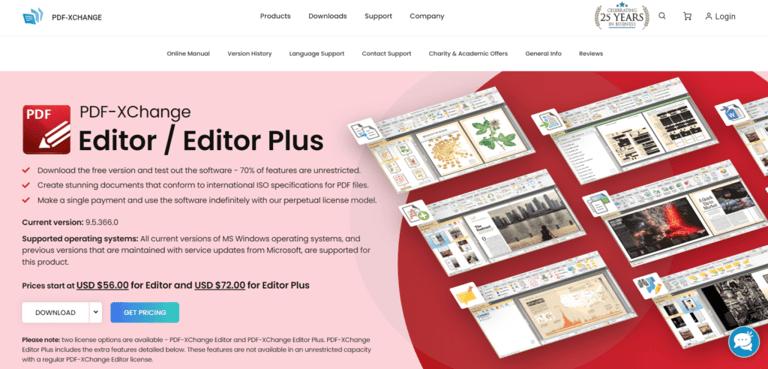
| PDF-XChange Editor | Comprehensive PDF editing and compression tools, affordable pricing. | Some features may be limited in the free version, may require some time to learn how to use all the features. |
Compress PDF in Preview on Mac
If you want to reduce the size of a PDF file, one of the easiest ways is to use Preview on Mac.
Below are the steps you can follow to compress a PDF file using Preview on Mac.
- Open the PDF file in Preview. The first step is to open the PDF file in Preview. You can do this by right-clicking on the file and selecting ‘Open With‘ > ‘Preview‘ or by opening Preview and dragging the file into the application.
- Choose the ‘Export’ option. Once the PDF file is open in Preview, click on ‘File‘ from the menu bar and select ‘Export‘. This will open the Export sheet.
- Choose the compression options. In the Export sheet, you can choose the compression options. Under the ‘Quartz Filter‘ dropdown menu, select ‘Reduce File Size‘. Leave the ‘Format‘ menu set to ‘PDF‘, because choosing ‘JPEG‘ there writes an image file instead of a PDF. If your version of Preview offers the extra compression checkboxes, ‘Optimize images for screen‘ and ‘Save images as JPEG‘ shrink the file further at some cost in image quality. Once you’ve chosen the options you want, click on ‘Save‘ to compress the PDF file.
Using Preview on Mac is a effective way to compress a PDF file. However, it’s worth noting that the compression options available may not be as extensive as those found in other PDF compression tools. If you need more control over the compression process or need to compress a large number of files, you may want to consider using a dedicated PDF compression tool.
Why Microsoft Word Cannot Compress a PDF
Microsoft Word cannot compress a PDF. What it can do is convert the PDF into an editable Word document and export a new PDF from that, which rebuilds the document instead of shrinking the original: fonts, positioning and vector graphics are re-created, form fields are lost, and scanned or image-only PDFs usually come through unusable. Word itself warns that the converted document may not look exactly like the original. Use this route only when you do not need to preserve the original formatting. Here are the steps.
- Open the PDF file in Microsoft Word. The first step is to open the PDF file in Microsoft Word. You can do this by selecting ‘File‘ from the menu bar and then ‘Open‘. In the ‘Open‘ dialog box, select the PDF file you want to compress and click on ‘Open‘. Word asks you to confirm, then converts the PDF into an editable Word document at this point.
- Save the converted document. The conversion already happened when the file opened, so this step only keeps a Word copy you can work on. To do this, select ‘File‘ from the menu bar and then select ‘Save As‘. In the ‘Save As‘ dialog box, choose a location to save the file, select ‘Word Document‘ from the ‘Save as type‘ dropdown menu, and click on ‘Save‘.
- Compress the Word document. After converting the PDF file to Word format, you can compress the Word document by optimizing the images. Select ‘File‘ from the menu bar and then select ‘Options‘. In the ‘Word Options‘ dialog box, select ‘Advanced‘ from the left-hand menu and then scroll down to the ‘Image Size and Quality‘ section. Here, you can choose to compress images in the document. Once you’ve made your selection, click on ‘OK‘ to save the changes. This setting only applies to saves you make afterwards, so set it before you export the PDF in the next step.
- Save the compressed file as a PDF. Once you’ve compressed the images in the Word document, you can save the file as a PDF. Select ‘File‘ from the menu bar and then select ‘Save As‘. In the ‘Save As‘ dialog box, choose a location to save the file, select ‘PDF‘ from the ‘Save as type‘ dropdown menu, and click on ‘Save‘.
This route can produce a smaller PDF, but what you get is a rebuilt document rather than a compressed copy of the original. If the layout of the original PDF matters, or if the file is a scan, use Preview on Mac, Adobe Acrobat or an online compressor instead.
Conclusion
Compressing PDF files can be essential for various reasons, such as reducing the file size to make them easier to share or store, improving the loading speed of web pages, or optimizing them for mobile devices. There are different methods to compress a PDF file, such as using desktop tools like Preview on Mac or Adobe Acrobat, which offer more customization options, or online PDF compression tools that are easy to use and convenient when you’re on the go. On Windows, a free desktop option is PDF24 Creator, which includes a dedicated PDF compression tool. The most popular online PDF compression tools include Smallpdf, PDF Compressor, and PDF2Go. Whether you prefer desktop or online tools, compressing PDF files can save you time, space, and bandwidth.
If you found this article helpful, check out our other blog articles.