


New Feature: Upload and use your own fonts

This week we introduced a brand new feature: From now on you can upload your own fonts to MailMergic to use them in your mail merge.
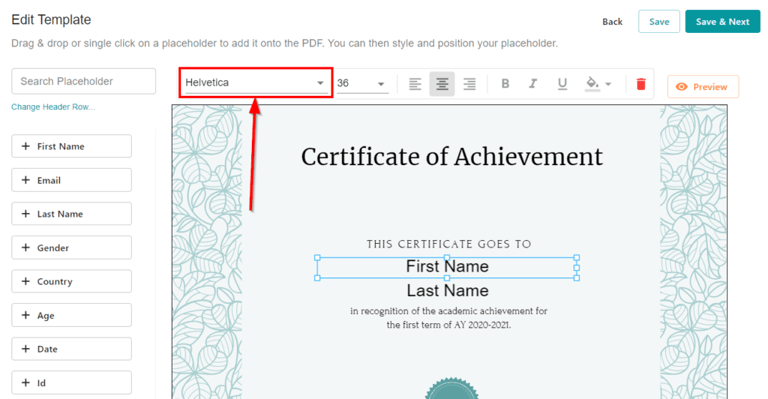
To upload your own font, click on the Font Picker in step 3 of our wizard. Make sure that you have selected a placeholder so that the Font Picker becomes enabled.
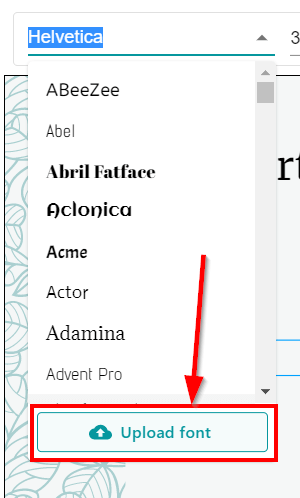
In the dropdown that opens, click the “Upload font” button.
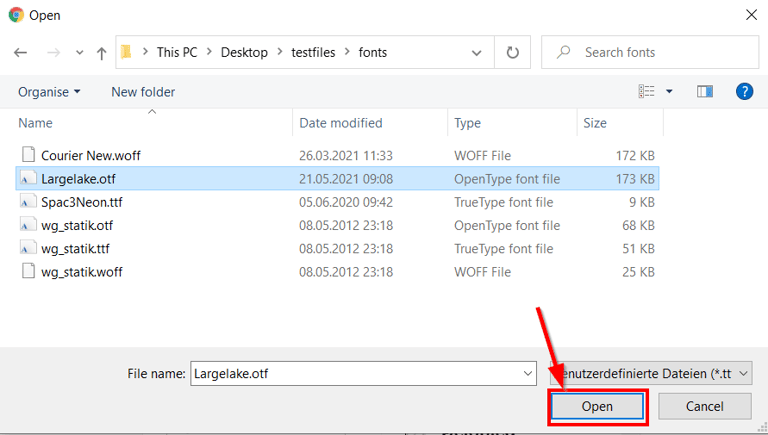
Select the font file in the file picker of your operating system. We currently support a variety of different font file formats: TrueType (.ttf), OpenType (.otf) and Woff (.woff).
After you have selected the file, it will be uploaded. You can see the current progress on the progress bar.
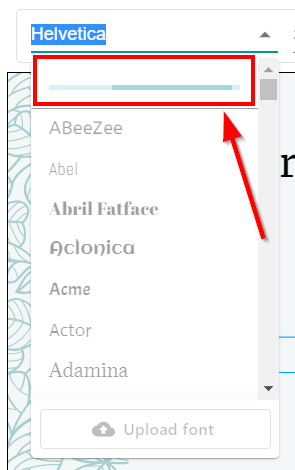
Once the upload is complete, you can choose the new font. Your custom fonts are always displayed at the top in the font picker.
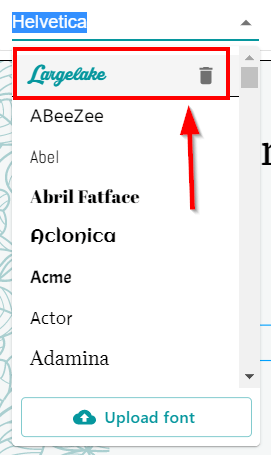
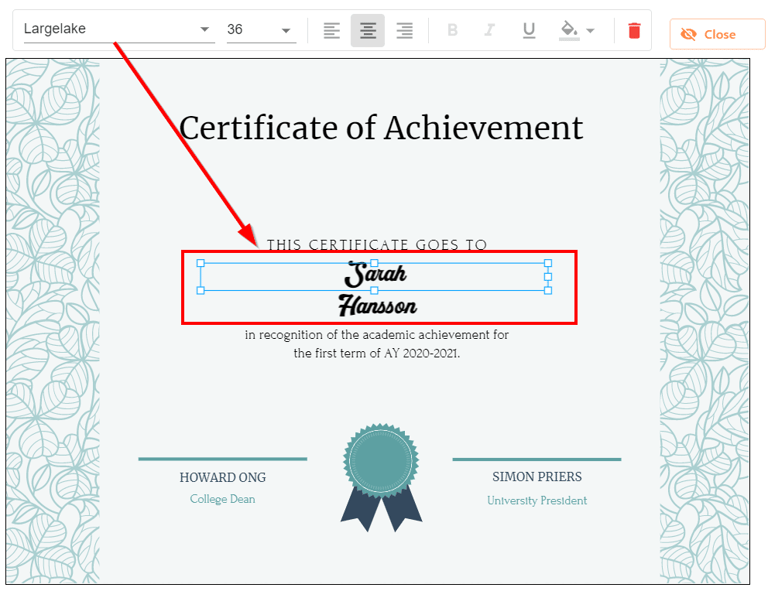
As soon as you have selected the font, it will be applied for the selected placeholder and displayed accordingly in the Editor.
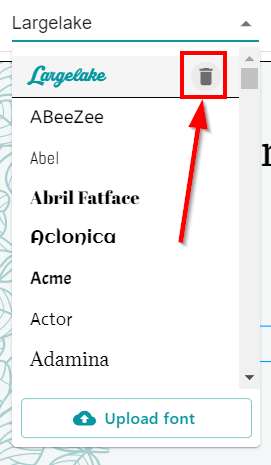
To delete an uploaded font, simply click on the small trash can icon to the right of the font name.
We look forward to your feedback on the new feature!