


Add Barcodes to Your Documents — From Product Labels to Event Tickets

Whether you’re printing inventory labels, shipping documents, or event tickets, barcodes are one of those things that look simple but are surprisingly tedious to add in bulk. You’d normally need a separate tool, generate each barcode individually, and paste them in one by one.
MailMergic now generates barcodes automatically from your spreadsheet data — just like it does with text, images, and QR codes.
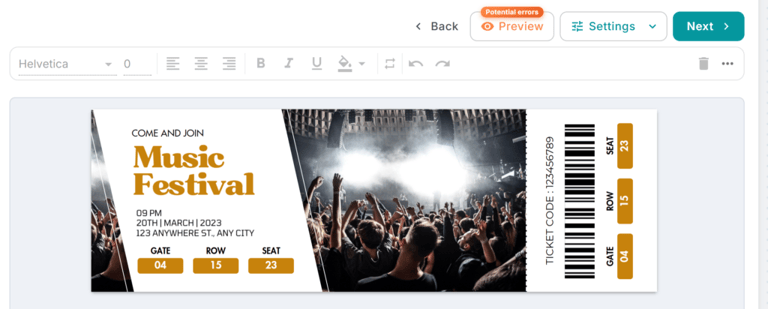
How it works
In the editor, set any column’s type to Barcode. Choose a barcode format — Code 128 (the most common, works with letters and numbers), Code 39, EAN-13, UPC, or ITF-14 — and optionally show the text value below the barcode for easy reading.
That’s it. When you run the merge, MailMergic reads each row’s value and generates a crisp barcode directly on the PDF. No extra software, no manual work.
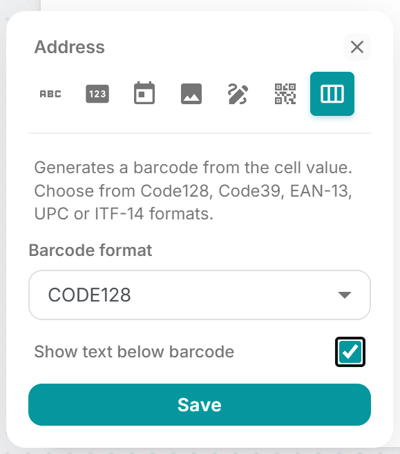
Five formats, one workflow
Different industries use different barcode standards, so MailMergic supports the most widely used ones:
- Code 128 — The all-rounder. Works with letters, numbers, and special characters. Great for shipping labels, asset tags, and internal tracking.
- Code 39 — Common in manufacturing and defense. Letters and numbers only.
- EAN-13 — The standard retail barcode used in Europe and internationally. 13 digits.
- UPC — Universal Product Code, standard in North America. 12 digits.
- ITF-14 — Used for packaging and cartons. 14 digits.
Real-world use cases
Think product labels with SKU barcodes, conference badges with scannable attendee IDs, library books with catalog numbers, or warehouse pick lists. Anywhere you need a scannable code next to personalized information, this feature saves you time.
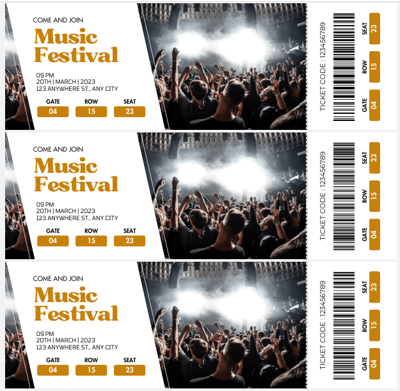
Give it a try — open your template, set a column to Barcode, and watch MailMergic do the rest. Head to the editor to get started.