Do you want to remove a password from a protected PDF file so you can open the document without entering it every time?
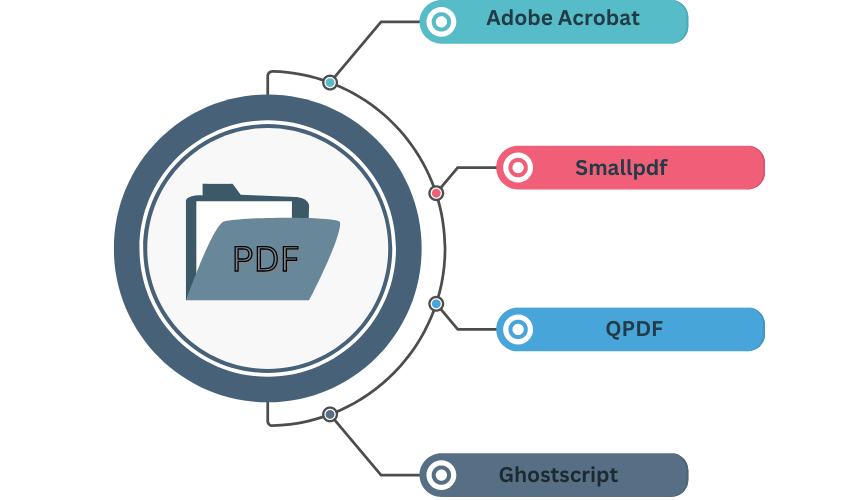
In this guide, we show you four common methods using Adobe Acrobat, Smallpdf, QPDF, and Ghostscript, including advantages, disadvantages, and step-by-step instructions for each option.

Quick Overview: How to Remove a Password from a PDF File
If you know what a PDF file or document is, then you are probably also looking for a quick solution if you want to remove a password from a PDF file. This generic process is usually enough (and applies similarly to many tools):
1. Open the PDF
Open your password-protected PDF file with one of the following tools (e.g., Adobe Acrobat, Smallpdf, QPDF, or Ghostscript).
2. Enter the password
Enter the current password to gain full access to the document. Without this password, legitimate tools generally cannot remove the protection legally.
3. Save the PDF without a password
Save or export the file as a new PDF without password protection. In desktop programs, this is usually done via security/protection settings. In online tools, an unlocked version is typically offered for download immediately after decryption.
Comparison: 4 ways to remove a password from PDFs
The following four tools differ mainly in terms of user-friendliness, cost, security and the technical know-how you need.
| Tool | User-friendliness | Cost | Security | Output quality | Platform/access | Additional features |
|---|---|---|---|---|---|---|
| Adobe Acrobat | Simple | Expensive | High | High | Windows, Mac (Desktop) | PDF editing, comments, OCR, export |
| Smallpdf | Very easy | Mostly free / Freemium | High | High | Browser (platform-independent) | Many other online PDF tools |
| QPDF | Medium (command line) | Free | Medium | High | Windows, Mac, Linux (CLI) | Encryption, decryption, structure tools |
| Ghostscript | Medium (command line) | Free | Medium | High | Windows, Mac, Linux (CLI) | Conversion PostScript ↔ PDF, PDF manipulation |
Brief summary:
- Simple & convenient: Adobe Acrobat or an online tool such as Smallpdf.
- Technical & flexible: QPDF and Ghostscript, ideal for developers, administrators and scripting.
- The best choice depends on whether you prefer to use a graphical interface or the command line, and whether you already have an Adobe license.
#1 Removing a Password from PDFs with Adobe Acrobat
Suitable for:
- Users who already have an Adobe Acrobat license
- Anyone who wants a convenient interface and additional PDF features
Step-by-Step: Remove a PDF Password with Adobe Acrobat
- Open the PDF in Adobe Acrobat
- Start Adobe Acrobat (not just the free Reader).
- Go to File → Open and load the password-protected PDF file.
- Enter the password
- When opening the file, you will be prompted to enter the password.
- Enter the correct password to gain full access.
- Open security settings
- Open the Security or Protect settings (e.g., via Tools → Protect or Document Security).
- Remove password protection
- Disable the open password and, if applicable, other restrictions (printing, copying, editing).
- Confirm that you want to remove the protection.
- Save the PDF without a password
- Save the file via File → Save or Save As.
- The newly saved version can now be opened without a password.
Pros:
- Very convenient and intuitive
- Many additional features (commenting, editing, OCR, etc.)
Cons:
- License costs are relatively high
- Installation required on your computer

#2 Remove a PDF Password with Smallpdf
Suitable for:
- Users looking for a quick online solution
- Occasional users without desktop software
Step-by-Step: Remove a PDF Password with Smallpdf
- Open the Smallpdf website
- Go to the Smallpdf website in your browser and choose the “Unlock PDF” tool.
- Upload the password-protected PDF
- Drag and drop the file onto the page or select it via the file dialog.
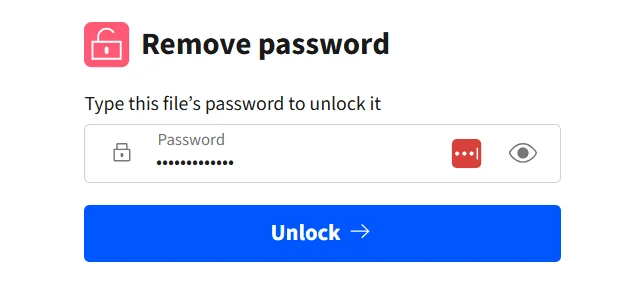
- Enter the password
- Enter the current password so the tool can remove the protection.
- Enter the current password so the tool can remove the protection.
- Start unlocking the PDF
- Click on “Unlock PDF.”
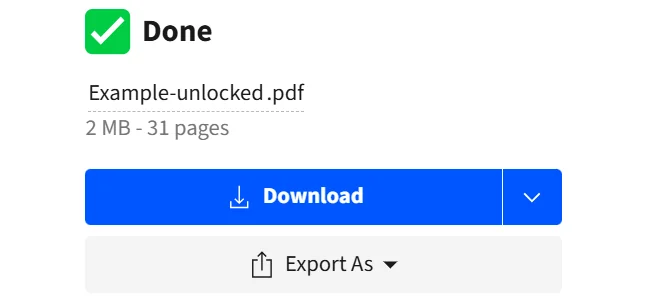
- Smallpdf removes the password protection and prepares an unlocked version of the file.
- Download the PDF without a password
- Download the new, unprotected PDF file and save it to your device.
Pros:
- Very easy to use, no technical knowledge required
- Works platform-independently in any browser
Cons:
- Requires an internet connection
- Sensitive documents should only be uploaded if you trust the provider and accept their privacy policies
#3 Remove a PDF Password with QPDF
Suitable for:
- Technically experienced users
- IT professionals, admins, and developers who want to process multiple files automatically
Step-by-Step: Remove a Password with QPDF (Command Line)
- Install QPDF
- Download QPDF from the official website and install it for your OS (Windows, Mac, Linux).
- Open the command line
- Windows: Press Windows key + R → type cmd → Enter
- Mac / Linux: Open Terminal
- Navigate to the folder containing the PDF
Use thecdcommand to enter the folder with your password-protected PDF, e.g.:
cd Documents- Run the QPDF command
Run the following command:
qpdf --password=YOUR_PASSWORD --decrypt input.pdf output.pdfReplace:
YOUR_PASSWORDwith the actual passwordinput.pdfwith the name of the original fileoutput.pdfwith the desired name of the unlocked file- Check the result
- Open output.pdf in the PDF viewer of your choice.
- If it no longer asks for a password, the protection has been removed successfully.
Pros:
- Free and very powerful
- Ideal for batch processing and automation
Cons:
- Requires command-line knowledge
- No graphical interface
#4 Remove a PDF Password with Ghostscript
Suitable for:
- Advanced users and admins
- Scenarios where PDF manipulation and PostScript conversion need to be combined
Step-by-Step: Remove a Password with Ghostscript
- Install Ghostscript
- Install the appropriate Ghostscript version for your operating system (Windows, Mac, Linux).
- Open the command prompt / terminal
- Open the command line (same method as with QPDF).
- Navigate to the Ghostscript directory (optional)
- Use cd to navigate to the Ghostscript installation directory or ensure that Ghostscript is available in your system path.
- Run the Ghostscript command
For example, on Windows:
gswin64c -q -dNOPAUSE -dBATCH -sDEVICE=pdfwrite \
-sOutputFile=output.pdf -c .setpdfwrite -f input.pdf
Replace:
gswin64cwithgswin32cif you are on 32-bitinput.pdfwith your protected fileoutput.pdfwith the name of the unlocked file
For protected PDFs, you will typically be prompted to enter the password.
- Check the unlocked PDF
- Open output.pdf in a PDF viewer and ensure no password is required.
Pros:
- Very flexible and powerful
- Supports many scripting and automation scenarios
Cons:
- Much more technical than graphical alternatives
- Better suited for advanced users
Security & Legal: When Are You Allowed to Remove a PDF Password?
When dealing with “removing a PDF password,” always keep the following in mind:
You can legally remove a password only if:
- you are the owner of the document, or
- you have explicit permission from the rights holder.
For most tools:
- Without the original password, protection cannot be removed reliably or legally.
- Tools that promise otherwise often operate in a legal or security gray area.
Notably, MailMergic supports the processing of password-protected PDF files.
For online services, always check whether:
- the transfer is encrypted,
- files are deleted shortly after processing,
- and the provider is trustworthy.
Simplify and Automate PDF Workflows
If you regularly work with many PDF documents (invoices, contracts, mail merges), it can be useful to automate your PDF workflows.
With MailMergic, you can:
- generate PDF files from templates and data sources (e.g., spreadsheets)
- send documents efficiently via email
- significantly speed up recurring PDF-related processes
💡 Pro-Tip: Often, the reason for unlocking a file is to use it as part of a larger business process. If you need to access data just to perform a Word Mail Merge or generate mass documents, MailMergic handles protected sources seamlessly, saving you the manual step of decryption.
Frequently Asked Questions (FAQ) on “Removing PDF Passwords”
Can I remove a PDF password if I forgot the password?
Generally, no. Legitimate tools require you to know the current password before removing protection.
Methods that try to “crack” passwords are often legally questionable, unsafe, or simply unreliable.
Is it legal to remove a password from a PDF file?
Yes, under certain conditions:
- If you own the file or have explicit permission from the rights holder.
- Bypassing protection on third-party or copyrighted documents without permission may violate laws and terms of use.
- If unsure, seek legal advice.
Can I remove a PDF password for free?
Yes. Several free options exist, including:
- online tools that offer a limited number of free unlocks,
- open-source tools like QPDF or Ghostscript.
Are online tools for removing PDF passwords safe?
It depends on the provider. Look for:
- HTTPS encryption,
- clear information about file retention and automatic deletion,
- a reputable, well-known provider.
For highly confidential documents, a local desktop tool like Adobe Acrobat or an open-source solution on your own system is generally safer.
Does removing the password also remove other restrictions (printing, copying, editing)?
In many tools, you can remove both the open password (required to open the file) and permission passwords/restrictions (printing, copying, editing), as long as you know the necessary passwords.
Check the security/protection settings to disable all restrictions you want to remove.