When you’re building a template with multiple elements — a background rectangle, a logo, some text, maybe a decorative shape — the order they stack on top of each other matters. A logo hidden behind a colored box doesn’t do you much good.
The MailMergic editor now lets you reorder elements with a simple right-click, so you always have full control over what appears in front and what stays in the background.
How it works
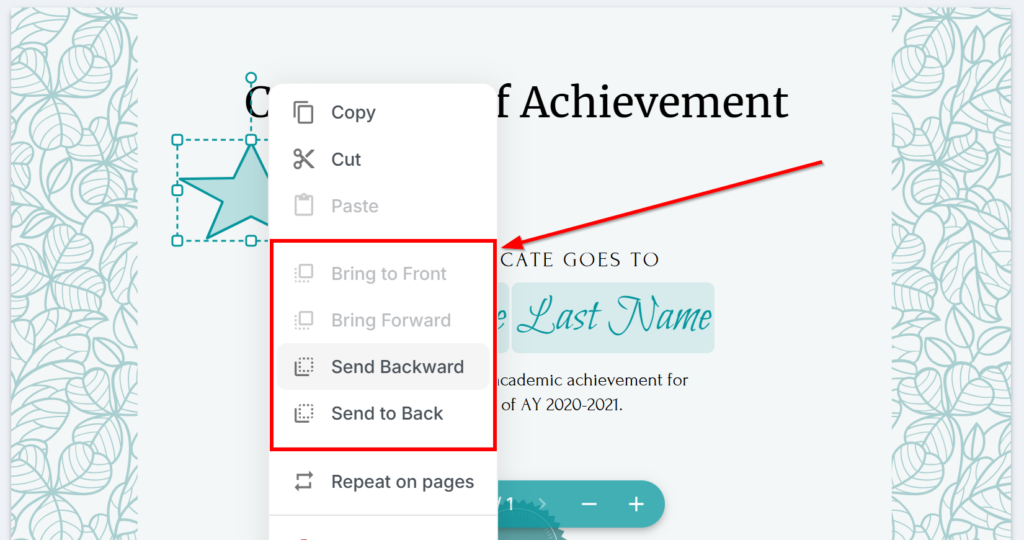
Right-click on any element on your canvas — a placeholder, shape, image, barcode, or anything else — and you’ll see four layering options:
- Bring to Front — moves the element all the way to the top, in front of everything else
- Bring Forward — nudges it one layer up
- Send Backward — nudges it one layer down
- Send to Back — moves it all the way behind everything else
That’s it. No guessing, no dragging things on and off the canvas. Just right-click and pick where you want it.
Where it makes a difference
Layering becomes essential as soon as your templates get a little more creative:
- Background shapes — place a colored rectangle behind a group of text placeholders to create a visual section
- Overlapping elements — stack a badge or seal on top of a certificate border
- White out + content — put a white-out box behind new content to cover the original PDF text, then layer your own elements on top
- Decorative layouts — build layered designs with shapes, images, and text that overlap intentionally
Undo-friendly
Made a mistake? Every layering change supports undo and redo, so you can experiment freely without worrying about messing up your layout.
The options are also smart about context — if an element is already at the very front, the “Bring to Front” option is greyed out, so you always know where things stand.
Open the editor, right-click any element, and start layering. Your templates are about to look a lot more polished.