
You’ve uploaded a PDF template, but there’s a phone number that’s changed, an old logo in the corner, or a paragraph that doesn’t apply anymore. You don’t have the original source file to edit it properly. What now?
Meet the White Out tool — a simple way to cover anything on your PDF that you don’t want in the final output.
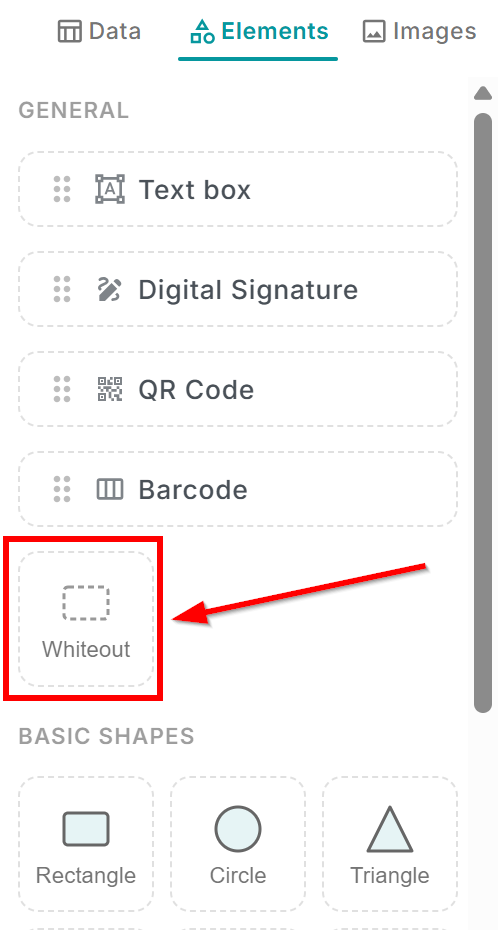
How it works
In the editor sidebar, you’ll find a section called “Cover & erase” with a Whiteout tile. Click it or drag it onto your canvas, and a white rectangle appears on your template. Resize it and position it over the content you want to hide — an old address, a disclaimer you no longer need, a watermark from another tool.
The white-out element is a solid, fully opaque white box. In the final PDF, it completely covers whatever is underneath. It’s like correction tape for your digital documents.
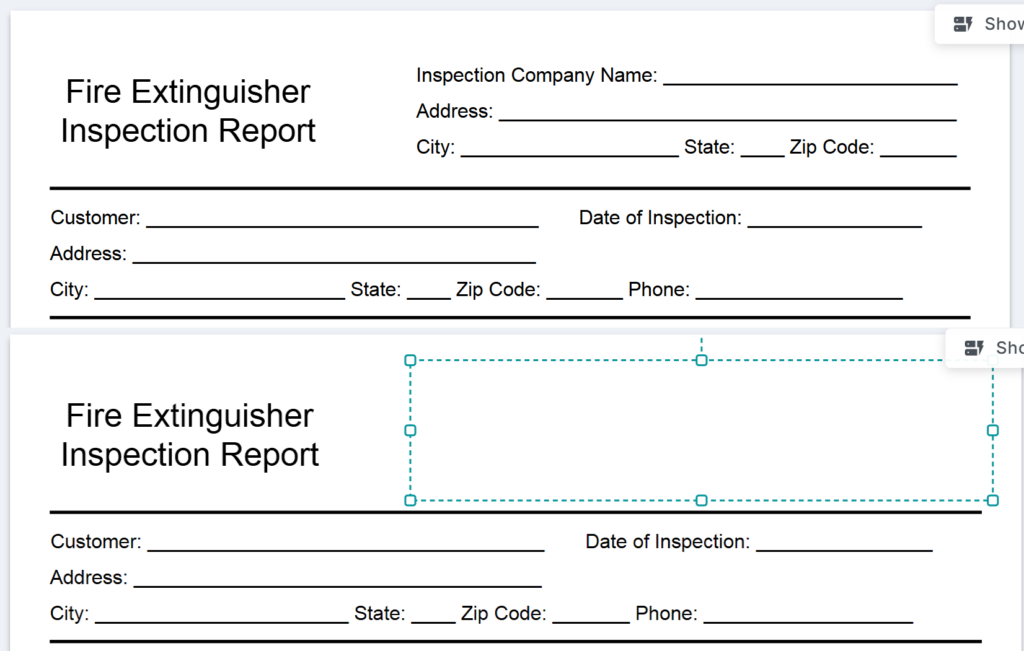
When to use it
The white-out tool is perfect for situations where you’re working with a PDF you can’t easily edit at the source:
- Outdated information — cover an old phone number, address, or email and place a new text placeholder on top
- Irrelevant sections — blank out a paragraph or disclaimer that doesn’t apply to this particular merge
- Sensitive data — hide information that shouldn’t appear in the output, like internal reference numbers or draft notes
- Template cleanup — remove visual elements from the original PDF that don’t fit your design
Layer it with new content
Here’s a handy trick: add a white-out element to cover the old content, then place a new text placeholder or image right on top of it. The white-out hides what was there before, and your new element takes its place. It’s a quick way to “edit” a PDF without needing the original file.
You can also use the right-click layering options to make sure the white-out sits behind your new content but in front of the original PDF.
Non-destructive and flexible
The white-out doesn’t permanently alter your PDF template — it’s just another element on the canvas. You can move it, resize it, or delete it at any time. If you change your mind, simply remove it and the original content is visible again.
Give it a try — open any template in the editor, find the “Cover & erase” section in the sidebar, and drag a white-out onto your canvas. It’s the easiest way to make any PDF template your own.


