
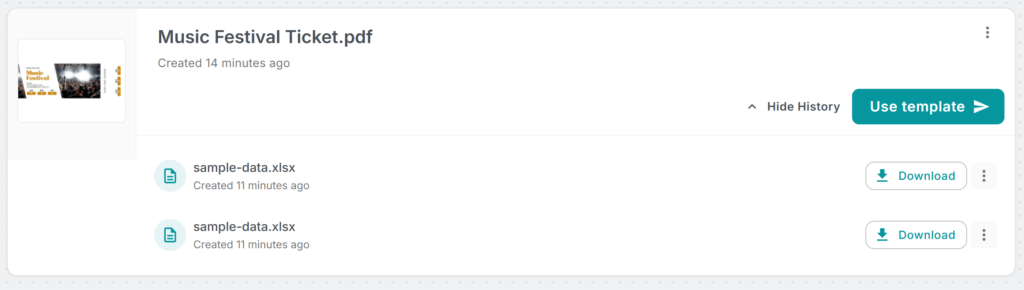
When you merge documents in MailMergic, your merge history — the record of what was generated and when — is stored so you can go back and review past runs. That’s convenient, but if you work with sensitive information like student records, medical forms, or financial data, you might not want that history sitting around longer than necessary.
Now you can decide exactly how long MailMergic keeps your merge history.
How it works
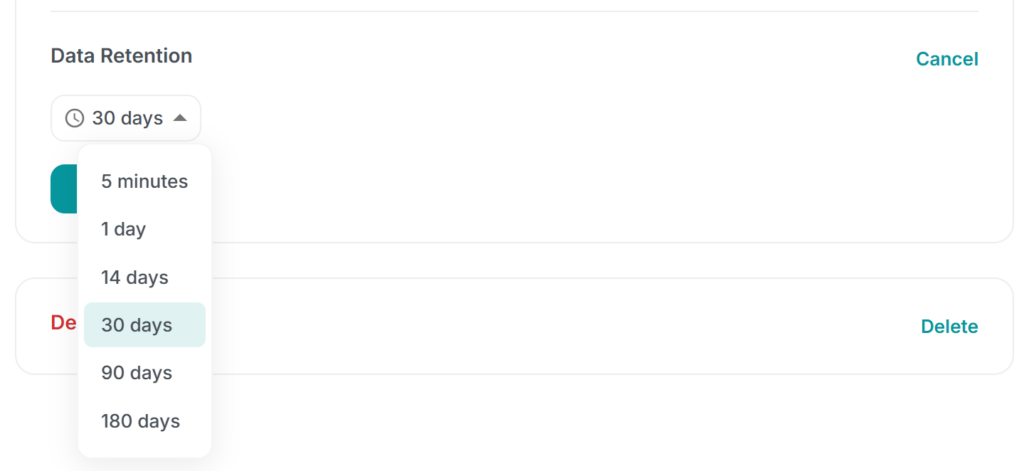
In your Account Settings, you’ll find a new Data Retention option. Choose how long your merge history should be kept:
- 5 minutes — for maximum privacy; data is cleaned up almost immediately after your merge
- 1 day — keep it just long enough to review and download
- 14 days — a reasonable window for most workflows
- 30 days — the default, and what most users will find comfortable
- 90 days — for when you need a longer audit trail
- 180 days — the maximum retention period
Once the retention period expires, MailMergic automatically removes the merge history. No manual cleanup needed — it just happens in the background.
Who needs this?
If you handle data that falls under privacy regulations — think GDPR, FERPA, HIPAA, or internal compliance policies — this feature gives you a straightforward way to limit how long personal information stays in MailMergic. Instead of relying on remembering to delete old records manually, you set the policy once and it’s enforced automatically.
It’s also useful for anyone who simply prefers a clean workspace. If you don’t need to look back at merges from three months ago, there’s no reason to keep them around.
Team accounts
If you manage a team, your retention setting applies to all team members automatically. This means you can set a company-wide policy and know it’s being followed — no need to configure each account individually.
The default works for most people
If you never touch this setting, your merge history is kept for 30 days — a sensible balance between convenience and tidiness. But if your work requires tighter control, the option is there whenever you need it.
Check your settings — head to Account Settings and look for Data Retention. One dropdown, and you’re in control.