
Your MailMergic account holds templates, spreadsheets, and documents that matter to your work. A strong password is a good start, but it’s not always enough — especially if you reuse passwords or share an account across a team.
That’s why MailMergic now supports two-factor authentication (2FA). It adds a second step to your login so that even if someone gets your password, they still can’t access your account.

How to set it up
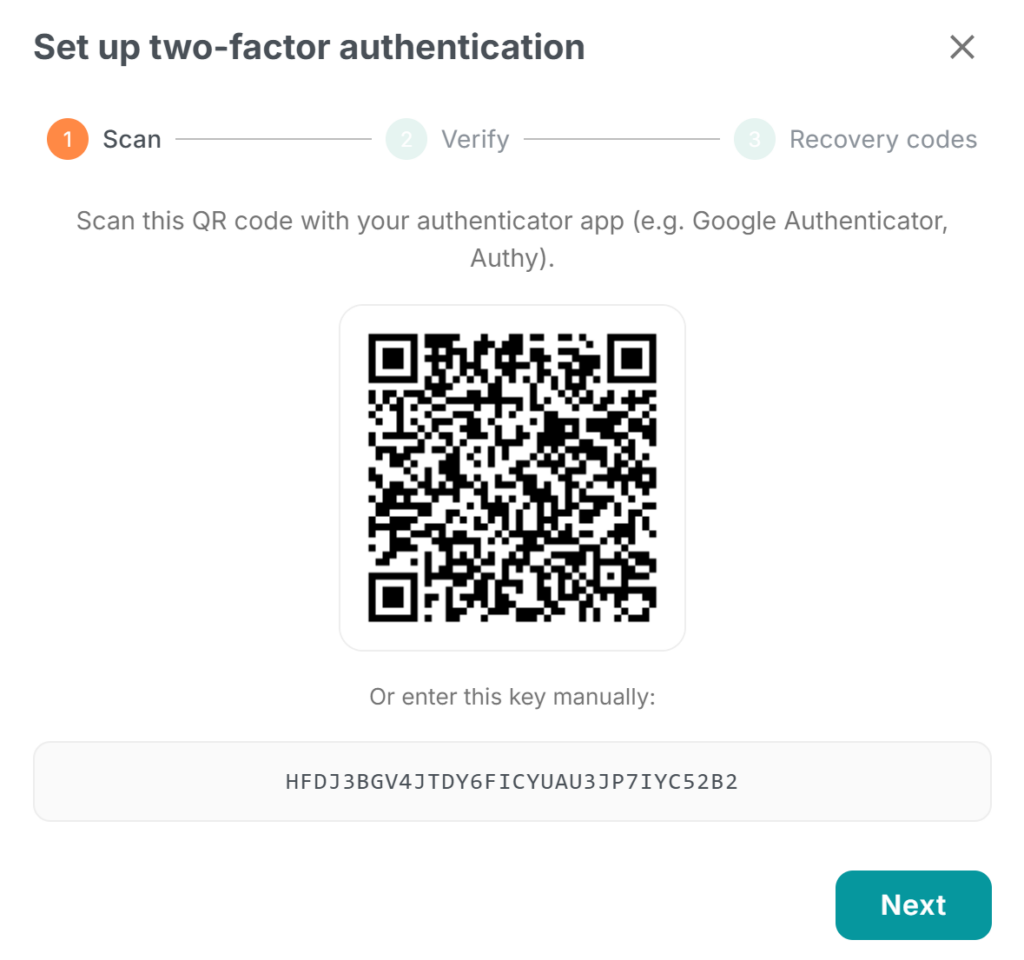
Head to Account Settings and find the Two-factor authentication section. Click Enable, and you’ll walk through three quick steps:
- Scan a QR code with an authenticator app on your phone — Google Authenticator, Authy, and Microsoft Authenticator all work. (If you prefer, you can also type in a setup key manually.)
- Enter the 6-digit code your app shows to confirm everything is connected.
- Save your recovery codes. You’ll get 10 one-time backup codes in case you ever lose access to your phone. Copy them, download them, or write them down and store them somewhere safe.
From that point on, every time you log in you’ll enter your password and then a 6-digit code from your authenticator app. It takes just a few seconds.
What if I lose my phone?
That’s exactly what recovery codes are for. Each code works once, giving you a way back into your account while you set up a new device. You can also regenerate a fresh set of recovery codes any time from your Account Settings.
What if I want to turn it off?
You can disable 2FA from the same settings page. You’ll need to confirm with a code from your authenticator app and your password — just to make sure it’s really you.
Why it matters
If you work with sensitive documents — student records, contracts, HR files, financial reports — 2FA is one of the simplest ways to protect that data. It’s free, takes two minutes to set up, and gives you peace of mind.
Enable 2FA now in your Account Settings. It’s quick, and your future self will thank you.