
You’ve merged your documents, composed the perfect email, and everything is ready to go. But it’s Friday afternoon, and you’d rather have those emails land in inboxes on Monday morning when people are actually checking them.
Until now, you’d have to come back on Monday and hit «Send» yourself. With scheduled mailings, you pick the date and time, and MailMergic takes care of the rest — even if you’re offline.
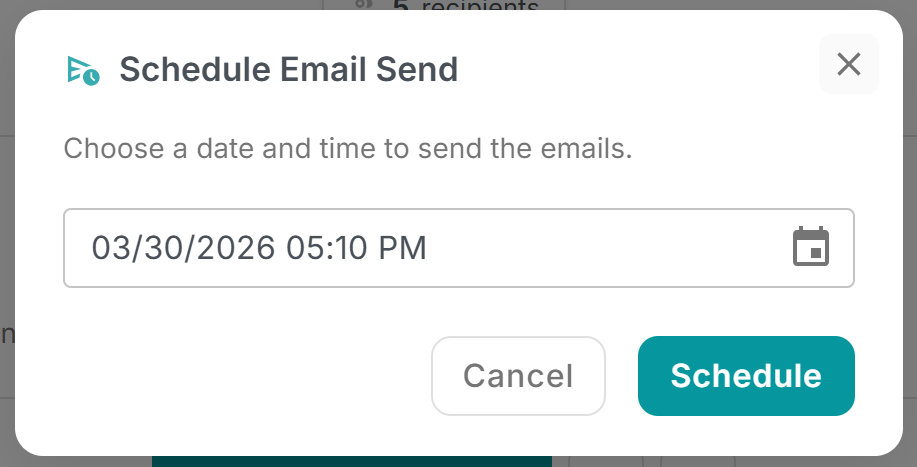
How it works
After you’ve set up your email — subject line, message, attachments — look for the «Schedule for later» button next to the send option. Click it, and a simple date-and-time picker appears. Choose when you want the emails to go out (in 5-minute intervals), confirm, and you’re done.
MailMergic will send your emails automatically at the scheduled time. You don’t need to keep the tab open or be logged in — it all happens in the background.
A «Scheduled» status chip appears on your mailing, showing exactly when the emails will be sent. Changed your mind? You can cancel the schedule at any time and either reschedule for a different time or send immediately instead.
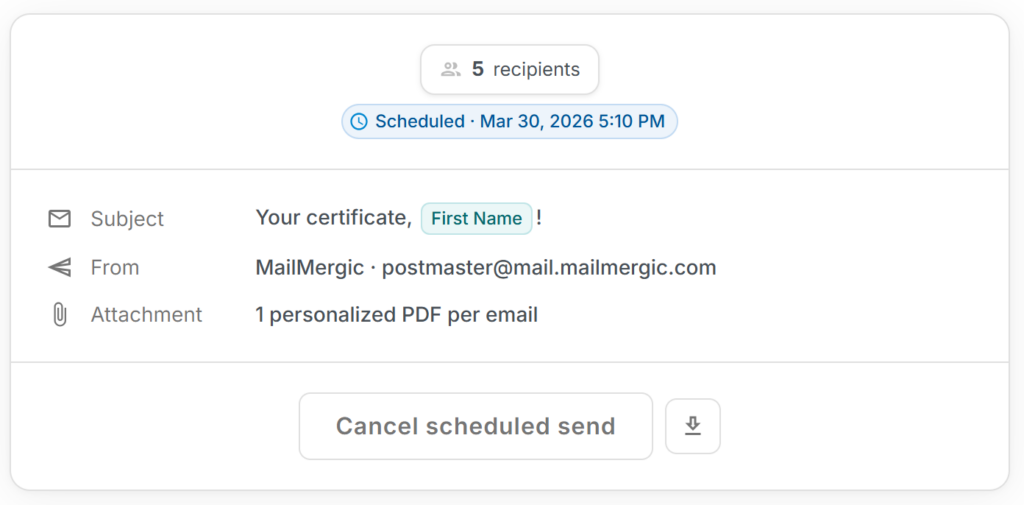
When this comes in handy
- Time zone coordination — Schedule emails to arrive during business hours in your recipients’ time zone, even if that’s the middle of the night for you.
- Batch planning — Prepare several mailings throughout the week and schedule them all to go out at the right moments.
- Event reminders — Set up a reminder email days in advance and let it send itself on the morning of the event.
- End-of-month workflows — Prepare invoices or reports early and schedule them for the last day of the month.
Good to know
Scheduling is available on all paid plans. You’ll need to have your email settings (sender address, subject, message) saved before you can schedule — but if you’ve already composed your email, you’re all set.
Try it now — next time you’re ready to send, click «Schedule for later» and pick your moment. Your emails will go out on time, every time.